
Settings - Manage PDF Contents
Define the header and footer here for different PDF documents created by DeDeSales.
You can create templates specific to clients and cultures. The culture is prioritised over the client.
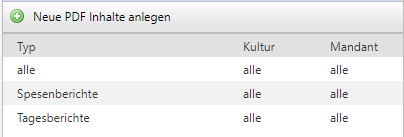
Use the copy function to create additional templates after selecting a template, or choose the plus to create a new template.
Warning: Please make sure to exit the Assistant using the "Save / Complete process" button, otherwise all amendments will be lost.
The following settings can be made via the different tabs:

Not all tabs are always available; this depends on which PDF type you have selected under "General".
General
Here you specify which PDF type it should be, as well as the corresponding culture and the desired client.
Depending on the type selected, you can assign an individual report.
The sender's address is only used for standard e-mails, e.g. without a report.
Header
The graphic (logo) should not exceed 870 pixels in width, as this utilises the full DIN A4 width. The height is generally not restricted, but you must specify the height in pixels in the upper area, otherwise the logo will not be displayed.
Since the PDF files are sent by e-mail, they should generally not be larger than 5 MB. Therefore, the resolution of the graphic should not exceed 150 dpi. PNG files are best suited, but JPGs are also acceptable.
To add a new graphic, first press the Image Manager button:

In the Image Manager, first use the Upload button to place an image on the server. 
You can also create additional subfolders here to organise a structure. After uploading the image from your local PC, you can insert it into the header using the "Insert" button.
Footer
Here you can enter a final text that appears before the footer. To insert a graphic into the footer, scroll down a little. For both areas together, specify the height in pixels, otherwise the imprint in the PDF will not be generated.
If necessary, you can assign different logos for each template.
Note: The Footer section appears at the end of each page, whereas the Final text only appears at the end of the document.
Text blocks
Depending on the selected type, you can use text blocks in addition to fixed text. These are enclosed in curly brackets.
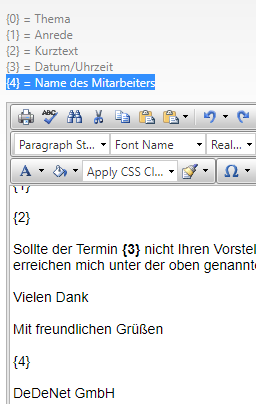
Example: {4} = "Name of the employee" will be output in the e-mail as "Max Mustermann".
Terms and conditions
Here you can enter the text of your general terms and conditions.
CSS
Here you can customise the appearance of the e-mail individually, see FAQ
Settings
Here you specify the format of the PDF when printing and the display of the items.
Test
If an e-mail address is stored for your backend user, you can generate a dummy PDF and have it sent to you by e-mail.
FAQ CSS
Q: How do I move the header in the PDF downwards (distance from the paper edge)?
A. Insert the block in the CSS tab and adjust the first value
Q: Why do footer lines (thanks, company name, address, e-mail) look so tight/cramped?
Therefore, insert the block in the CSS TAB