
Initial Setup of the DeDeSales Client
If the client has not yet been set up, you will be taken directly to the Settings of the Dashboard after starting.
The client setup can be done in 3 different ways.
Manual
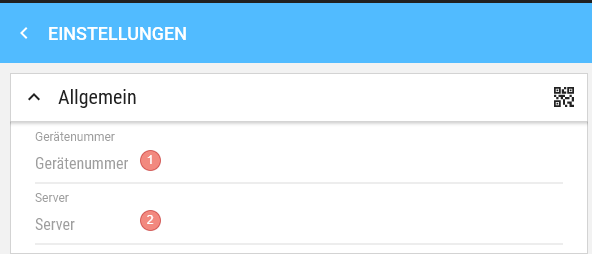
- Enter the Device number
- Enter the server URL.
- Hide Floating Numeric Input => by ticking the checkbox, the floating number field under iOS 26 will be hidden
Save your Settings.
Scan QR Code via Camera
If you have the device at hand and access to the backend, it is possible to scan the QR code directly from the screen.
To do this, click on the barcode symbol to switch to the Camera area:

Hold the device in front of the QR code on your monitor and scan the code:

As soon as the QR code is recognised, all required Data will be adopted and you only need to press Save.
Read QR Code
If you do not have access to the device to be set up or want to set up the client on the device where you also operate the backend, you can download the QR code from the backend and, for example, send it by email. Your Employee downloads the QR code to the local device, switches as before via the QR code icon to the Camera area. There, you can switch to the device's folder structure via the folder symbol and select the QR code from the email.

Here too, everything is adopted automatically and you only need to press Save.
Attention
It is important, (if there is to be a TEST system and a LIVE system on the device) to use the correct client. A test system client can differ from the live system client. The two systems must not be confused.
You do not need to activate the device during the initial installation; this is only necessary if, for example, you change the hardware of the second device (defect, operating system change, etc.).
After setup, perform a Data Transfer. This may take a little longer if necessary.