
additional client settings
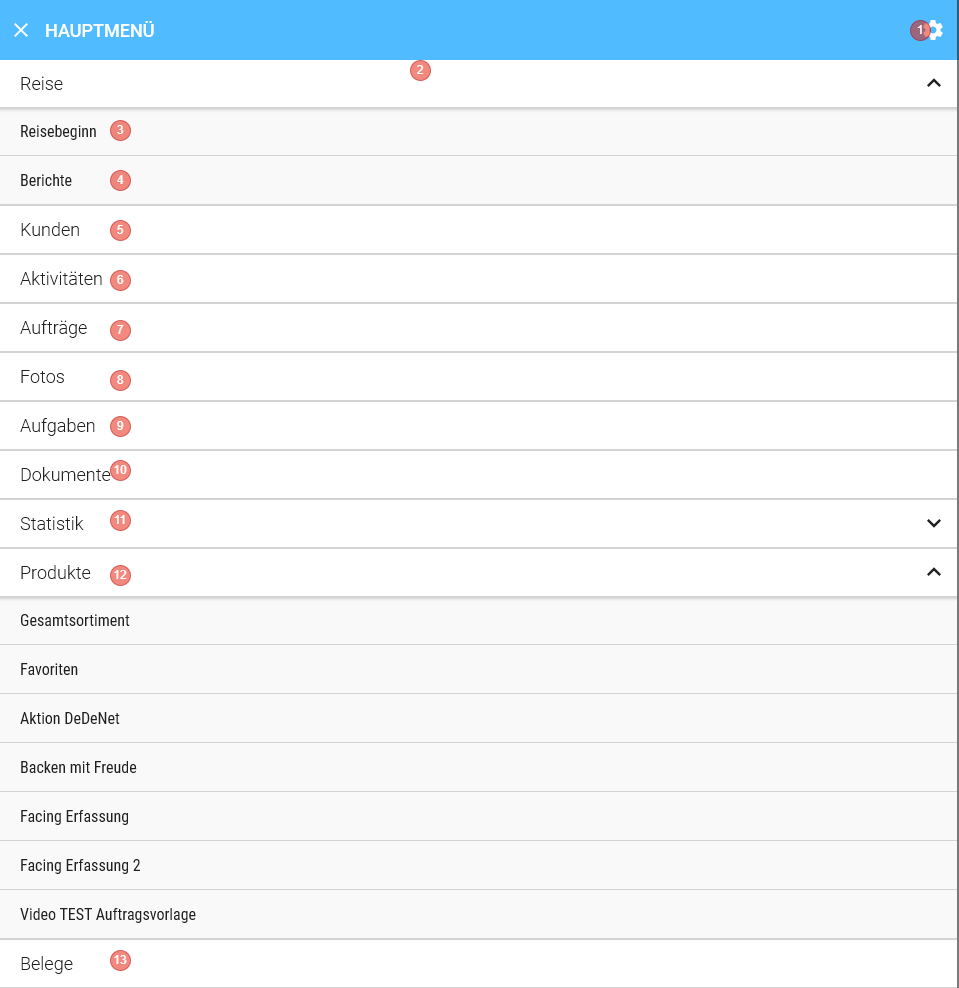
This area is divided into 2 parts. On the one hand, you have quick access to some functions and on the other hand, you can make settings here.
 |
|
 |
|
Settings
 |
|
For service questions, you will find here, for example, all information that should be provided if necessary.
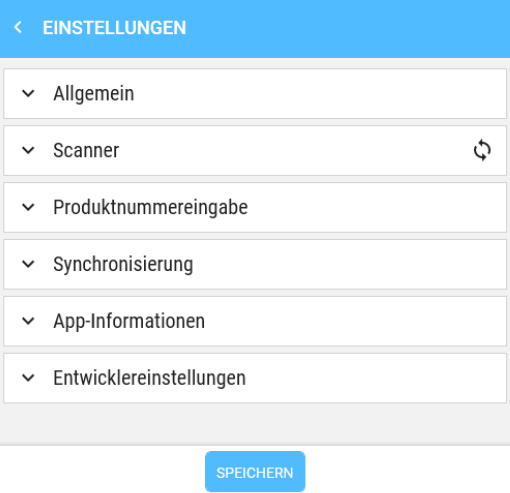
Panelbar General
- Title: General
- Button: QR scanner
- Only available during initial setup
- Hide floating numeric input => checking the box hides the floating number field under iOS 26
For more information see Initial setup
Panelbar Scanner
- Title: Scanner
- Icon: Update
- Check in the Hardware scanner section whether your scanner is compatible
- See here how scanners must be configured for a search.
- Click the "Update" icon to search for scanners.
- Once the scanner is connected to DeDeSales, you can use it.
Panelbar Product number entry
- Title: Product number entry
- DropDown: Numeric | Alphanumeric
Numeric
Displays a numeric keyboard on tablets / smartphones after pressing the magnifying glass in Order entry
- full text search is disabled
- only product number fields are searched
- search must be manually triggered with Enter
Alphanumeric:
Displays an alphanumeric keyboard on tablets / smartphones after pressing the magnifying glass in Order entry
- only product number fields are searched
- search must be confirmed with Enter
Switching
Another click in Order entry ends the numeric/alphanumeric search and activates
- full text search
- automatic search
Panelbar Synchronisation
- Title: Synchronisation
- In the Windows client, the client ID can be read for setting up synchronisation in the backend
SubPanelbar: Calendar management
- ToggleSwitch "Export contacts to the Contacts app"
- When activated, appointments from the last 7 days and all future appointments are initially synchronised.
- After the initial synchronisation, all future appointments and appointments from the past two years are kept synchronised. Appointments older than 2 years are removed from the calendar.
- ToggleSwitch "Import calendar app into DeDeSales"
- Displays the selection of local calendars.
- Toggled: The checkboxes of the local calendars are displayed.
- Untoggled: The checkboxes of the local calendars are unchecked and hidden.
- c. Calendar selection
- Listing of available local calendars which can be selected for synchronisation in DeDeSales.
- Checkbox: [] <Default calendar>
- Checkbox: [] <Calendar 1>
- Checkbox: [] <Calendar 2>
- Checkbox: [] <Calendar 3>
- Appointments imported into DeDeSales are displayed in the own calendar of the calendar management. Local appointments
SubPanelbar: Contacts
- ToggleSwitch "Export contacts to the Contacts app"
- Which properties are synchronised?
- Salutation
- Last name
- First name
- Street
- Postal code
- City
- State
- Country
- Email2 if it differs from Email.
- Phone
- Fax
- Mobile
- Position
- Department
- CompanyName aka (DebtorAddress.Name1 + " " + DebtorAddress.Name2 + " " + DebtorAddress.Name3)
- BusinessHomePage aka DebtorAddress.HomePage
- Date of birth
- When are amendments detected?
- When editing a Contact
- When deleting a Contact. This option is not available in the client.
- When creating a Contact
- When saving the setting if the setting "Export contacts to the Contacts app" has changed.
- After receiving the Contacts during Data Transfer
- What happens if the contact is no longer present in the Contacts app?
- The contact is newly created.
- What are platform-specific differences?
- iOS:
- On iOS, we have a list in the calendar named "DeDeSales". This list contains all contacts exported from DeDeSales. A contact coming from DeDeSales also has a relation named "DeDeSales" with a value.
- Android:
- On Android, each app (accountType) has its own contact list. If the app is uninstalled, all contacts are also removed.
- Windows:
- On Windows, each app has its own contact list. If the app is uninstalled, all contacts are also removed. Contacts are read in batches of 20 contacts.
- iOS:
Synchronisation runs in the background and is only visible by the symbol. It always syncs when a change has been made in DeDeSales and at regular intervals to reconcile the data.
If the symbol is visible, you can display a status by clicking on the symbol.
Changes made in the Contacts app are NOT adopted in DeDeSales.
Panelbar App information
Here you will find more detailed information about the app, which can be helpful in a support case.
Panelbar Developer settings
This panel is only interesting for DeDeNet employees.