
Set up Connector
Setting up the connection
1. Register app
Log in at https://entra.microsoft.com.
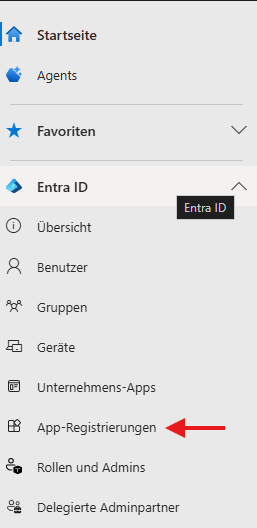
Now click on “App registrations”.
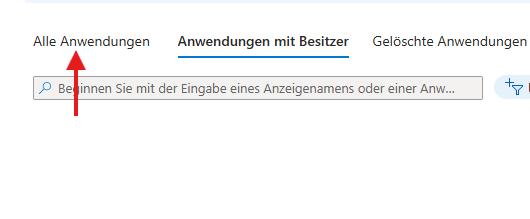
Then click on “All applications”.
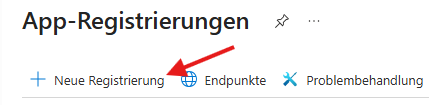
Now create a new registration by clicking on “New registration” at the top.
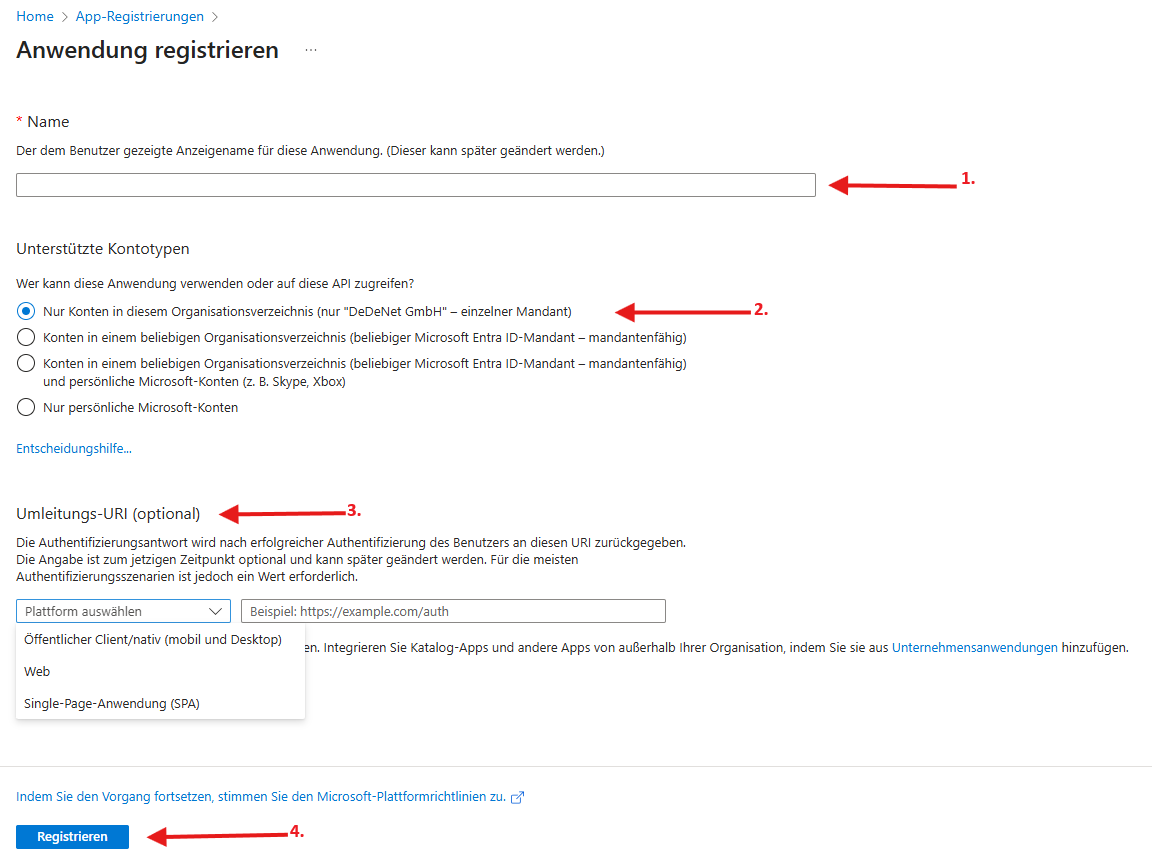
- Under “Name”: enter “DeDeSales Exchange Connector”.
- Select the supported account types according to the environment. If there is only one instance: select “Accounts in this organisational directory only”.
- Select redirect URL and enter “https://login.microsoftonline.com/common/oauth2/nativeclient”.
- Click on “Register”.
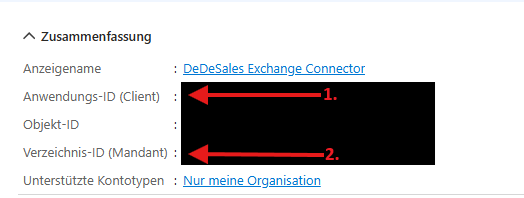
Open the newly registered app by going again to “Azure Active Directory” > “App registrations” and then clicking on “DeDeSales Exchange Connector”.

- Provide us with the Application ID.
- Provide us with the Directory ID.
Enter “DeDeSales Exchange Connector” under Description.
Select a Period under Valid until.
Attention! Before expiry, a new key must be created and communicated to us, otherwise communication will no longer be possible.
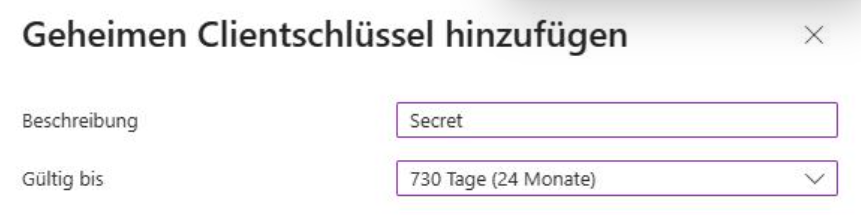
Now click on Add.
Now copy the “Value” by clicking on the copy icon behind the characters.
Attention! This is only possible now. If you leave the page, the secret key must be created again.
Provide us with the secret key.
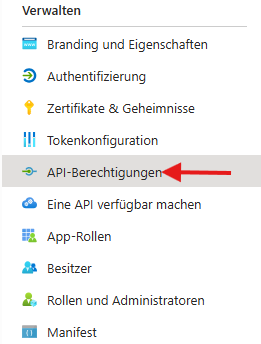
Click on “API permissions”.
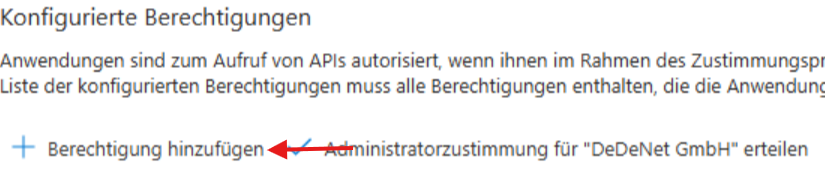
Click on “Add a permission”.
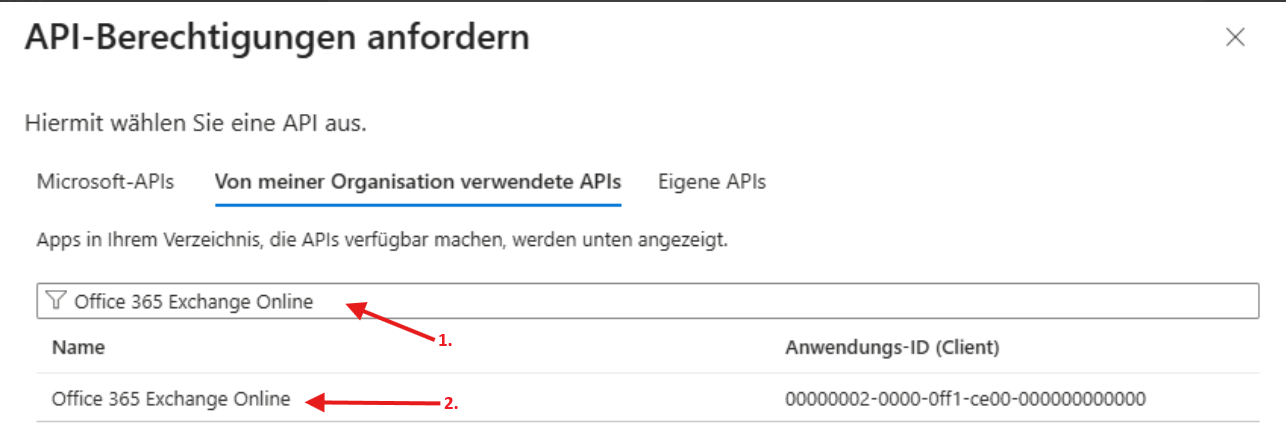
Select “APIs my organisation uses”.
Then:
- Search for and click on “Office 365 Exchange Online”.
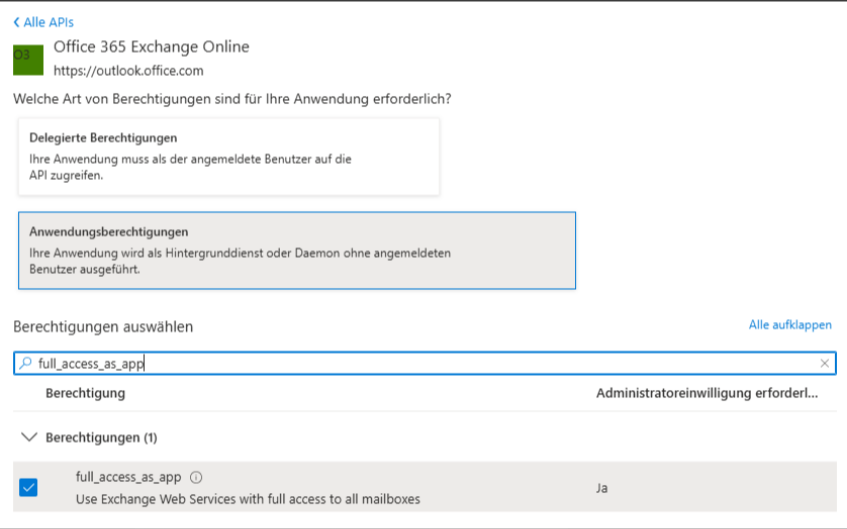
- Now select “Application permissions”.
Under “Other permissions”, select “full_access_as_app”.
Click on “Add permissions”.
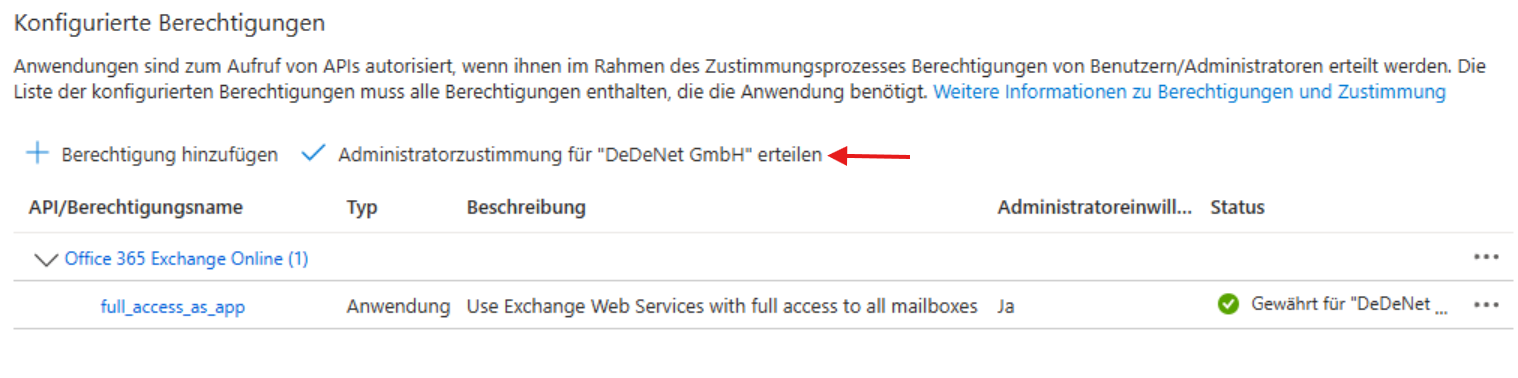
Click on “Grant admin consent for …”.
Ensure that you send us the following information by different means, multiple e-mails, secure upload, etc.:
- Application ID
- Directory ID
- Value from Secret client key in “Certificates & secrets”
With this data, full access to the Exchange data has now been granted. The next section explains how to restrict access to specific user accounts.
2. Restrict access to mailboxes
Create a new mail-enabled security group or use an existing one.
Now create a policy for application access.
To do this, execute the following command in Powershell, replacing the arguments for AppId (=> corresponds to the Application ID from the app registration) and PolicyScopeGroupId:
“New-ApplicationAccessPolicy -AppId e7e4dbfc-046f-4074-9b3b-2ae8f144f59b -PolicyScopeGroupId EvenUsers@contoso.com -AccessRight RestrictAccess -Description "Restricted access for the DeDeSales Connector."
Attention! If there are changes to user accesses, e.g. due to hiring a new Employee, then the mail-enabled security group must be extended accordingly.
Configuration in the DeDeSales backend
- Store access data
Store the access data in the DeDeSales backend under Basic configuration > Settings > Exchange access.
- Configure Employee user accounts
Under Basic configuration > Employee, enter the E-mail address in the field “Exchange e-mail account” for each Employee. Only for Employees where this field is filled will e-mails be deducted.
Please note that these Employees must also be included in the mail-enabled security group if access has been restricted.