
Editing Complaints in the Backend
Show complaints
If you have the corresponding user right for complaints, you can switch to complaint processing at this point.
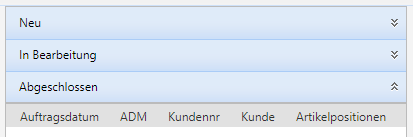
New
Here, complaints newly created by the field service are displayed.

Click on a complaint in the left list and you will see the summarized information on the right side.
You can create a complaint document via the PDF icon. If you do not want to make any amendments to the complaint, you can also complete the complaint directly using the button. You or the responsible employee will then receive an email with the associated complaint document.
If you want to make amendments to the complaint, press the pencil on the right edge of the picture. The complaint will be set to the status "In progress".
In progress
Here, all complaints that are in the status 'In progress' are displayed.
Click on the left side on a complaint that has already been processed and then on the pencil on the right edge of the picture.
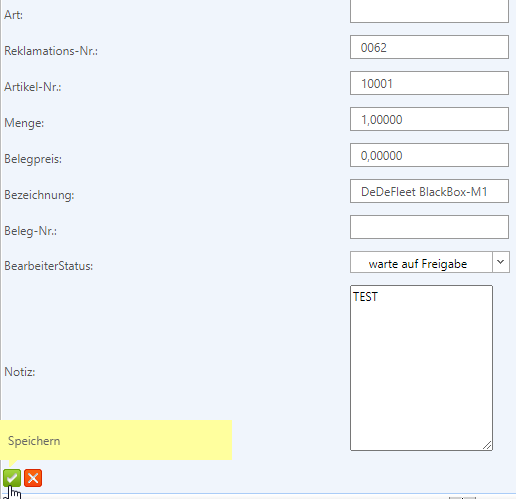
After you have made your amendments, complete the processing with the green checkmark at the bottom left or discard your amendments with the red X.
You can complete the complaint at this point. You or the responsible employee will then receive an email with the associated complaint document.
Completed
Here, all completed complaints that were completed via "New" or "In progress" are displayed.
You can no longer edit the complaints, only generate a complaint document via the backend.