
Visit
| Title | Widget | Widget description |
| Visit | 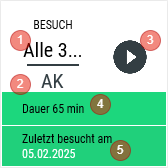 |
Available:
|
| Visit |  | 1. Customer location 2. Briefcase, when a visit is ongoing (additionally the icon is shown active (blue)) Available:
|
| Visit |
| If no visit is ongoing:
Available:
|

General
Header

- Calls up the customer (only visible when accessing the entry via Reports)
- Changes the customer (only visible when creating the entry via Reports)
Form
General
| Field | Right | Reference |
| Start | ||
| End | ||
| On behalf of | DAILY REPORT / visits / On behalf of | Employee |
| Contact | DAILY REPORT / visits / Contact at Visit conclusion Mandatory | Customer contacts |
| Campaign | Campaigns | |
| Visit type | DAILY REPORT / visits / Follow-up |
Activities
| Field | Right | Reference |
| Checkbox | Activity | DAILY REPORT / visits / Activities DAILY REPORT / visits / At least one activity must be stated. | Code table: Activities |
| Checkbox | Miscellaneous | DAILY REPORT / visits Other tasks |
Orders
Grid
| Click | Swipe | Views |
| Order | |
|
Column definition
| Name | Visible | Sort | Full text | Explanation |
| Date | Forced | |||
| Type | Forced | |||
| ERP no. | Forced | |||
| Order reason | Forced |
Departments
| Field | Right | Reference |
| Checkbox | Department | DAILY REPORT / visits / Departments | Code table: Department |
Report
| Field | Right | Reference |
| Single input field | DAILY REPORT / visits / Visit report |
Calendar management
| Field | Right | Reference |
| Only visible if there is also an appointment for the customer on that day and only visible at Visit conclusion | Settings \ Update appointments after visit | Option to set the status and the result |
Validation
- A visit must last at least one minute.
- End must be present.
- Tasks with Priority Z must all be Completed.
Action buttons
| Name | Function | Visibility |
| Start | The Start time is pre-filled with the current time. Saves your entries and starts the visit. | When the visit is created via the widget and has not yet been started. |
| Save | The End time is still empty because the visit is not yet Completed. Saves your entries. | When the already started visit is clicked via the widget. |
| Complete |
| When editing a visit |
FAQ
Why is the value from the last visit not current?
The last visit is determined via the Total import. If this has not run, it may be that the value differs from the actual last visit.