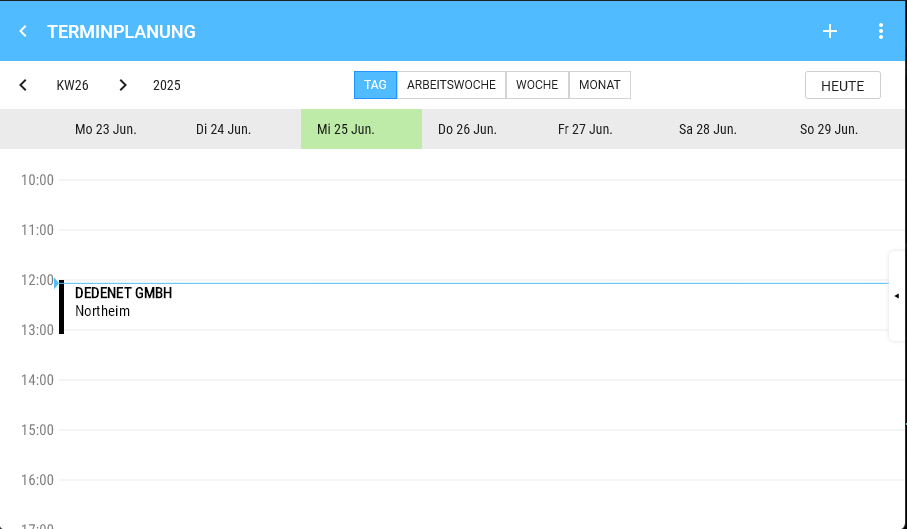
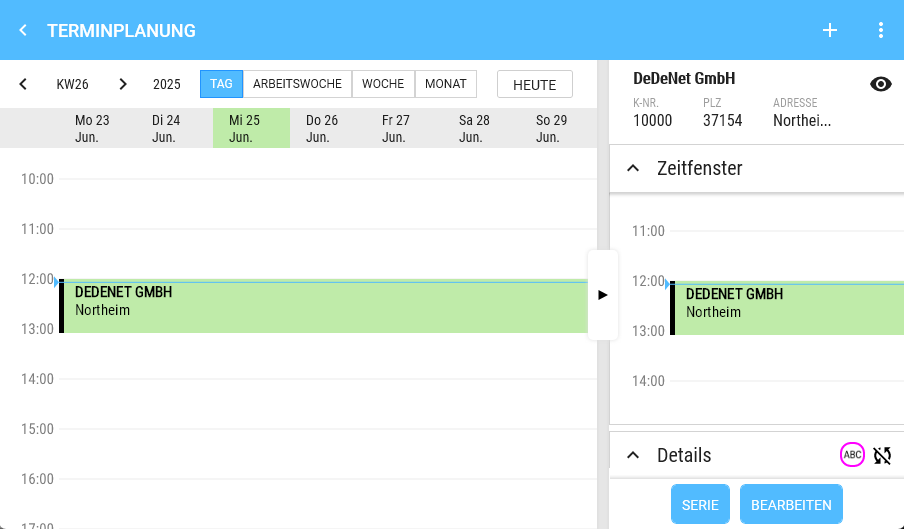
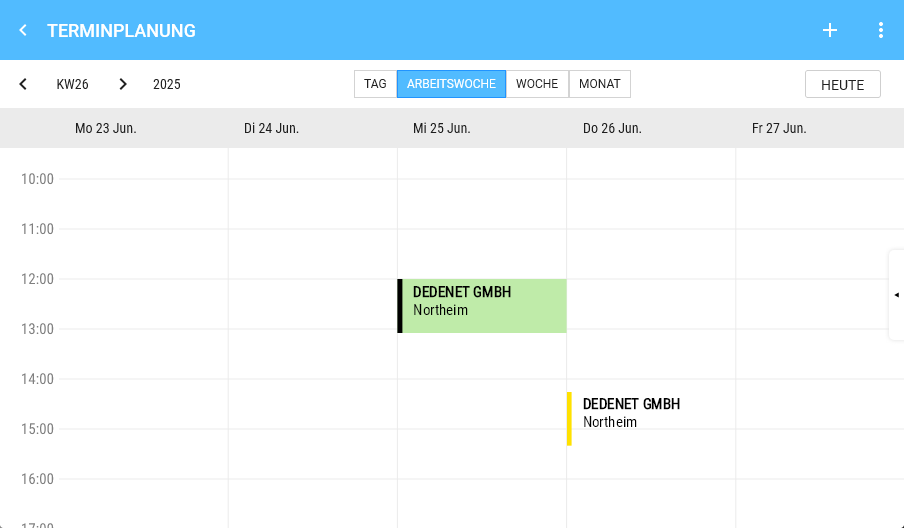
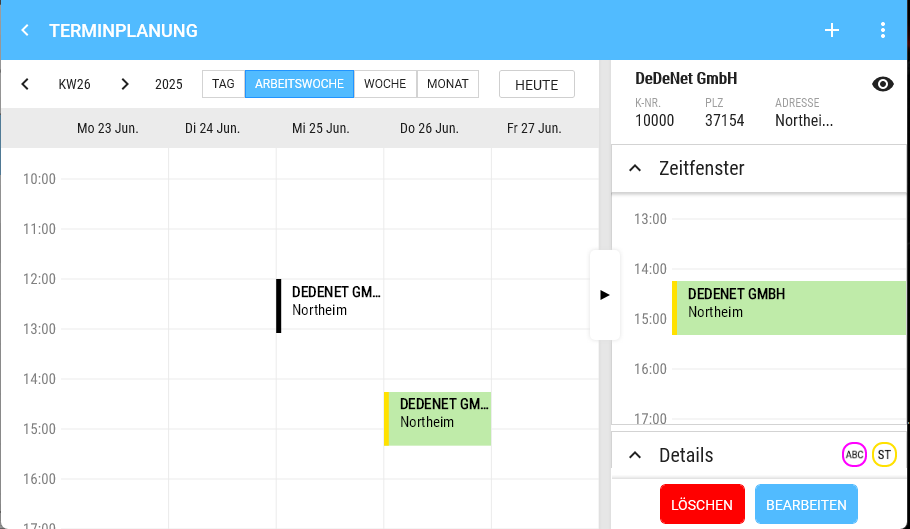
Day View / Weekly Overview
-
- Left: Time (hours)
- Right: Appointment, if one is selected.
- Appointment
- Height corresponds to real time
- Content (Only what fits is displayed; if the appointment height is insufficient, content is simply cut off)
- Colour code
- Customer
- Location
- Type
- Click: Opens the detail view
- Multiple appointments at the same time are displayed side by side
- Long press
- in the calendar on a free time slot creates an appointment. Start time and Date are pre-set.
- The slot size for the Start time is 30 Minutes.
- If the current day is Visible, the current Time is shown by a horizontal line.
| Day View | Appointment details |
|
|
|
| Weekly Overview | Appointment details |
|
|
|