
Appointment Details
| Title |
| Calendar management |
Header

- Customer details
- View mode
Eye icon (opens the customer masterdata)

- Edit mode
Pencil icon (change customer)
i. Appointment end is updated and is start + Visit duration (if Visit duration is not available, 30 minutes applies)
Icon bar
| Position | Status | Google Material Name | Icon |
| 1 | Done | Beenhere |
|
| 2 | Cancelled | Cancel |
|
| 3 | Fixed appointment | Watch Later |
|
| 4 | Hotel | Hotel |
|
| 5 | Changed serial appointment | Sync Disabled Changed appointment belonging to a series. |
|
| 6 | Serial appointment | Loop |
|
| 7 | ABC status | Circle with corresponding backend configured border colour. The circle contains ABC. The icon is only visible if a colour code for the corresponding status is configured. If no colour is defined for the ABC status, the icon is not displayed. The colour code is configured via Code tables: Appointment / Tour ABC status dependent colours. |
|
| 8 | Visit status | Circle with corresponding border colour. The circle contains ST. |
|




The icon bar is hidden if no icon is present.
Data
1. Panels
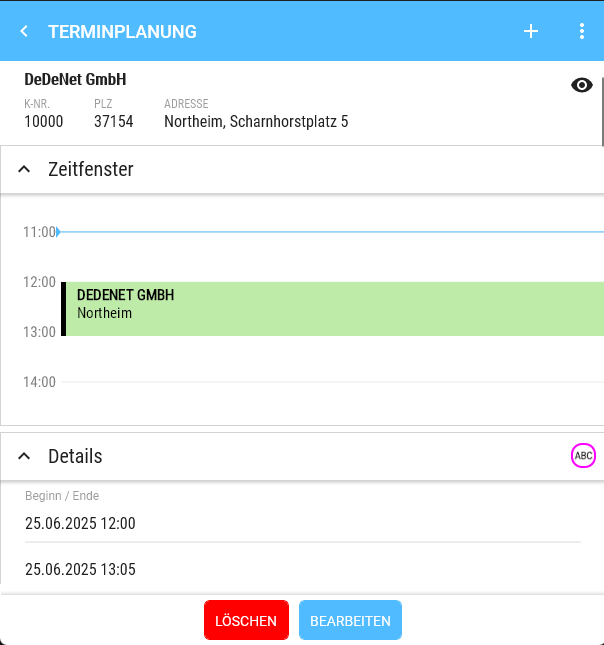
a. Time slot
-
-
- Visible only in view mode.
- Always 4 hours visible, starting 60 minutes before the appointment start.
- If the appointment lasts less than 3 hours, the appointment is vertically centred in the view.
- Scrolling in the panel is disabled on all systems.
-
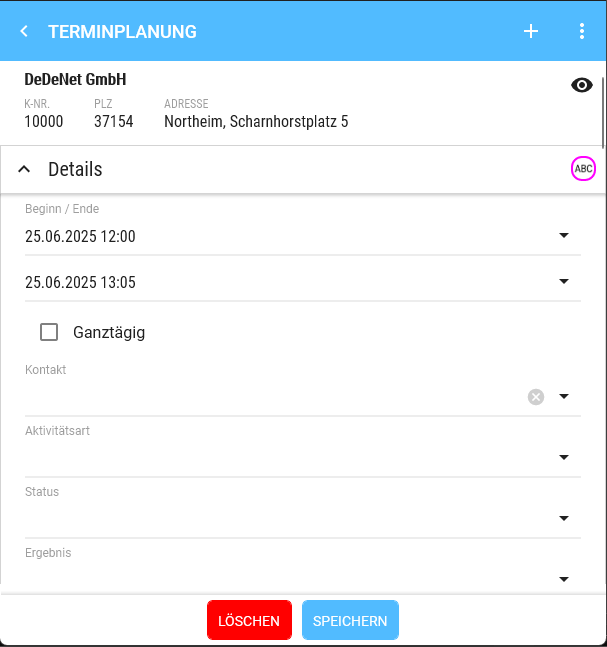
b. Details
-
-
- Start - End
- DateTimeSpan Picker: if the start is changed, the end is automatically changed as well.
- Full day
- Contact
- Type of activity
- Hidden if no code table entries are available.
- The first is selected if available.
- Code table: Appointment / Tour types of activity
- Basic configuration - Settings: Type of appointment activity Visit and Type of appointment activity preselected
- Status
- Hidden if no code table entries are available.
- The first is selected if available.
- Code table: Appointment status
- Basic configuration - Settings:
- Appointment status "cancelled" - code table entry selection
- Appointment status "done" - code table entry selection
- Appointment status Follow-up visit completed - code table entry selection
- Appointment status Follow-up visit necessary - code table entry selection
- Result
- Hidden if no code table entries are available.
- The first is selected if available.
- Code table: Appointment results
- Campaign
- Hidden if no campaigns are valid or created
- No preselection, can also remain empty
- see also Campaign
- Fixed appointment
- Checkbox, only visible if Tour optimisation is licensed
- Comment
- Multiline input
-
c. Visit announcement
-
-
-
- Role DAILY REPORT / calendar management Visit announcement
- Hidden if not possible due to missing recipient information
- Send Notification of Visit
- Checkbox (corresponds to dropdown selection "None")
- Announce appointment
- Mornings
- In the Afternoons
- Entire day
- Time as specified in the appointment
- Subject
- Hidden if no code table entries are available.
- No preselection, can also remain empty
- Code table: Appointment text blocks
- Short text
- Multiline input. Automatically filled if a standard text is behind the subject.
-
-
d. Visit objectives
-
-
- Lists all order template and task titles that are active for the customer. Here you mark which points you want to focus on in the appointment.
-
e. Serial appointment
-
-
- only visible when editing or creating a series
- Interval (weeks)
- Series end
- only visible when editing or creating a series
-
f. Miscellaneous
-
-
- Created by
- Created for
- Recorded
- Changed
-
g. Address
-
-
- Filled by the selected customer
- Street
- Postal code
- City
- Country
- Filled by the selected customer
-
2. Buttons
a. View mode
-
- Delete (red)
- not shown if appointment is part of a series
- Confirmation is shown whether the appointment should really be deleted.
- not shown if appointment is part of a series
- Series
- only shown if part of a series
- switches to Edit series
- Delete (red)
b. Edit mode:
-
- Delete (red)
- not shown if appointment is part of a series
- Confirmation is shown whether the appointment should really be deleted.
- not shown if appointment is part of a series
- Save (blue)
- Delete (red)
Colour codes visit status
| Status | Colour |
| Standard or Visit (planned) as intended | none |
| Appointment not visited in the week | Red |
| Appointment attended on another day in the week | Yellow |
| Visit was not planned in the current week | Green |
Colour codes ABC
The colour can be configured directly in the backend.
Code table: Appointment / Tour ABC status dependent colours
Colour codes activity
The colour can be configured directly in the backend.
Code table: Appointment / Tour types of activity dependent colours
Colour codes due date
| Status | Colour |
| No visiting frequency in customer masterdata | Black |
| No last visit available | Purple |
| Last visit + Visiting frequency > current calendar week | Green |
| Last visit + Visiting frequency == current calendar week | Yellow |
| Last visit + Visiting frequency < current calendar week | Orange |
| Last visit + (Visiting frequency * 2) <= current calendar week | Red |
FAQ
Why don't I see the time when I want to change an appointment?
If the device is too small to display date selection and time simultaneously, the calendar selection is shown first and after tapping the date, the time selection appears.
Release