
Order value
| Title | Widget | Widget description |
| Order intake |  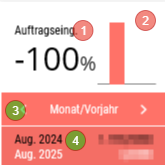 |
Available:
Click:
Widget colouring:
The data refer only to customers assigned to an agent. |
General
Kebab menu (
 )
)

| Type | Menu item | Explanation |
|
| Year | |
  | Financial year | only visible if Financial year <> Year |
|
| KEY DATE | |
| ------------------------------------ | ||
| product hierarchy | ||
| | ------------------------------------ | |
| | Export | |
| | ------------------------------------ | |
| | all clients | only on the homepage dashboard only if more than one client exists only if not in the product hierarchy view |
| | <Client> | only on the homepage dashboard only if more than one client exists |
Header


- The chart display can be switched between Line diagram and Bar diagram
- The colour gradients are controlled via the backend
- If the chart is opened and not all time periods can be displayed, the display scrolls to the left to make the current time period (e.g. month) visible. Further time periods can be made visible by scrolling
General Information
- The total row of the table is always displayed at the bottom edge of the display
- The scale of the Y-axis is dynamically calculated and is based on the highest value of the data to be displayed
Grid
| Click | Swipe | Views |
|
|
| 1. Table |
Filter
1. In the filter, the evaluation period (start and end) can be selected.
a. The evaluation period can be a maximum of 1 year.
2. The filter applies equally to chart and table.
3. Automatic selection of the period
a. If the selected period contains less than 32 days, the period corresponds to "Day"
b. If the selected period contains less than 93 days, the period corresponds to "Week"
c. In all other cases, the period corresponds to "Month".
Tabular display
| Name | Explanation |
| Period | The period for which the data is filtered is displayed "Day" | "Week" | "Month" |
| Year columns |
|
| Change columns | % change compared to the comparison period |
Chart display
1. The chart always shows a maximum of three value lines/bars.
a. Each line/bar represents a calendar or financial year.
Current year = colour gradients: Basic configuration \ Settings \ Client chart colour for current year
1 year back = colour gradients: Basic configuration \ Settings \ Client chart colour for last year
2 years back = colour gradients: Basic configuration \ Settings \ Client chart colour for two years ago
If an individual period requires the display of more than three years, only the newest three years are displayed.
Product hierarchy view
1. In the product hierarchy view, the turnover is displayed per product hierarchy level.
a. The column "Month" is omitted and replaced by the product hierarchy.
2. If a row is selected in the view, the chart shows the turnover of the selected product hierarchy.
a. The displayed turnover is determined from the selected hierarchy and the subordinate levels.
b. If no row is selected, the total turnover is displayed.
3. Rows behind which products are located are marked with a green bar.
4. Swipe
a. Products
5. Tripplepoint
a. Client selection
Products
Lists the products located in the product hierarchy and the subordinate levels with turnover and sales quantity.
| Name | Visible | Sort | Full Text | Explanation |
| Product | VisibleOnlyLandscape | Yes | ||
| Name | Visible | ASC | ||
| Hierarchy | Hidden | |||
| Quantity <Current year> | VisibleOnlyLandscape | |||
| Turnover <Current year> | Visible | |||
| Quantity <Last year> | VisibleOnlyLandscape | |||
| Turnover <Last year> | Visible | |||
| Quantity <Two years ago> | VisibleOnlyLandscape | |||
| Turnover <Two years ago> | Visible |
Export
When exporting, an Excel document is created. The Excel document contains on sheet 1 (Name: Chart) a screenshot of the chart, as well as the data for the evaluation period.
On sheet 2 (Name: Data) a table with the corresponding data.
FAQ
Release