
MCP Server Connection
Microsoft Azure
App Registration #1
Open URL: https://portal.azure.com/#home.
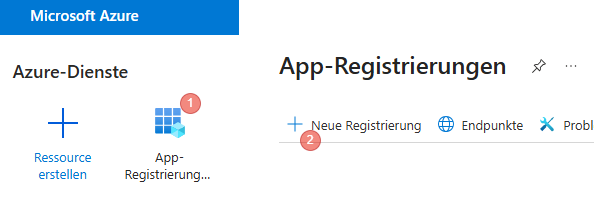
- Click on App registrations
- Click on "New registration".
Name
Please use "DeDeSales KI MCP API"
Supported account types
Usually, "Accounts in this organisational directory only - ..." with your client name should be selected here. If access to multiple clients is required, you must configure this accordingly.
Now click on "Register"
Summary
Application ID URI
Enter the URL provided by us here, for example: https://demo4.ki.dedenet.dedesales.de/mcp.
Token Configuration
Click on "Add optional claim", then select Access and "email", "preferred_username" and "upn".

The screenshot shows only an excerpt. The required selections are listed above in the text.
Then click "Add". You must confirm the subsequent message (checkbox for Enable the Microsoft Graph permission "email").
API permissions
We require the standard permissions that are already created automatically:
- Microsoft Graph" User.Read permission.
Then click "Grant admin consent for "your tenant name".
Make an API available
Click on "Add scope" and enter the following:
- Scope name: access_as_user
- Who can consent: Only administrators
- Admin consent display name: DeDeSales MCP Server
- Admin consent description: This grants access to the DeDeSales MCP Server.
Then click "Add scope"
Application ID (Client)
You can find the Application ID by clicking on Summary. Copy the Application ID that appears, as we will need it.
App Registration #2
Name
Please use "DeDeSales KI MCP Client"
Supported account types
Usually, "Accounts in this organisational directory only - ..." with your client name should be selected here. If access to multiple clients is required, you must configure this accordingly.
Set redirect URIs
The platform to select is "Mobile and desktop applications".
The redirect URIs must be entered depending on your chosen KI provider.
| KI Provider | Redirect URI |
| Claude Desktop / Claude.ai | https://claude.ai/api/mcp/auth_callback |
Now click on "Register"
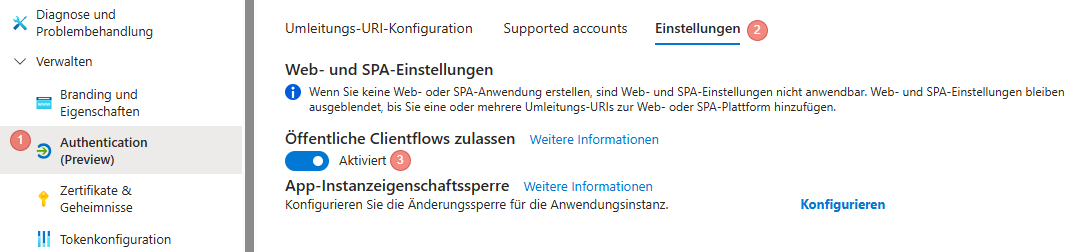
Authentication (Preview)
Click on Settings and enable "Allow public client flows".
API permissions
We require the standard permissions that are already created automatically:
- Microsoft Graph" User.Read permission.
- DeDeSales KI MCP API
- You find this by clicking on Add permission.
- Then select "APIs my organisation uses".
- Type "DeDeSales KI MCP API".
- Select the entry (Note! It can take 15-30 minutes until this entry is available, as it was only recently created by you)
- Select "Delegated permissions"
- Under Select permissions, choose "access_as_user".
- Click "Add permissions".
Then click "Grant admin consent for "your tenant name".
Application ID (Client)
You can find the Application ID by clicking on Summary. Copy the Application ID that appears, as we will need it.
From your setup we need
- Your TenantId
DeDeSales Backend
In the DeDeSales backend you must now do the following:
- Under Administration / User select the users who should have MCP access. For these users, activate the checkbox "Enable MCP Server".
- Under Basic configuration / Employee select the corresponding employee for this user. If there is no match, you must create one. This employee controls which customer data access is granted. In the dropdown "User" select the user who was previously enabled for MCP access under "Administration / User".
KI Provider
The configuration of the KI provider can only be done once we have received the data from the section "From your facility we need" from you and have completed the configuration.
Anthropic (Claude Desktop)
Add a custom connector in Claude Desktop.
- Name: DeDeSales MCP Server
- Remote MCP Server URL: https://<the domain provided by us>/mcp
- OAuth Client ID: The Application ID from "DeDeSales KI MCP Client"