
KDC280 BLE iOS
Setting up the scanner on iPad or iPhone
To connect the scanner with the iPad or iPhone, please follow these steps:
Setup on the scanner
- Press the two arrow keys together to enter the menu.
- Navigate down to the item "BT Config" and select it with the middle scan button.
- Select Connect Device and activate the SPP option if it is not yet active.
- Select the Save & Exit option to save.
- Scroll down and make the following additional settings, saving each with Save & Exit:
- Auto Power On: Enabled
- In the previous menu, select the bottom item "Top Menu" to return to the Main Menu.
- Navigate all the way down and select the "Exit Menu" option.
Setup on the iPad or iPhone
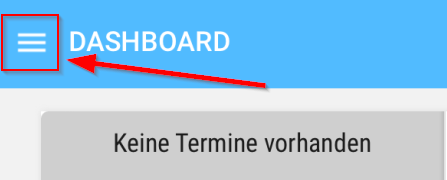
- Please start the DeDeSales app and open the Main Menu via the citizen menu.
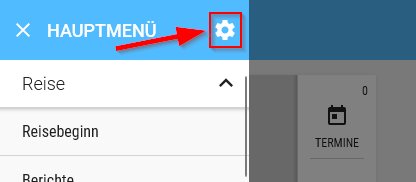
- In the Main Menu, open the Settings via the gear icon.
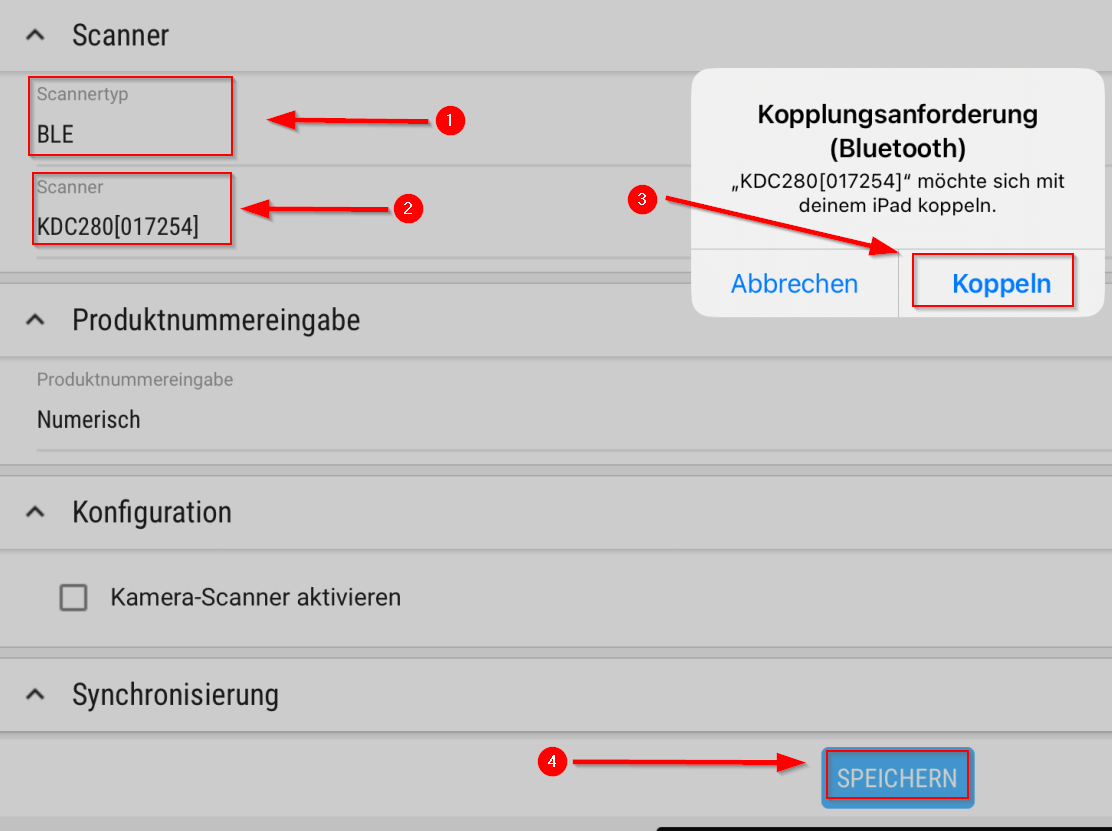
- In Settings, select BLE (1) under Type of scanner and your KDC280 (2) under Scanner. Confirm the pairing request with Pair (3) and finally click Save (4) at the very bottom.
- The scanner is now connected to DeDeSales and ready for use.