Eyoyo EY-009P BLE (BLE APP)
Setup on the scanner
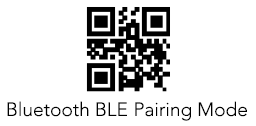
- Scan the following QR code to activate the "BLE Mode" and start pairing
Special feature for Android
- On Android, you need an additional BLE app to connect BLE Bluetooth scanners. For example, use the app "BLE-Scanner (Connect & Read)" and connect the scanner with this app. Afterwards, you can proceed with the next step.
Setup in the DeDeSales App
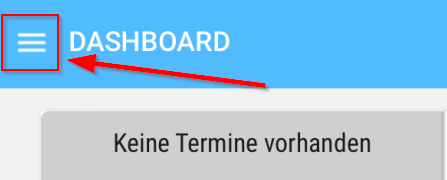
- Please start the DeDeSales app and open the Main Menu via the citizen menu.
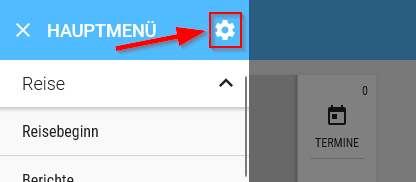
- In the Main Menu, open the Settings via the gear icon.
- In the Settings, select BLE under Type of scanner and select your EY-009 BLE under Scanner. Finally, click Save at the very bottom. (On Windows and Android, the Type of scanner option does not exist.)
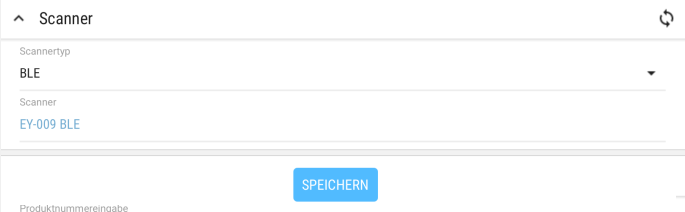
- The scanner is now connected to DeDeSales and ready for use.
Offline Scan Function
- To activate the Offline Scan function (the scanner does not need to be reconnected), the "Storage mode" QR code must be scanned:
Storage mode:

- All subsequently scanned barcodes will be stored on the scanner.
- To transfer the barcodes, click on Transfer barcodes in the client.
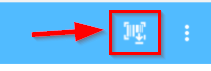
- After the "Transfer barcodes" window has opened, you can transfer the scanned barcodes via the QR code. For this, scan the "Data upload" QR code.
 Data upload:
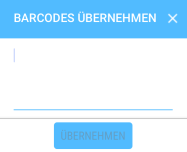
- After the barcodes have been transferred, you can click on "Apply" and the barcodes will be transferred.
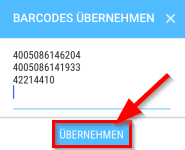
- After all data has been successfully transferred, you can delete the barcodes from the scanner via the "Delete data" QR code; otherwise, they will be transferred again.
Delete data:
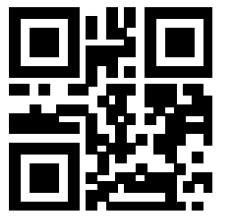
- Barcode to reactivate the normal scan mode:
Normal mode:
Troubleshooting
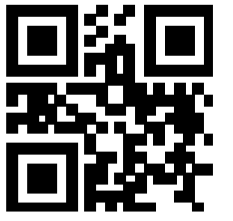
- If necessary, the scanner can be reset to factory settings via this barcode. The initial setup may need to be performed again afterwards.
- When the scanner is connected to the device for the first time, the barcode from the manual must be used. Pairing via the device functionality (press button for 8 seconds) does not work because HID mode is activated there.