
Language
Important General Information
Translations in DeDeSales can be entered not only for foreign languages. You can also adjust the German standard texts according to your language usage in the same way.
Please pay attention to the text length when translating. Especially in the client, optimal utilisation of text lengths was a primary goal. An overly long translation can therefore cause the text to be not fully readable in the client.
Some texts contain special characters. These must not be lost during translation, as otherwise a function in DeDeSales will no longer work as it should. Special characters include curly braces { } and angle brackets < >.
Example for curly braces { }
Order ( {0:0000} ) 🡪 is converted into Order ( 0001 )
The translation must therefore be as follows:
Order ( {0:0000} ) 🡪 is converted into Order ( 0001 )
Example for angle brackets < >
The example refers to <b> for Bold and is an HTML tag.
This is <b>important</b> 🡪 is converted into "This is important"
The translation must therefore be as follows:
This is <b>important</b> 🡪 is converted into "This is important"
Selection of Language
After logging into the WEB backend, you will find under Basic configuration \ Languages a list of all languages available in DeDeSales.
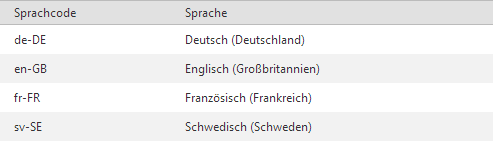
Now click on the language for which you want to enter translations. Note that you can also enter translations for de-DE. Next, you will see the mask with the Assistant. Now click on the left in the Assistant on the item "Enter translation".
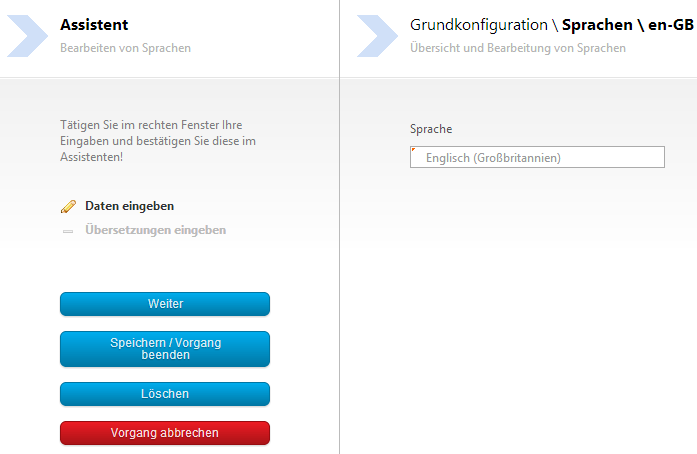
You will now receive a list of all texts occurring in the DeDeSales Client and WEB backend.


Filtering and editing texts
If you want to translate for a foreign language, the easiest way now is to activate a filter that shows you all texts not yet translated. To do this, click on the filter icon 
 and select the entry "IsEmpty" from the list.
Only entries for which no translation exists will now be displayed.
If you want to translate a specific text, you can also filter specifically for it. If you want to search by the original German text, please filter by "Key". If you want to search by an already translated text, please filter by "Text".
In the example (screenshot), the original text "Aktivität" is filtered. The word is entered in the field "Key". Then select "Contains" via the filter symbol.
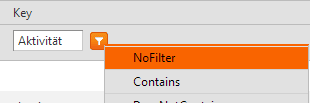

All texts containing the term "Aktivität" in the "Key" will now be displayed.
To edit this, click next on the Edit icon 
 .
.
The list expands and you now have the option to enter the translation. In this example, we enter the text "Activity".
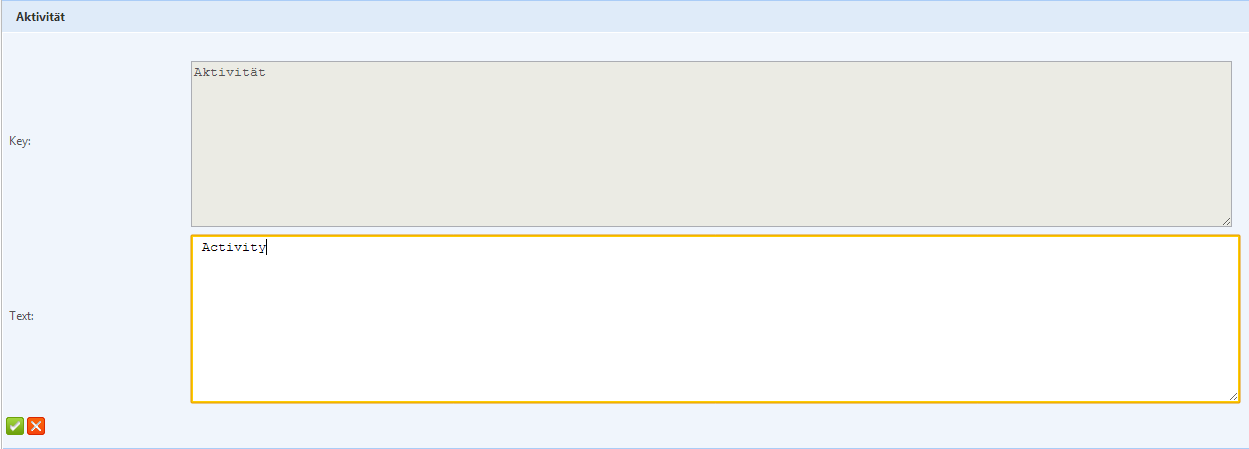
To apply the entry, please click on the Accept button 
 .
.
The translation is now saved. If you want to test the translation in the client, you must provide the data under Basic configuration \ Employee for your employee. Please note that you may not have the necessary right to do this. In that case, please ask your project team who can do this for you.
Providing the new texts
Please note that changes to texts occurring in the DeDeSales Web backend are made immediately.
Changes to texts in the DeDeSales Client must either be distributed manually by a data provision or by automated distribution overnight.
FAQ
Why can't I find some texts?
Texts can only be translated after they have been displayed once. In the DeDeSales Web backend this happens immediately.
In the case of the client, you must first perform a Data Transfer. Only after the Data Transfer are the texts created in the database and available for editing.