
Presentation mode Products
Summary
The Presentation mode Products is used to display the product pictures of a product within the Order entry.
In Presentation mode, the product picture can be enlarged, displayed in full screen, and switched between the available product pictures.
Accessibility
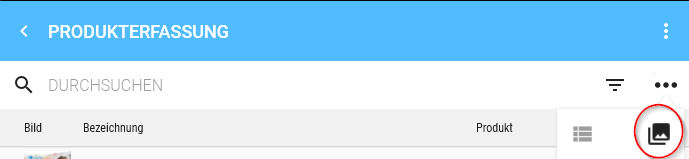
Title Type
The sharing icon is located in the Title Type.
The sharing icon allows the currently displayed product picture to be sent or saved.
Windows
On Windows, clicking the sharing icon opens the Save dialog.
Product Type
Picture Type
Initial display
The product picture is initially displayed on a black background in Presentation mode.
The following properties apply:
- The picture is displayed in the correct aspect ratio.
- The picture is always displayed centred.
- The picture is displayed suitably as portrait or landscape regardless of the original format.
Full screen display
The product picture can be displayed in full screen in Presentation mode.
In full screen, all control elements are Hidden.
The full screen display can be toggled on or off by a simple click on the picture.
Thumbs – Selection of product pictures
The available product pictures are additionally displayed as thumbs.
The thumbs have the following properties:
- The list of product pictures is horizontally scrollable.
- The product pictures are displayed square in the thumbs.
- The square display crops parts of each picture depending on the source format.
- The currently displayed product picture is positioned in the centre of the list.
- This means that only half pictures may be visible to the left and right of the currently selected picture.
- If the first picture is selected, no further picture is displayed to the left.
- If the last picture is selected, no further picture is displayed to the right.
The thumbs serve to select the product picture displayed in Presentation mode.
Operating functions
Switch product picture
You can switch between product pictures by swiping left or right.
When the first picture is reached, you cannot swipe further to the left.
When the last picture is reached, you cannot swipe further to the right.
Toggle full screen on and off
A single click on the product picture toggles between normal display and full screen display.
In full screen display, all control elements are Hidden.
Zoom
Zoom can be reset or toggled between displays by double-clicking the product picture:
- Scale to fit: The product picture is fully fitted into the available area.
- Scale to zoom: The product picture is displayed enlarged.
On touch devices, the product picture can also be zoomed in or out using pinch to zoom (two-finger gesture).
Relation to the Order entry
The Presentation mode Products belongs to the Order entry and is used there to display the pictures of a selected product.
The product pictures can be switched via the thumbs or by swiping. The currently selected product picture is displayed centred and can be viewed enlarged via full screen or zoom.
The Product Type is based on the header of the Order entry and takes into account whether the product is already In Basket.