
Create tour via map

You click on the lower right area "Map" in the 4x2 widget. If coordinates have been provided for you via the backend, the item is approximately in the middle of the window.
You can zoom in or out on the map using the mouse wheel or finger gestures.
Customer names are no longer displayed when there are more than 1000 customers.
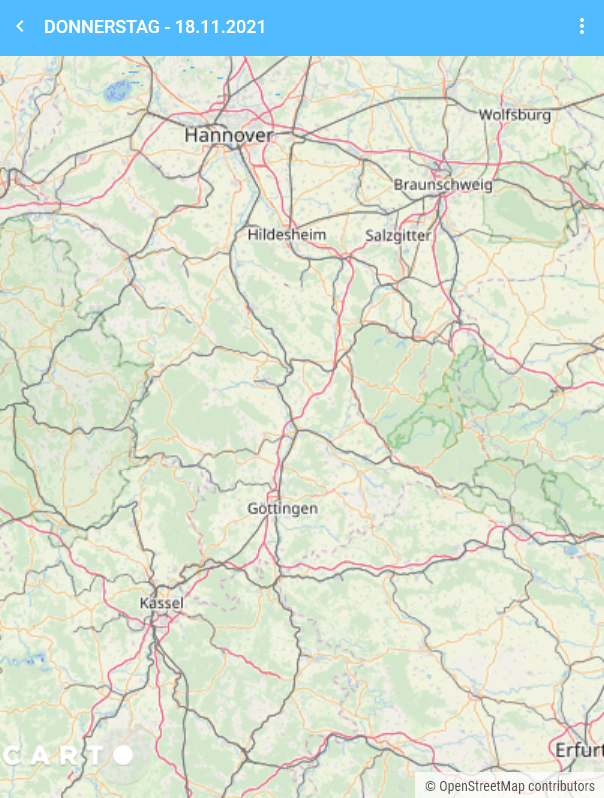
In portrait mode, you only see the map. Here you then click on the menu at the top right and select a customer via "Customers".
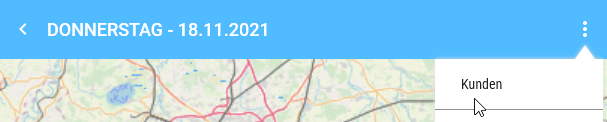
In the following window, you enter the criteria for your Customer Search. This can be done by name, but for example also by the first two digits of the postcode. The search starts immediately upon input. If you want to see all customers, press ENTER once.
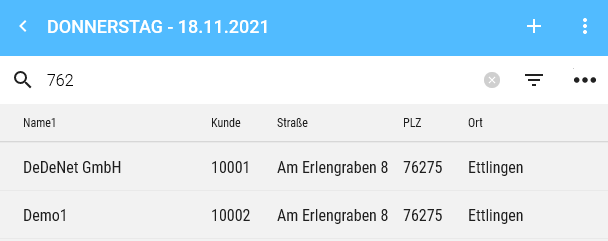
Only active customers are considered in the search.
If you are satisfied with your search result, switch back to the map by pressing the Back button at the top left.
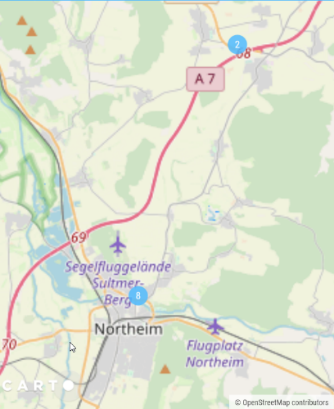
You now see your selected customers on the map (the map may need to be scrolled a bit if the type is too small).
The numbers in the circles indicate how many customers are at this location. Zooming in on the point on the map will show you more details accordingly.
If your screen is large enough, the picture is displayed split directly and you do not need to go via the "Customers" menu. On the left side you see the map and on the right side you can select the corresponding customers.
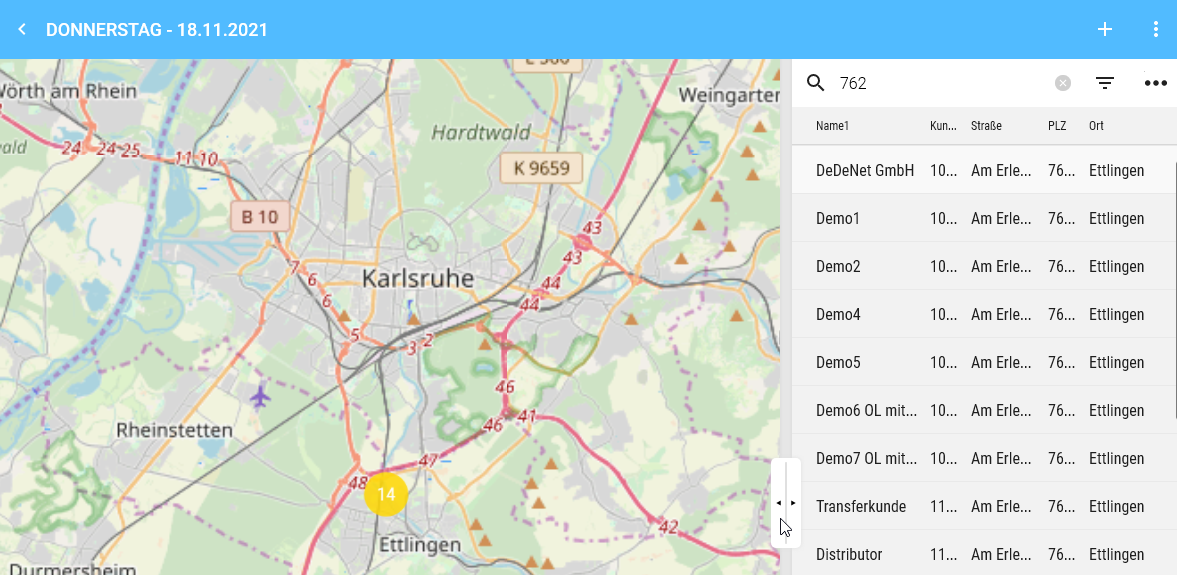
The arrows in the transition (see mouse cursor) give you the option to switch the view, for example, to display only the selection list. From version 21 onwards, the view can be freely moved by holding down these arrows. The position is saved automatically.
If there are too many customers at one ADDRESS (see yellow 14 at the top of the picture) and you cannot zoom further into the map, click on the corresponding number and a window opens with the customers located there.
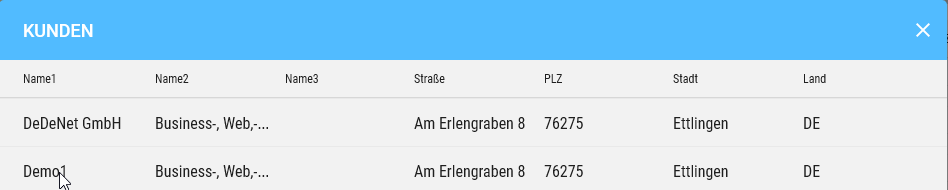
The desired customer can be selected by clicking on the line.