
Level 2 – Creating the Page Template
By default, the display for the Tasks and in the CRM type is in the order of the questions from top to bottom. Depending on the type of data to be documented, however, a different view is sensible, for example a tabular view if the field service is to document the opening hours for each day of week.
You can further personalise the design with the page template. To do this, click on the corresponding page and scroll to the template input:
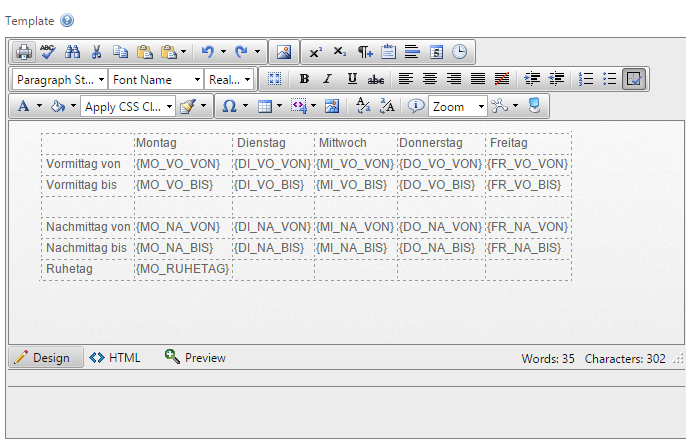
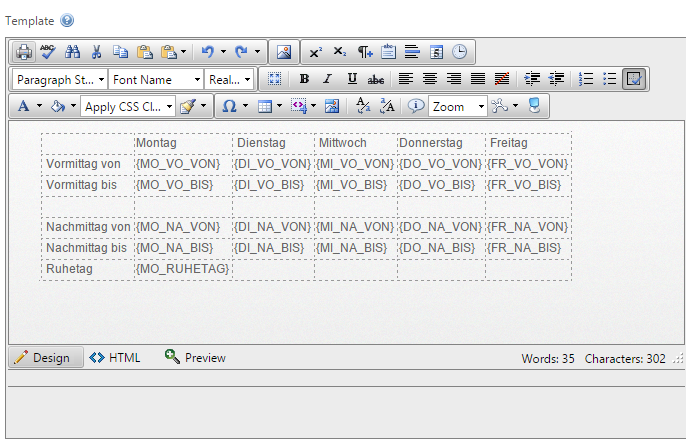
As you can see here, a table was created in the template. Horizontally, the days of week from Monday to Friday are displayed. Vertically, the opening hours for Morning and Afternoon, each from and until.
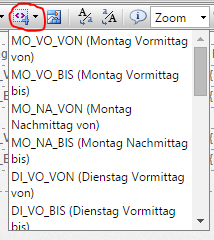
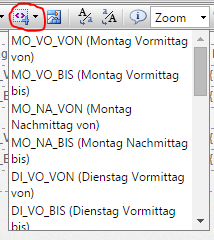
In the respective columns, the IDs of the respective questions are enclosed in curly brackets. You can either enter these manually or use the selection option provided by the template editor. Click on the black arrow in the icon circled on the right. Then the selection of all questions opens.
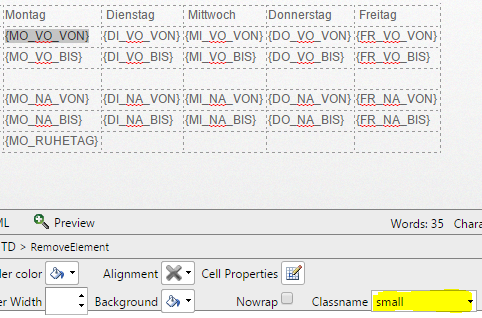
The input fields are all relatively wide by default. This can also be edited using the template editor. To do this, highlight a complete ID in the editor (including the curly brackets). At the bottom area, you have a field "Classname". If you choose e.g. "small" here, the input field will be displayed significantly narrower.
General Information 1: the page can only be formatted once the questions from the next step have been created.
General Information 2: if something is entered into the page template, all fields must be applied manually, otherwise they will not be displayed in the client.