Basics and Use of Order support

Usage
In the overview, you can see the data that you can create in the Order support and how/where it is to be used.
| Menu | Explanation | Usage in |
| Customer lists | This is a customer group defined by you. The data specified under "Usage in" is made available to this customer group. | Order templates, Tasks, CRM, Representation, Trade fair |
| Item lists | An item list contains a number of items defined by you, which are used in the Order templates. | Order templates eCom |
| Modules | Checks whether the table column matches the entered string. | Order templates |
| Order templates | An Order template is a list that can be called up within an order in the DeDeSales Client. The employee receives an overview of the items contained in the Order template (Item list) enriched with customer-specific data (Modules). The employee is able to order directly from the Order template. | e.g. for:
Customer campaigns/activities Promotions New products Listing statuses Shelf modules Sales promotion, eCom container |
| Campaigns | Campaigns can be selected during the Conclusion of order. By evaluating the orders of a campaign, it can be analysed whether it was successful or not. | e.g. for: Trade fairs Advertising campaigns Events |
| Tour templates | | |
| Data collection | Here you can import various data into the DeDeSales system. These include Activities, Stocktaking notes, Annual budget, Annual agreement, Clients – Customer number relationships, Notes on hierarchy nodes, Plan figures and price data. Individual Excel files can also be provided. | Statistics Clients |
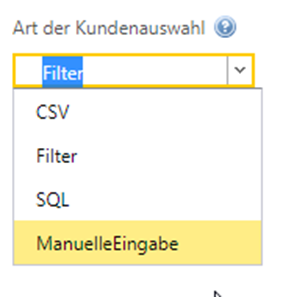
Type of selection
The selection of customers/items or similar is always done the same way and is explained here using the example of a Customer list.
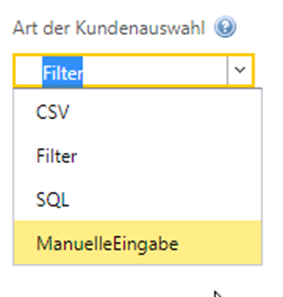
CSV: static
1. First, create a corresponding file that contains the information you want.
2. After selecting CSV in the Customer selection, press the "Weiter" button in the Assistant
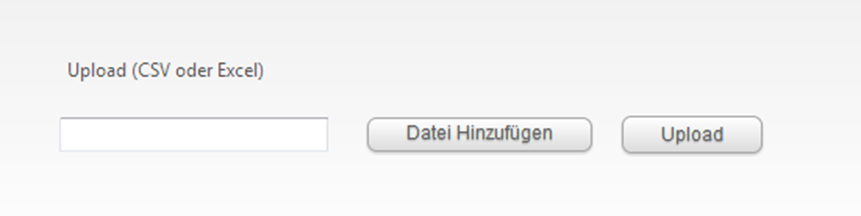
The following assistance step appears:

3. Select the file created in step 1 from the local PC using the "Datei Hinzufügen" button
4. Press the "Upload" button
5. In the Assistant, press the "Speichern/Vorgang beenden" button.
Filter: dynamic
Simple filtering
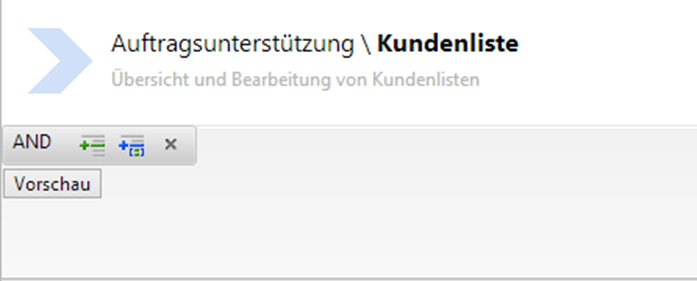
Below you see the filter after you have created a new Customer list (or also Item list). So far, nothing is filtered and the system is waiting for your filter criteria.

First, click on the icon to add an "expression". A new filter row is displayed, divided into three parts:

1. The table column to be filtered (currently "AbcKennung" is shown). To select another field, click on the word "AbcKennung" and all available fields will be displayed alphabetically. These can be selected by clicking.
2. The condition to be checked (currently "EqualTo", i.e. the content in field 3 must be equal to the field from 1, otherwise there is no result)
| Filter | Explanation | Inverse function |
| Contains | Checks whether the entered string occurs in the table column. | DoesNotContain |
| StartsWith | Checks whether the table column starts with the entered string | EndsWith |
| EqualTo | Checks whether the table column matches the entered string | NotEqualTo |
| GreaterThan | Greater than, used only for numbers | LessThan |
| GreaterThanOrEqualTo | Greater or equal, used only for numbers | LessThanOrEqualTo |
| Between | Checks whether the table column is between two values | NotBetween |
| IsEmpty | Checks whether the table column is empty | NotIsEmpty |
|
|
|
3. An input field whose value is used to check the table column with the condition
Task: We want to filter all customers who have the text Media in the field Name1.
First, we click on the table column and select the column "Name1". Next, we change the condition to "Contains" and finally enter the text "Media" in the input field. Your filter row should now look like this:

Now click the Preview button to display the filtered result.
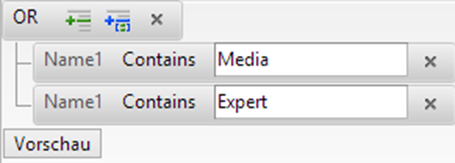
Task: We want to extend the filter because we want to see all customers who have Media in Name1 and all customers who have Expert in the name.
The first thing we need to do now is to analyse the task. A database server requires a filter somewhat differently than most people imagine. When we say in the task that we want these and those customers, it means for the database server that it should filter all customers who have either "Media" OR "Expert" in the name.
To achieve this, we first need to change the connection of two filter rows. This is set to AND (= AND connection) by default and must now be changed to OR (= OR connection).
Then click the button again to add a new filter row and make the settings according to the task. The result should then look like this.
Complex filtering
Task: Show me all customers who have the term Media in the table column Name1, but only the customers who are located in Hamburg or Munich.

First, we see that there is an AND connection between a filter row (table column Name1) and another connection row (starting with OR).
After the second connection, there are two filter rows linked with OR and a check on the table column Location takes place.
SQL: dynamic
1. After selecting SQL in the Customer selection, press the "Weiter" button in the Assistant
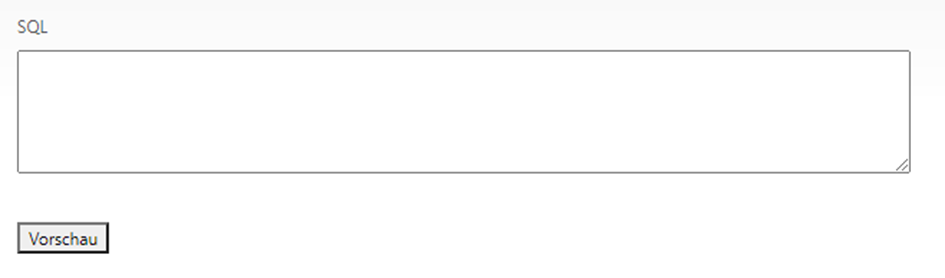
The following assistance step appears:

2. Here you write your SQL statement and press Preview to see the results.
3. In the Assistant, press the "Speichern/Vorgang beenden" button.
Manual input: static
1. After selecting Manual input in the Customer selection, press the "Weiter" button in the Assistant
The following assistance step appears:

2. Here you write your Customer numbers that should be included in the Customer list
Multiple Customer numbers are written one below the other separated by ENTER.
3. In the Assistant, press the "Speichern/Vorgang beenden" button.
WARNING: The difference between dynamic and static methods is that the dynamic methods are applied again every night by the Total import and thus possibly take into account changes from the ERP system (e.g. New customers). The static method is a snapshot at the time the Customer list was created.
Status
In progress
The data is not passed on to devices or shown in dependencies.
Released
The data is passed on to devices and dependencies.
Completed
The data is no longer passed on to devices or dependencies.
Deleted
The data is not passed on to devices or dependencies, but the list remains in the backend.