System Requirements Client
Shows the requirements for the DeDeSales Client.
- Hardware Requirements
- Operating System Compatibility
- Client Provision / Deployment
- Initial Setup of the DeDeSales Client
- Enable device for new installation
- iOS - Register Apple Business Manager
- iOS - Apple Business Manager – App Provision & Redemption Codes
- iOS - PList Configuration
- iOS - Installation
- iOS App Updates (manually via App Store)
- Android
- Client Settings (Configuration / Operation after Installation)
Hardware Requirements
Windows
The following requirements apply for running the client on Windows:
- DeDeSales is a UWP application.
- Microsoft Windows 10 or higher.
The requirements for CPU, storage space and memory strongly depend on the quantity of data to be processed, so we cannot give a recommendation here. However, we recommend testing various devices during the project phase and then deciding what best suits your requirements.
Android
The following requirement applies for operation on Android:
- Android 5 (API Level 21, Lollipop)
Basically, it should be said about Android that you should select one of the most powerful Devices when purchasing.
iOS
The devices should correspond to the current standard. Assume that devices that are 4 Years old or older cannot provide the necessary performance.
Furthermore, ensure that you allocate enough storage space on the devices for Pictures. A subsequent increase in storage is not possible on these devices.
The following requirements apply for use on an iPad or iPhone:
- Apple Business Manager
- If you manage your Employee accounts via the Apple Business Manager, an MDM system is an essential prerequisite. If the Employee accounts are not assigned to the Apple Business Manager, you must generate redemption codes in the Apple Business Manager and distribute them independently to your Employees.
Operating System Compatibility
| DeDeSales Version | Windows | Android | iOS/iPadOS |
| 18.x | Windows 10: 22H2 Build 19045.5011 Windows 11: 24H2 Build 26100.3025 Windows 11: 24H2 Build 26100.4061 Windows 11: 24H2 Build 26100.4652 Windows 11: 24H2 Build 26100.4946 Windows 11: 24H2 Build 26100.7462 | 13.x 15.x | 18.x 26.x |
| 19.x | Windows 11: 24H2 Build 26100.4061 Windows 11: 24H2 Build 26100.4652 Windows 11: 24H2 Build 26100.4946 Windows 11: 24H2 Build 26100.7462 | 13.x 15.x 16.x | 18.x 26.x |
| 20.x |
Client Provision / Deployment
Initial Setup of the DeDeSales Client
If the client has not yet been set up, you will be taken directly to the Settings of the Dashboard after starting.
The client setup can be done in 3 different ways.
Manual

- Enter the Device number
- Enter the server URL.
- Hide Floating Numeric Input => by ticking the checkbox, the floating number field under iOS 26 will be hidden
Save your Settings.
Scan QR Code via Camera
If you have the device at hand and access to the backend, it is possible to scan the QR code directly from the screen.
To do this, click on the barcode symbol to switch to the Camera area:

Hold the device in front of the QR code on your monitor and scan the code:

As soon as the QR code is recognised, all required Data will be adopted and you only need to press Save.
Read QR Code
If you do not have access to the device to be set up or want to set up the client on the device where you also operate the backend, you can download the QR code from the backend and, for example, send it by email. Your Employee downloads the QR code to the local device, switches as before via the QR code icon to the Camera area. There, you can switch to the device's folder structure via the folder symbol and select the QR code from the email.

Here too, everything is adopted automatically and you only need to press Save.
Attention
It is important, (if there is to be a TEST system and a LIVE system on the device) to use the correct client. A test system client can differ from the live system client. The two systems must not be confused.
You do not need to activate the device during the initial installation; this is only necessary if, for example, you change the hardware of the second device (defect, operating system change, etc.).
After setup, perform a Data Transfer. This may take a little longer if necessary.
Enable device for new installation
Each employee is shown a generated QR code when newly created. This is hidden as soon as the first Data Transfer has been performed. Instead, you will then only see the button "Enable device for new installation".

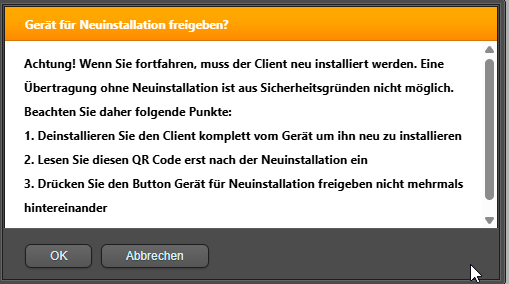
If you are unsure, select "Cancel".
After pressing "OK", the generated QR code is displayed. The QR code can be used multiple times as long as the Device number has not changed, i.e. when creating a new employee, you can save the QR code.
In plain text, the employee as well as the device (main device | multi-device 1 | multi-device 2) are displayed, so that later Assignment can take place with multiple employees and the code does not have to be downloaded repeatedly (unless the Device number has changed).
iOS - Register Apple Business Manager
Create Apple Business Manager Account
If you want to use DeDeSales for iPhone/iPad, you need an Apple Business Manager account
If you do not yet have an account, you must register here:
Registration link:
https://business.apple.com/#/enrollment/form
Instructions:
https://www.apple.com/de/business/docs/site/Apple_Business_Manager_Getting_Started_Guide.pdf
Attention. The links may have changed by now, please use Searching if the links are no longer correct.
Report Organisation ID
As soon as you have received the Apple Business Manager account, you must inform us of your Organisation ID and the registered organisation name.
With this Organisation ID, we can provide your DeDeSales Client version in your App Store. This will take about 1-2 Weeks, as the Provision must go through Apple's internal approval processes. Your DeDeSales Client version is Visible only to you.
Installation
Standard installation
The standard installation is done via an MDM system.
Redemption codes / Vouchers
Alternatively, you can issue redemption codes for your Employees in your Apple Business Manager account. The installation then takes place, for example, via the user's Safari browser or by entering the code under custom apps in the App Store.
Attention: This option does not exist across countries. That means you need a separate Apple Business Manager account for each Country to create codes for the respective Country.
iOS - Apple Business Manager – App Provision & Redemption Codes
Status 2024.03 - We do not guarantee that this guide is up to date. In case of uncertainties, please refer to the Apple Support page. We only provide a rough summary here for orientation.
Prerequisite
To create the redemption codes in ABM, an ABM account and a user with admin rights are required.
Activate Custom Apps
To be able to select the DeDeSales app in ABM, the tab "Custom Apps" must be activated; for this, a user with admin rights is required. The following steps explain how to activate the "Custom Apps" tab.
- Click on your user
- Select Settings
- Go to Organisation Settings
- On the right side, set the slider under Custom Apps to Active.

Create Redemption Codes
To create the redemption codes, proceed as follows.
- Select Custom Apps
- Click on the desired app

- Select the licence type "Redemption Codes"
- Select the desired quantity of codes
- By clicking Load, the redemption codes are created.

After the redemption codes have been created, they can be downloaded in the lower area under "Redemption Codes" via "Load".

The created redemption codes are displayed in the downloaded Excel file.
The redemption link behind the code can be executed directly on the device. This link automatically opens the redemption dialog.
Further Information
The redemption codes can only be redeemed in the country where the ABM is registered.
Example: If the ABM is registered at a company location in Germany, the redemption codes can only be activated on devices that use the German App Store. (Have an Apple ID registered in Germany.)
iOS - PList Configuration
PLIST Configuration via MDM
If you use an MDM system, certain configuration parameters can be automatically assigned as key-value pairs via the PLIST.
These include:
"ServerURL", "FallbackURL" and "Device number"
The server URL should be set at the profile level and the device number at the device / user level.
The PLIST configuration is created in your MDM system.
If your MDM system does not provide a GUI for creating a PLIST file, you can also use alternative applications for this. A PLIST file is an XML file with the following content (example):
<?xml version="1.0" encoding="UTF-8"?><!DOCTYPE plist PUBLIC "-//Apple Computer//DTD PLIST 1.0//EN" "http://www.apple.com/DTDs/PropertyList-1.0.dtd"><plist version="1.0"> <dict> <key>Geraetenummer</key> <string>123-456-789-0123</string> <key>ServerURL</key> <string>https://demo.dedesales.de/</string> </dict></plist>
iOS - Installation
Standard installation
The standard installation is done via an MDM system.
Redemption codes / Vouchers
Alternatively, you can issue redemption codes for your Employees in your Apple Business Manager account. The installation then takes place, for example, via the user's Safari browser or by entering the code under custom apps in the App Store.
Attention: This option does not exist across countries. That means you need a separate Apple Business Manager account for each Country to create codes for the respective Country.
iOS App Updates (manually via App Store)
If a new app version is available in the Apple Business Manager, this app can be updated manually in the App Store.
Proceed as follows to update the app manually:
1. Open the App Store

2. Click on your user profile at the top right (1) and scroll down in the "Account" window until you see the apps that were recently updated (2).

3. Click Update to update the app (1).
3.1 Below the app is the update description (2), under More (3) you can see the version number and the size of the new app (4). The size of the app does not include the customer data, but only the size of the actual app.

Android
MDM Managed Configuration
Basically, the Android app also supports a Managed Configuration, but this is only available if the app is provided via the Enterprise Play Store.
In Intune, it is possible, if you have linked the Google Play Console (which is usually the case), to upload a private app and then have the Managed Configuration available,
Client Settings (Configuration / Operation after Installation)
additional client settings
This area is divided into 2 parts. On the one hand, you have quick access to some functions and on the other hand, you can make settings here.
 |
|
 |
|
Settings
 |
|
For service questions, you will find here, for example, all information that should be provided if necessary.

Panelbar General
- Title: General
- Button: QR scanner
- Only available during initial setup
- Hide floating numeric input => checking the box hides the floating number field under iOS 26
For more information see Initial setup
Panelbar Scanner
- Title: Scanner
- Icon: Update
- Check in the Hardware scanner section whether your scanner is compatible
- See here how scanners must be configured for a search.
- Click the "Update" icon to search for scanners.
- Once the scanner is connected to DeDeSales, you can use it.
Panelbar Product number entry
- Title: Product number entry
- DropDown: Numeric | Alphanumeric
Numeric
Displays a numeric keyboard on tablets / smartphones after pressing the magnifying glass in Order entry
- full text search is disabled
- only product number fields are searched
- search must be manually triggered with Enter
Alphanumeric:
Displays an alphanumeric keyboard on tablets / smartphones after pressing the magnifying glass in Order entry
- only product number fields are searched
- search must be confirmed with Enter
Switching
Another click in Order entry ends the numeric/alphanumeric search and activates
- full text search
- automatic search
Panelbar Synchronisation
- Title: Synchronisation
- In the Windows client, the client ID can be read for setting up synchronisation in the backend
SubPanelbar: Calendar management
- ToggleSwitch "Export contacts to the Contacts app"
- When activated, appointments from the last 7 days and all future appointments are initially synchronised.
- After the initial synchronisation, all future appointments and appointments from the past two years are kept synchronised. Appointments older than 2 years are removed from the calendar.
- ToggleSwitch "Import calendar app into DeDeSales"
- Displays the selection of local calendars.
- Toggled: The checkboxes of the local calendars are displayed.
- Untoggled: The checkboxes of the local calendars are unchecked and hidden.
- c. Calendar selection
- Listing of available local calendars which can be selected for synchronisation in DeDeSales.
- Checkbox: [] <Default calendar>
- Checkbox: [] <Calendar 1>
- Checkbox: [] <Calendar 2>
- Checkbox: [] <Calendar 3>
- Appointments imported into DeDeSales are displayed in the own calendar of the calendar management. Local appointments
SubPanelbar: Contacts
- ToggleSwitch "Export contacts to the Contacts app"
- Which properties are synchronised?
- Salutation
- Last name
- First name
- Street
- Postal code
- City
- State
- Country
- Email2 if it differs from Email.
- Phone
- Fax
- Mobile
- Position
- Department
- CompanyName aka (DebtorAddress.Name1 + " " + DebtorAddress.Name2 + " " + DebtorAddress.Name3)
- BusinessHomePage aka DebtorAddress.HomePage
- Date of birth
- When are amendments detected?
- When editing a Contact
- When deleting a Contact. This option is not available in the client.
- When creating a Contact
- When saving the setting if the setting "Export contacts to the Contacts app" has changed.
- After receiving the Contacts during Data Transfer
- What happens if the contact is no longer present in the Contacts app?
- The contact is newly created.
- What are platform-specific differences?
- iOS:
- On iOS, we have a list in the calendar named "DeDeSales". This list contains all contacts exported from DeDeSales. A contact coming from DeDeSales also has a relation named "DeDeSales" with a value.
- Android:
- On Android, each app (accountType) has its own contact list. If the app is uninstalled, all contacts are also removed.
- Windows:
- On Windows, each app has its own contact list. If the app is uninstalled, all contacts are also removed. Contacts are read in batches of 20 contacts.
- iOS:
Synchronisation runs in the background and is only visible by the symbol. It always syncs when a change has been made in DeDeSales and at regular intervals to reconcile the data.
If the symbol is visible, you can display a status by clicking on the symbol.
Changes made in the Contacts app are NOT adopted in DeDeSales.
Panelbar App information
Here you will find more detailed information about the app, which can be helpful in a support case.
Panelbar Developer settings
This panel is only interesting for DeDeNet employees.
Setup Appointments and Contacts
After the initial setup of the DeDeSales Client, you can activate the synchronisation for appointments and contacts as follows.
Access permissions to the external apps are required; if necessary, permission prompts may appear when these settings are configured for the first time.
In the Client Settings under Synchronisation, you have the following options:

1. Client ID
For contact and appointment synchronisation to work under Windows, the following steps are necessary. Here you can determine and copy the Client ID.
2. Appointments
If you activate the option "Export appointments to Calendar app", you can select under Synchronisation target whether the local Calendar app (Local) or, for example, an Exchange account (e.g. Microsoft Azure) should be used. The selection "Synchronisation target" is only available on iOS and Android.
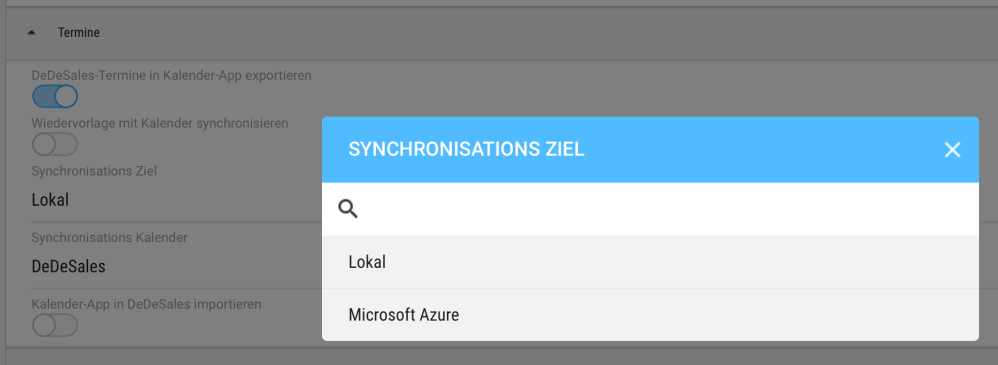
Under Synchronisation calendar, you can select a calendar that is available in the synchronisation target. If you make no selection here, a calendar named DeDeSales will be created. (Rights to create calendars are required)

Under "Synchronise follow-up with calendar" you can activate that appointments for the follow-up from tasks are synchronised with the calendar. The target selection from "Export appointments to Calendar app" is adopted here. If no selection was made there, you can make a target setting here.
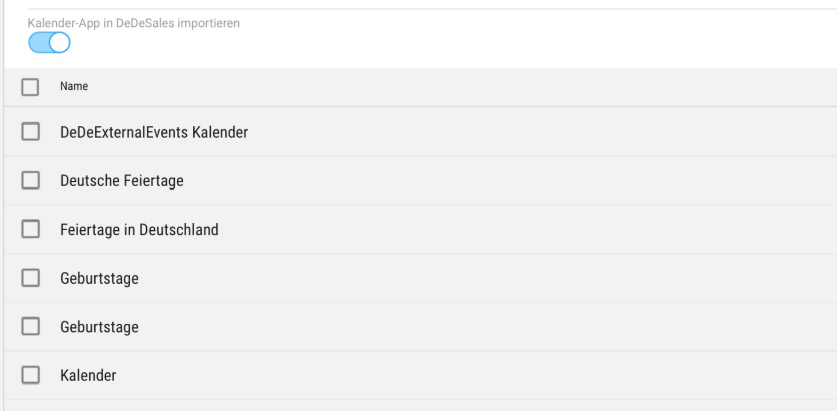
Under "Import Calendar app into DeDeSales" you can activate that appointments from an available calendar are imported into the DeDeSales app. After activating, you can select an available calendar.
3. Contacts
If "Export contacts to the Contacts app" is active, all contacts will be exported to the Contacts app.
Save / Disable
After you have finished the settings, you can apply them by clicking "Save". After setting up calendar synchronisation, it can only be changed again after you have disabled and re-enabled the setting.
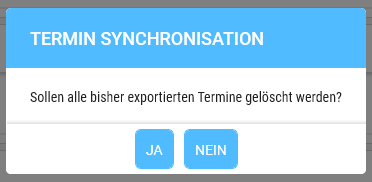
If you disable the synchronisation of appointments, a prompt will appear asking if you want to delete the exported appointments.