Map (Landscape Mode)
In Landscape view (except in View Month, where the map makes no sense) you can activate the map.
You then jump to the identical period in the Map view.
If you open the Map view without customers, the area of the Home address is displayed, provided the Tour optimisation is licensed. Otherwise, the Coordinates from the Role are shown. If these are also empty, the map centres on Göttingen / Kassel.
The Map view contains the following elements:
Header

- Title: Current display period + calendar week
- Back arrow to switch back to the time view
- Plus (activates the radius selection)
- Triple Point
- "Map" and "List" are not visible
- Customers (toggles the grid on/off)
- Customer names
- (Toggle, displays "Name1 Name2 Name3" under the PINs)
Display
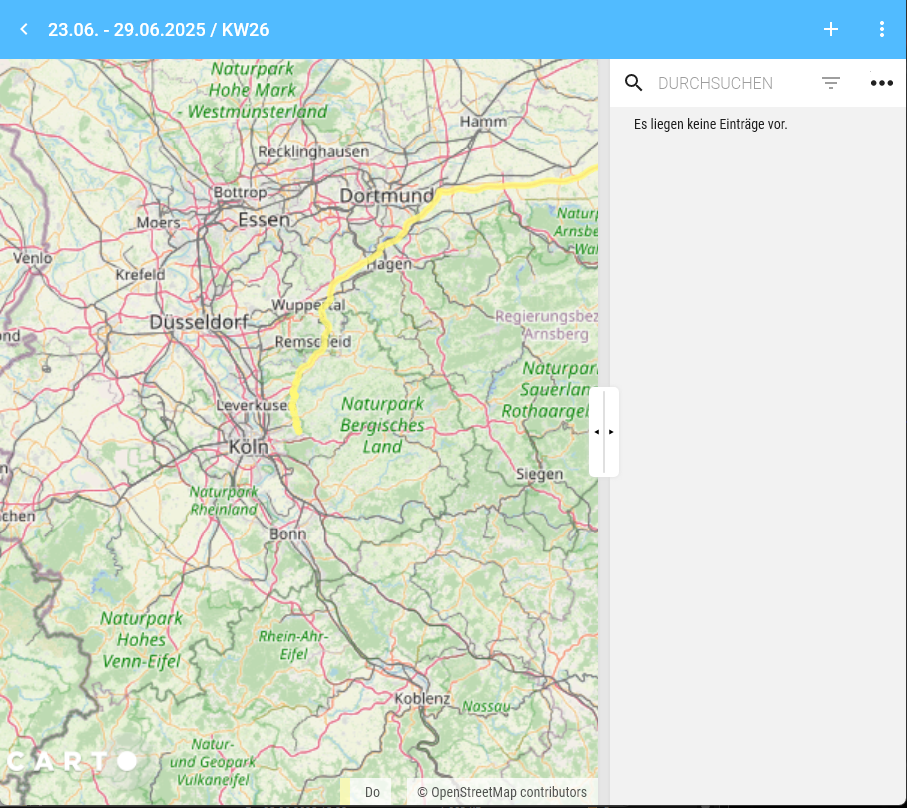
Map (2/3)
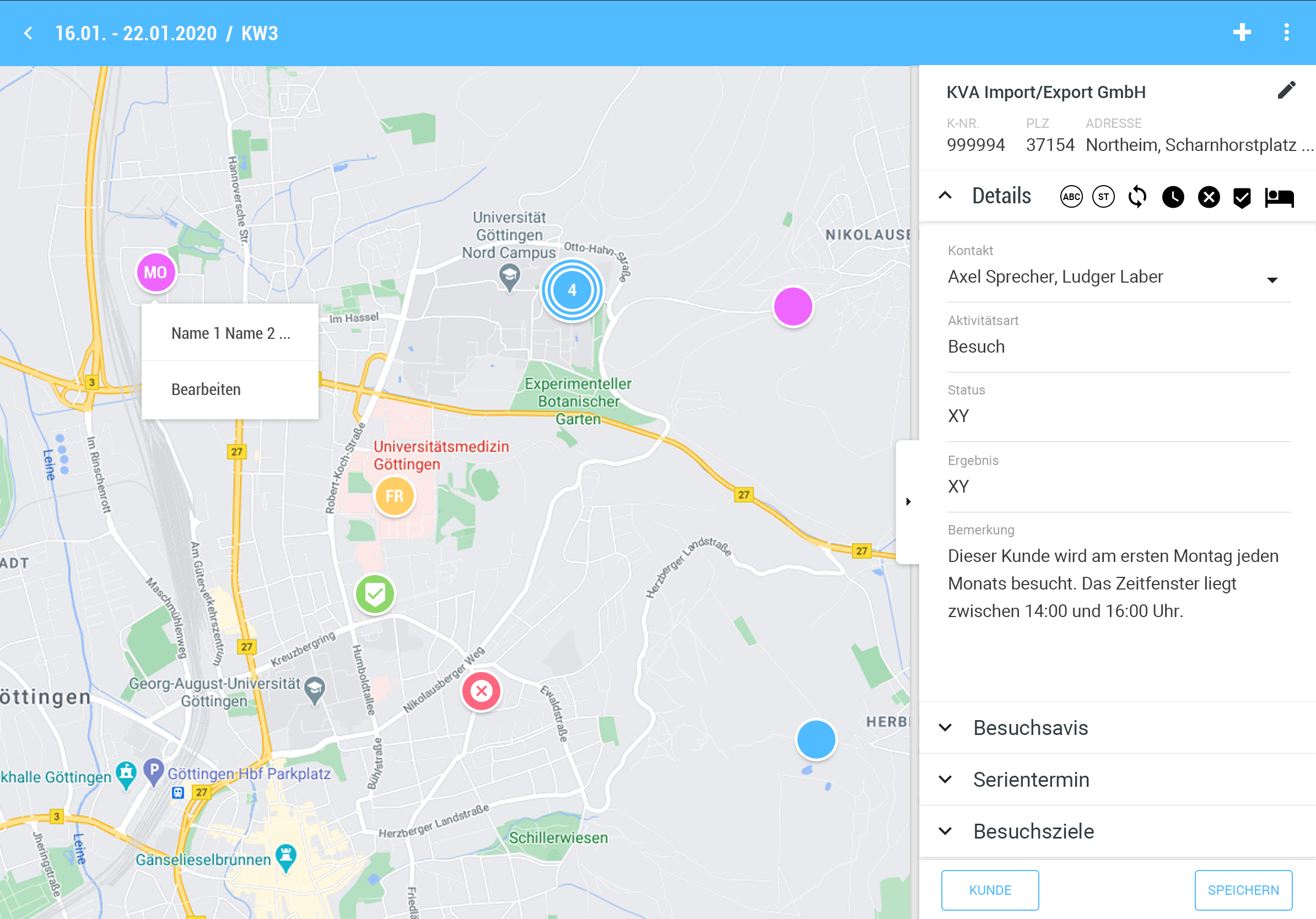
- All Appointments in the selected period are displayed.
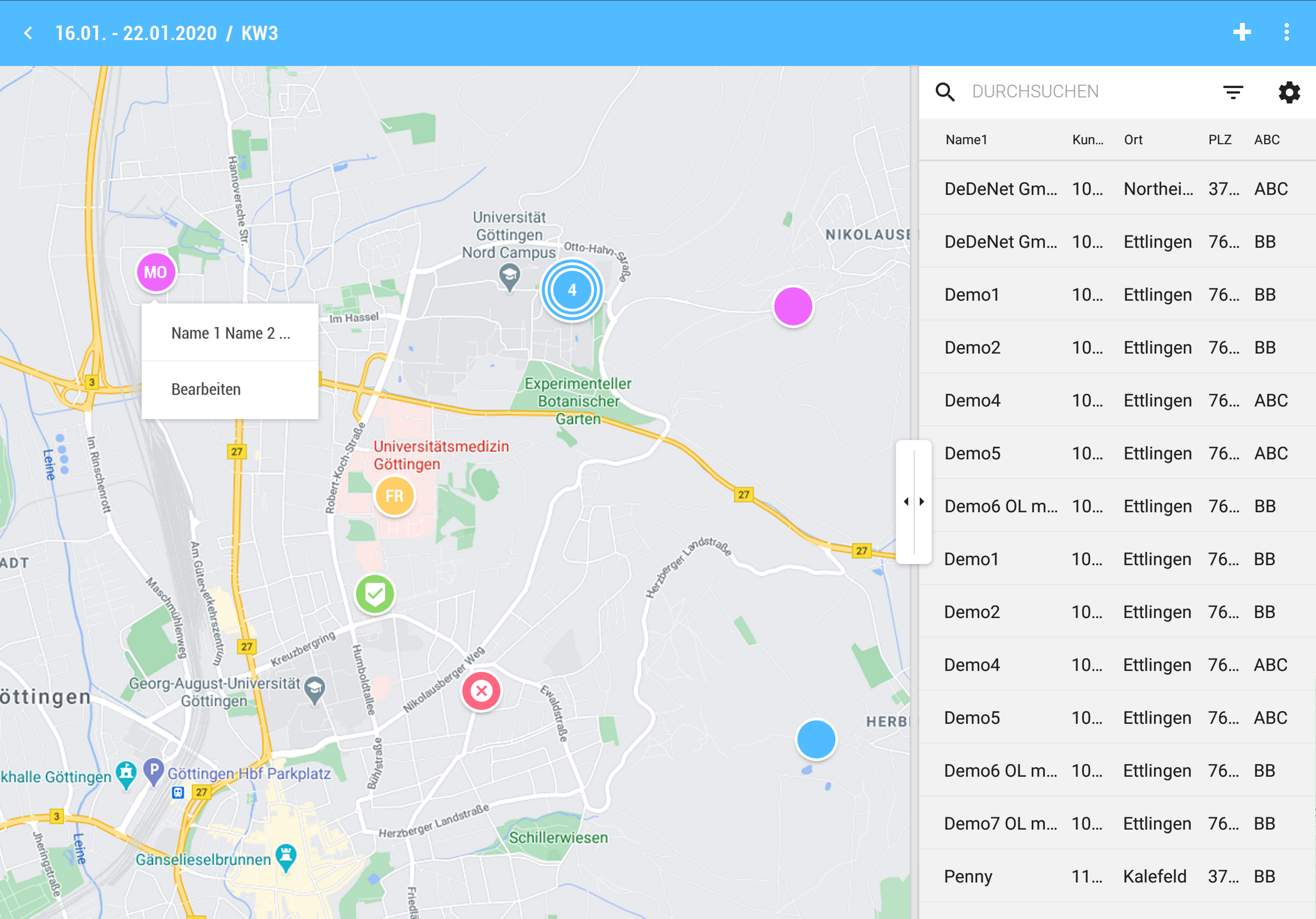
- Customers from the Result list are displayed in the grid.
- 1) Deleted customers are not shown on the map.
- 2) Pin (circle)
- a) For more than 1,000 customers to display, the Customer name is not shown on the map.
- 3) Click on Pin
- a) If an Appointment exists: Opens the Appointment view on the right and hides the grid if visible.
- b) If no Appointment exists: Like +, the selected Customer is already preselected.
- 4) The Colour of PIN is defined by the corresponding setting in the Triple Point menu.
- a) Darker shades should be chosen so that the font colour does not clash with the Colour of PIN.
- 5) If the PIN is already scheduled in the Appointment calendar
- a) Weekly Overview: Shows the Day of week abbreviated (MO, TU, WE, FR, SA, SU).
- b) Day View: Shows the order according to Calendar management (1st, 2nd, 3rd, … ).
- c) If the Appointment is Done or cancelled, the corresponding symbols are shown instead of the described abbreviations.
- 6) For route drawing, there is a separate route colour for each Day of week.
- Pin Cluster
- 1) Contains the Quantity of Pins included. Colour and Size of the cluster change depending on the Quantity of Pins as follows:
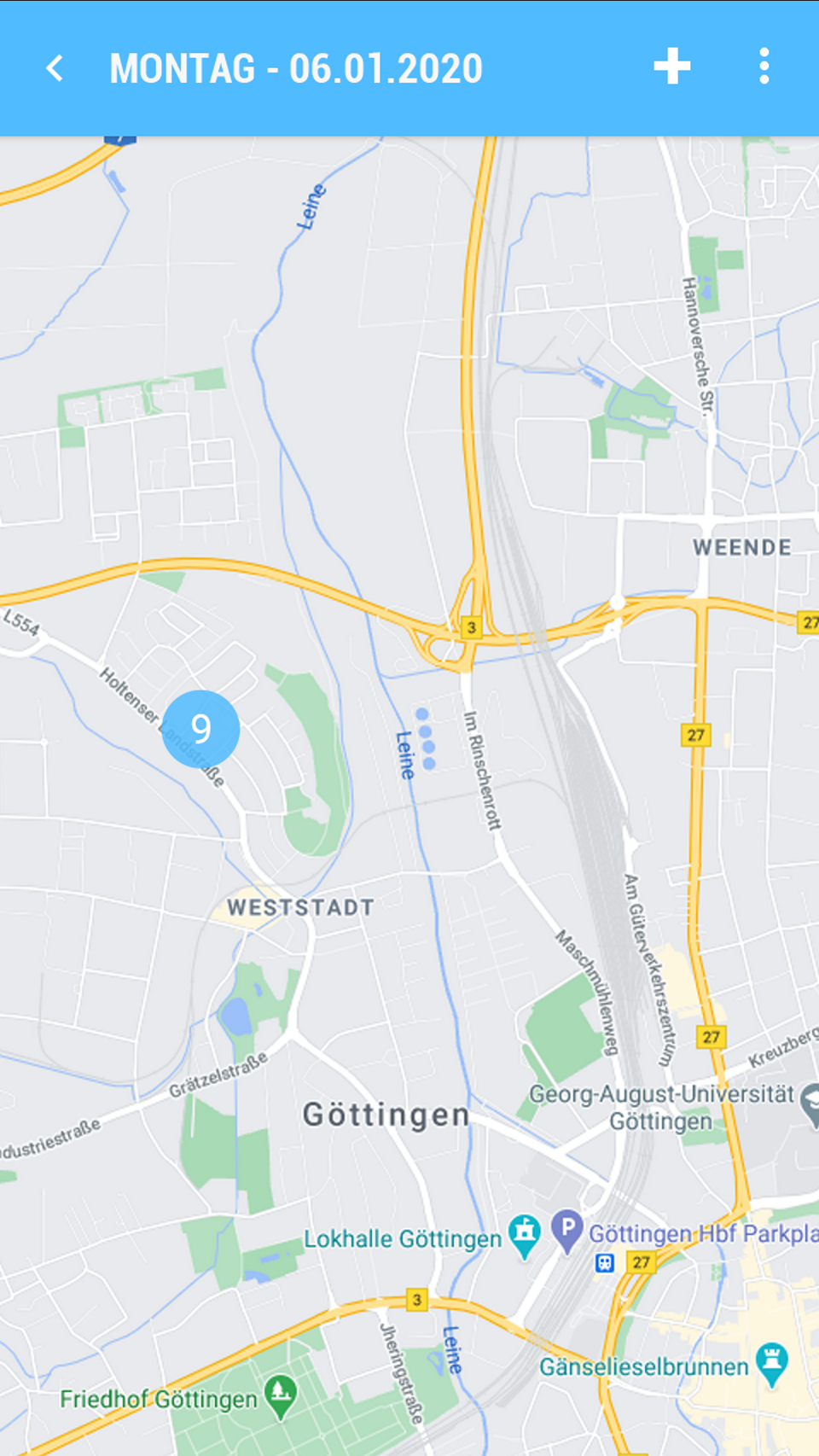
- a) 9 (Colour = Blue)
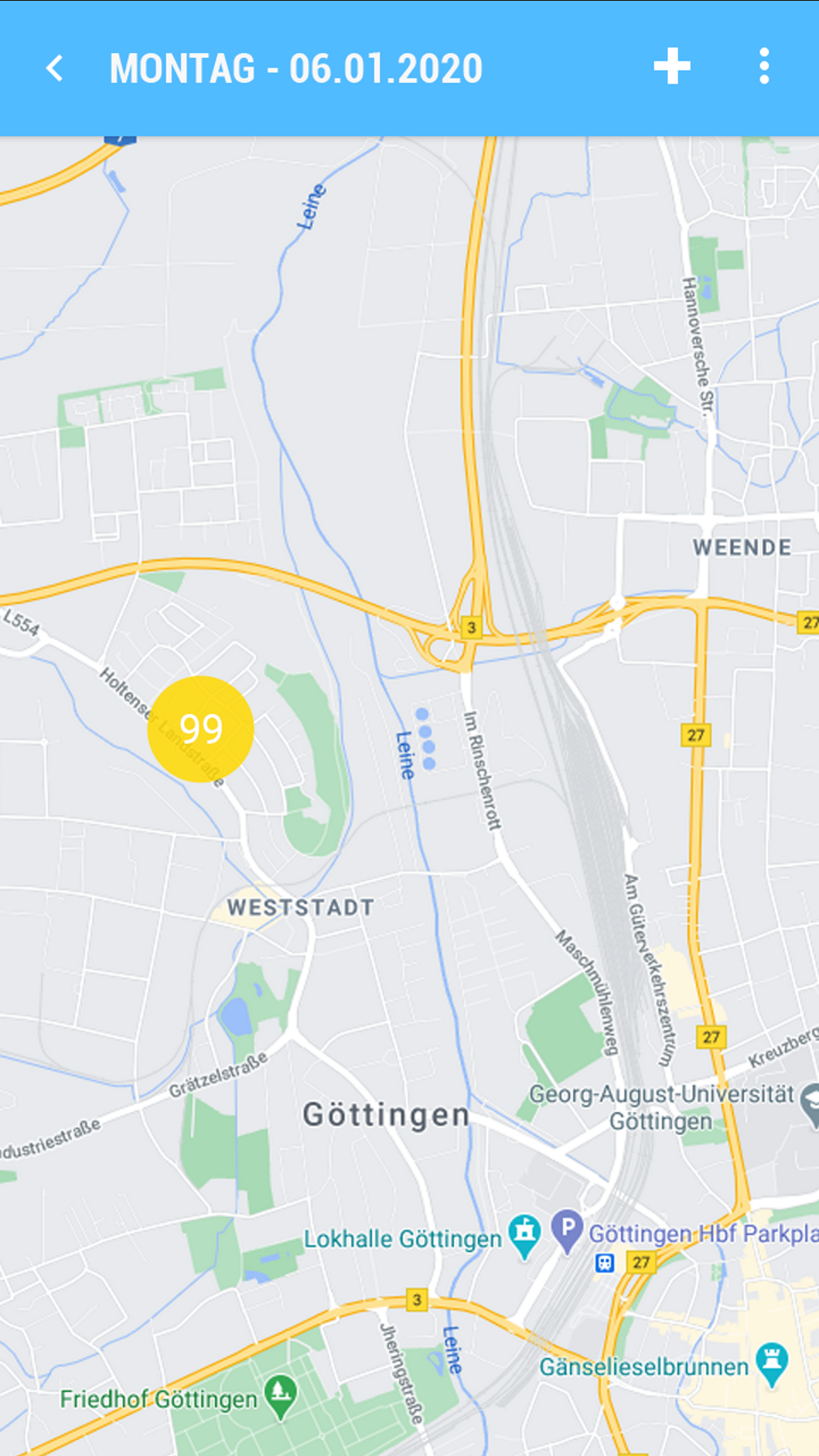
- b) 99 (Colour = Yellow)
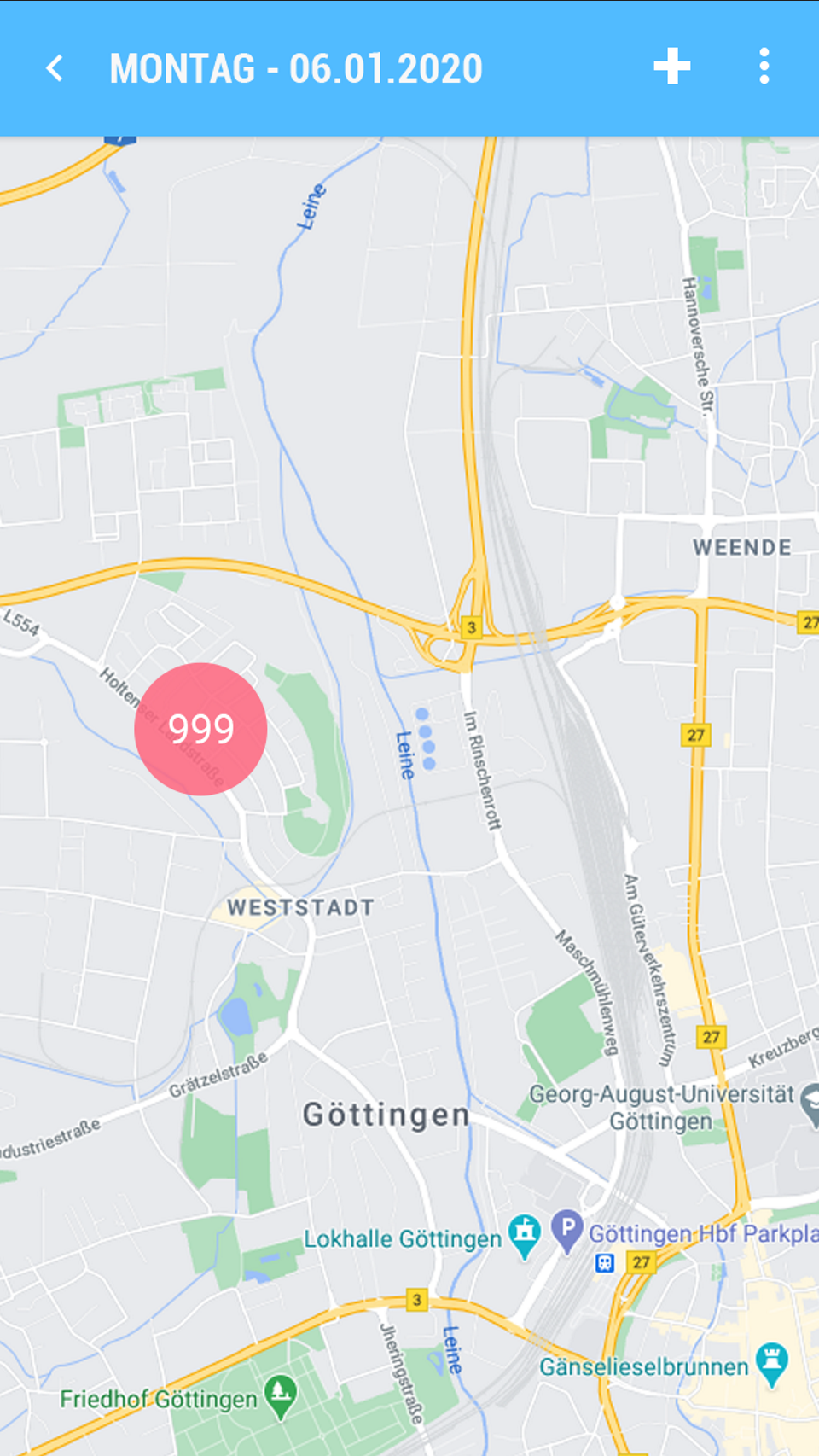
- c) 999 (Colour = Red)
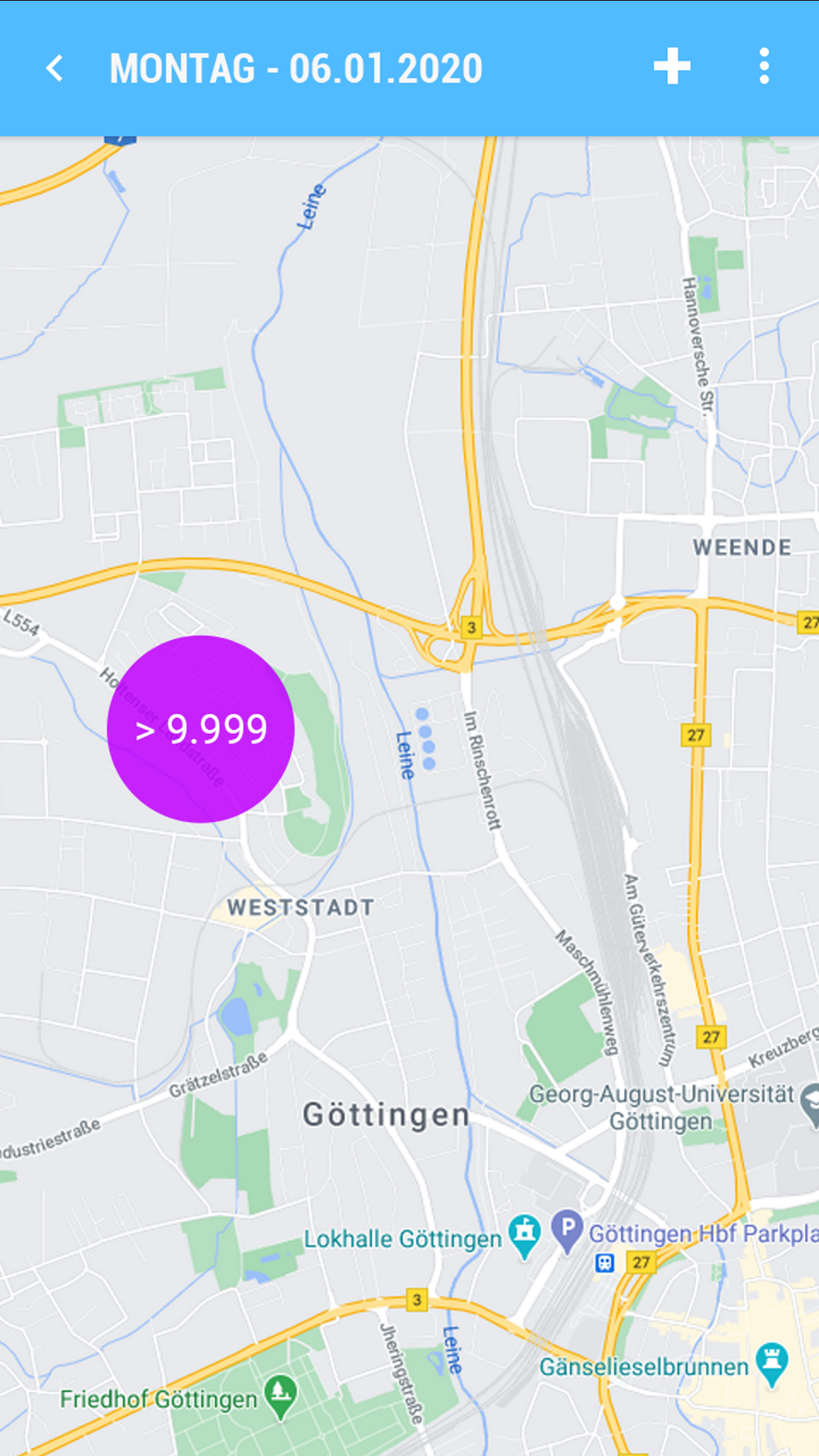
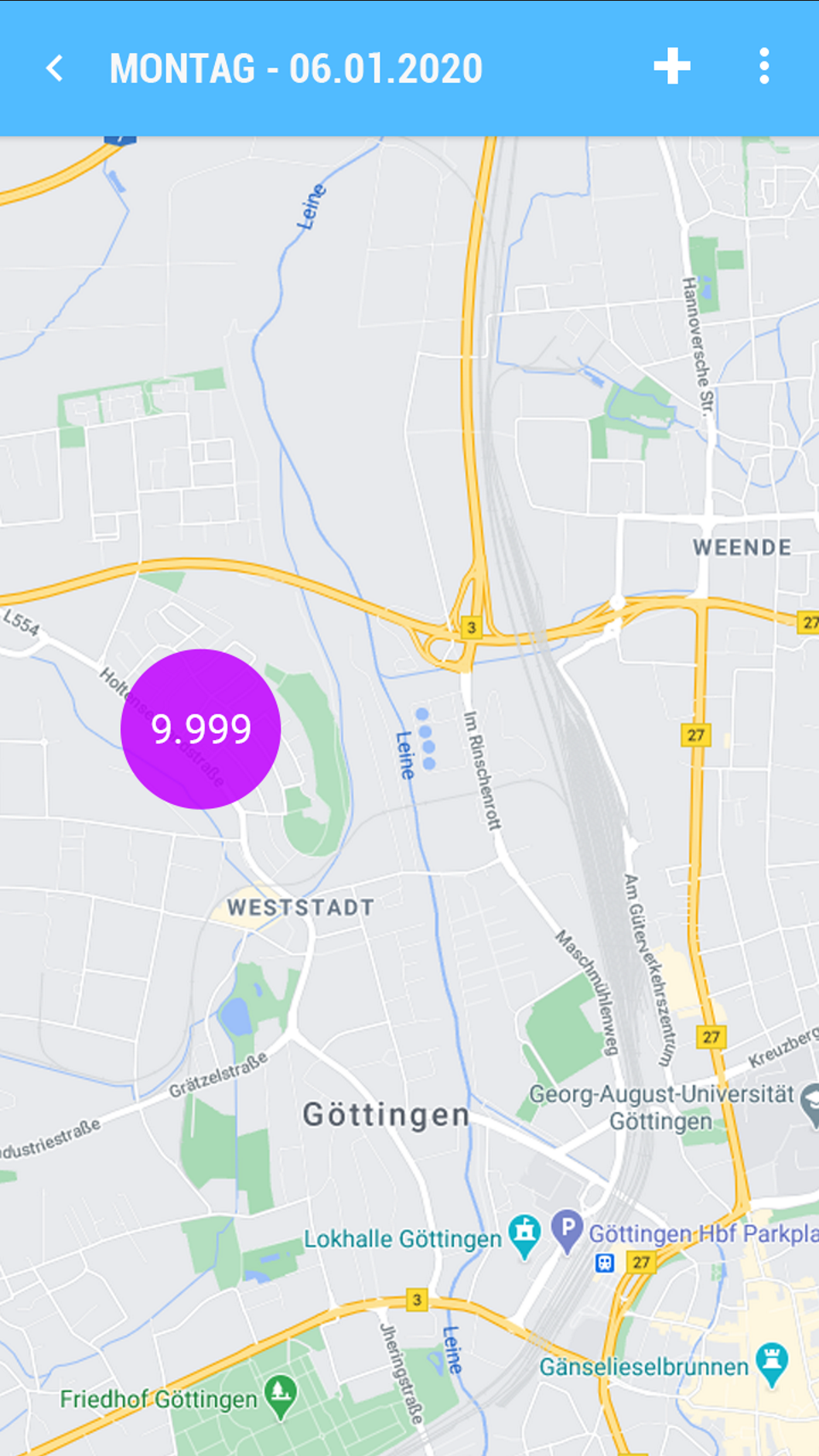
- d) 9,999 (Colour = Purple)
- e) > 9,999 (Colour = Purple)
- 2) Clicking on a cluster zooms in two levels further.
- a) If at the lowest zoom level a cluster is still required, a cluster pin is still shown. Clicking on the pin opens a popup with all Customers contained. Selecting an entry then opens the Promotion for the PIN.
- b) Grid
- Name1
- Name2 (Visible only in Landscape)
- Name3 (Visible only in Landscape)
- Street
- Postal code (half width)
- Location
- 1) Contains the Quantity of Pins included. Colour and Size of the cluster change depending on the Quantity of Pins as follows:
Grid Customer Search (1/3)
Clicking on a Customer zooms the position on the map
| Context menu | Triple Point |
|
|
|
| Edit Appointment | |
 | |

| Example Cluster Pin | | |||
 |  |  |  |
|