# Performance Description Hardware Scanner
A hardware scanner is available in the following type
1. Product search
2. Item entry
3. Facing entry
If the scanner is configured in the Settings, it will be automatically connected in the corresponding types. The connection takes place in the background and is indicated via the Nose.
Clicking on the Nose during the connection setup allows you to view the status.
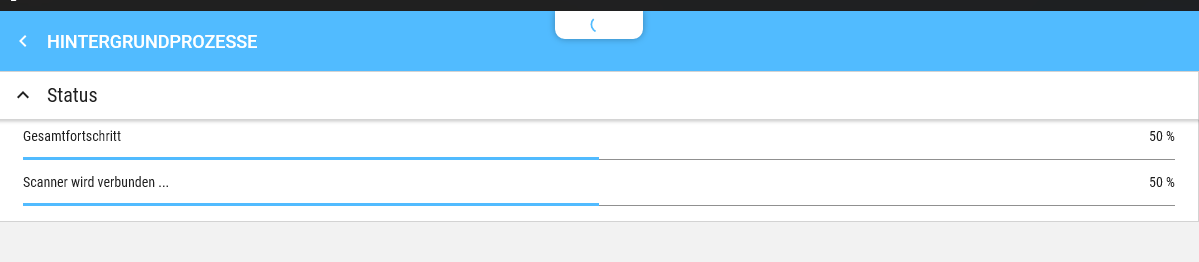
If there is a problem establishing the connection, a corresponding symbol is displayed in the Nose.
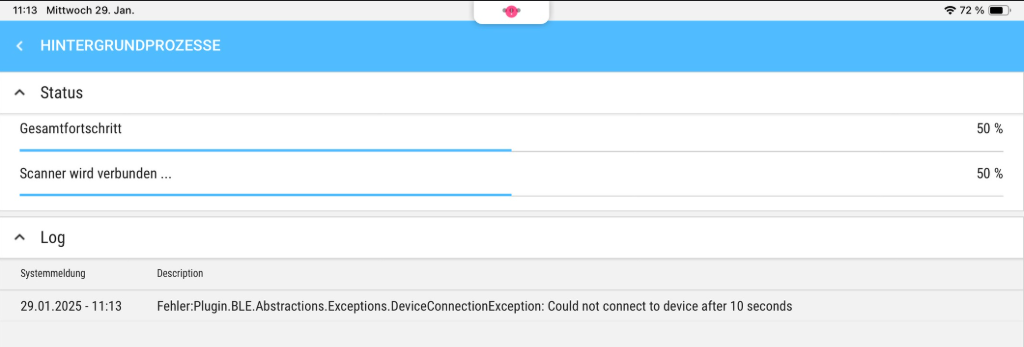
The scanner is successfully connected when the Nose disappears and has not shown any Error.