Setting up hardware scanners
- KDC280 BLE iOS
- Koamtac KDC 270
- Koamtac KDC 270 - Setup without Offline Scan
- KDC 200 Reset and Configure Windows
- Eyoyo EY-009P BLE (BLE APP)
- Eyoyo EY-009P BLE 2.0
- Eyoyo EY-009P BLE
KDC280 BLE iOS
Setting up the scanner on iPad or iPhone
To connect the scanner with the iPad or iPhone, please follow these steps:
Setup on the scanner
- Press the two arrow keys together to enter the menu.
- Navigate down to the item "BT Config" and select it with the middle scan button.
- Select Connect Device and activate the SPP option if it is not yet active.
- Select the Save & Exit option to save.
- Scroll down and make the following additional settings, saving each with Save & Exit:
- Auto Power On: Enabled
- In the previous menu, select the bottom item "Top Menu" to return to the Main Menu.
- Navigate all the way down and select the "Exit Menu" option.
Setup on the iPad or iPhone
- Please start the DeDeSales app and open the Main Menu via the citizen menu.

- In the Main Menu, open the Settings via the gear icon.

- In Settings, select BLE (1) under Type of scanner and your KDC280 (2) under Scanner. Confirm the pairing request with Pair (3) and finally click Save (4) at the very bottom.

- The scanner is now connected to DeDeSales and ready for use.
Koamtac KDC 270
Setting up the scanner on the iPad
To use the scanner with the iPad hardware, please proceed exactly as follows during setup, i.e. do not install any software from the supplied CD and do not make any other settings.
Setup on the scanner
- Press both arrow keys together to enter the menu.
- Navigate down to the item "BT Config" and select it with the middle scan button.
- Select Connect Device and activate the MFi (iPhone) option if it is not already active.
- Select Save & Exit to save.
- Scroll down and make the following additional settings, saving each with Save & Exit:
- Auto Power On: Enabled
- Wakeup Nulls: Enabled
- In the previous menu, select the bottom item "Top Menu" to return to the Main Menu.
Setup on the iPad
- Select Settings -> Bluetooth and activate it.
Setup on the scanner part 2
- In the submenu "BT Service", select Discovering.
(the discovering process takes about 40 seconds)
- Select the corresponding iPad and confirm with the middle scan button.
- Select "Use Default" and confirm again with the middle scan button.
Setup on the iPad part 2
- A prompt appears on the iPad asking whether to pair the scanner; click Pair here.
- The scanner is now connected to the iPad and can be used in the DeDeSales software.
Troubleshooting
- If MFi (iPhone) is missing under Connect Device, it must first be set to Enabled under System Config -> MFi Mode.
Setting up the scanner on Windows device
To use the scanner with the tablet / laptop hardware, please proceed exactly as follows during setup, i.e. do not install any software from the supplied CD and do not make any other settings.
Setup on the scanner
- Press both arrow keys together to enter the menu.
- Navigate down to the item "BT Config" and select it with the middle scan button.
- Select Connect Device and activate the SPP option if it is not already active.
- Select Save & Exit to save.
- Scroll down and make the following additional settings, saving each with Save & Exit:
- Auto Power On: Enabled
- Wakeup Nulls: Enabled
- In the previous menu, select the bottom item "Top Menu" to return to the Main Menu.
- In the submenu "BT Service", select Pairing.
- To use the scanner, you must exit the configuration menus.
Setup in the Microsoft Windows operating system
- Start -> Bluetooth & other devices -> activate Bluetooth.
- Add Bluetooth or other device -> click Bluetooth.
- Select the KDC270, wait until it is connected and click "Completed".
- The scanner is now connected to the Windows device and can be used in the DeDeSales software.
Setting up the scanner on Android device
To use the scanner with the Android hardware, please proceed exactly as follows during setup, i.e. do not install any software from the supplied CD and do not make any other settings.
Setup on the scanner
- Press both arrow keys together to enter the menu
- Navigate down to the item "BT Config" and select it with the middle scan button.
- Select Connect Device and activate the SPP option if it is not already active.
- Select Save & Exit to save.
- Scroll down and make the following additional settings, saving each with Save & Exit:
- Auto Power On: Enabled
- Wakeup Nulls: Enabled
- In the previous menu, select the bottom item "Top Menu" to return to the Main Menu.
Setup on the Android device
- Settings -> Connections -> select Bluetooth and set to "On".
Setup on the scanner part 2
- In the submenu "BT Service", select Discovering.
(the discovering process takes about 40 seconds)
- Select the corresponding Android device and confirm with the middle scan button.
- Select "Use Default" and confirm again with the middle scan button.
Setup on the Android device part 2
- A prompt appears on the Android device asking whether to pair the device. Confirm this with OK.
- The scanner is now connected to the Android device and can be used in the DeDeSales software.
Koamtac KDC 270 - Setup without Offline Scan
Scanner
Koamtac KDC 270
Setting up the scanner on the iPad
To use the scanner with the iPad hardware, please proceed exactly as follows during setup, i.e. do not install any software from the supplied CD and do not make any other settings.
Setup on the scanner
- Press both arrow keys together to enter the menu.
- Navigate down to the item "BT Config" and select it with the middle scan button.
- Select Connect Device and activate the MFi (iPhone) option if it is not already active.
- Select Save & Exit to save.
- Scroll down and make the following additional settings, saving each with Save & Exit:
- Auto Power On: Enabled
- Wakeup Nulls: Enabled
- In the previous menu, select the bottom item "Top Menu" to return to the Main Menu.
Setup on the iPad
- Select Settings -> Bluetooth and activate it.
Setup on the scanner part 2
- In the submenu "BT Service", select Discovering.
(the discovering process takes about 40 seconds)
- Select the corresponding iPad and confirm with the middle scan button.
- Select "Use Default" and confirm again with the middle scan button.
Setup on the iPad part 2
- A prompt appears on the iPad asking whether to pair the scanner; click Pair here.
- The scanner is now connected to the iPad and can be used in the DeDeSales software.
Troubleshooting
- If MFi (iPhone) is missing under Connect Device, it must first be set to Enabled under System Config -> MFi Mode.
Setting up the scanner on Windows device
To use the scanner with the tablet / laptop hardware, please proceed exactly as follows during setup, i.e. do not install any software from the supplied CD and do not perform any other
Setup on the scanner
- Press both arrow keys together to enter the menu.
- Navigate down to the item "BT Config" and select it with the middle scan button.
- Select Connect Device and activate the SPP option if it is not already active.
- Select Save & Exit to save.
- Scroll down and make the following additional settings, saving each with Save & Exit:
- Auto Power On: Enabled
- Wakeup Nulls: Enabled
- In the previous menu, select the bottom item "Top Menu" to return to the Main Menu.
- In the submenu "BT Service", select Pairing.
- To use the scanner, you must exit the configuration menus.
Setup in the Microsoft Windows operating system
- Start -> Bluetooth & other devices -> activate Bluetooth.
- Add Bluetooth or other device -> click Bluetooth.
- Select the KDC270, wait until it is connected and click "Completed".
- The scanner is now connected to the Windows device and can be used in the DeDeSales software.
Setting up the scanner on Android device
To use the scanner with the Android hardware, please proceed exactly as follows during setup, i.e. do not install any software from the supplied CD and do not make any other settings.
Setup on the scanner
- Press both arrow keys together to enter the menu
- Navigate down to the item "BT Config" and select it with the middle scan button.
- Select Connect Device and activate the SPP option if it is not already active.
- Select Save & Exit to save.
- Scroll down and make the following additional settings, saving each with Save & Exit:
- Auto Power On: Enabled
- Wakeup Nulls: Enabled
- In the previous menu, select the bottom item "Top Menu" to return to the Main Menu.
Setup on the Android device
- Settings -> Connections -> select Bluetooth and set to "On".
Setup on the scanner part 2
- In the submenu "BT Service", select Discovering.
(the discovering process takes about 40 seconds)
- Select the corresponding Android device and confirm with the middle scan button.
- Select "Use Default" and confirm again with the middle scan button.
Setup on the Android device part 2
- A prompt appears on the Android device asking whether to pair the device. Confirm this with OK.
- The scanner is now connected to the Android device and can be used in the DeDeSales software.
KDC 200 Reset and Configure Windows
Initial Situation
The KDC200 no longer functions as expected. The connection is only established sporadically or the scanned barcodes are no longer transferred.
Solution
Reset the scanner to factory settings and set it up again.
- Exit DeDeSales completely and Disable Bluetooth on the PC
1.1 To Disable Bluetooth, press the Windows key + A and click on the Bluetooth icon.
- Scan the following barcodes one after the other. Pay attention to the scanner and only scan the next barcode when the green status LED goes out.


- Enable Bluetooth again by pressing Windows key + A and clicking on the Bluetooth icon, then Start DeDeSales.
- The scanner now works as usual again.
Eyoyo EY-009P BLE (BLE APP)
Setup on the scanner
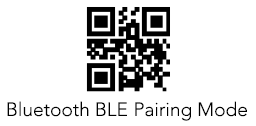
- Scan the following QR code to activate the "BLE Mode" and start pairing
Special feature for Android
- On Android, you need an additional BLE app to connect BLE Bluetooth scanners. For example, use the app "BLE-Scanner (Connect & Read)" and connect the scanner with this app. Afterwards, you can proceed with the next step.
Setup in the DeDeSales App
- Please start the DeDeSales app and open the Main Menu via the citizen menu.
- In the Main Menu, open the Settings via the gear icon.
- In the Settings, select BLE under Type of scanner and select your EY-009 BLE under Scanner. Finally, click Save at the very bottom. (On Windows and Android, the Type of scanner option does not exist.)

- The scanner is now connected to DeDeSales and ready for use.
Offline Scan Function
- To activate the Offline Scan function (the scanner does not need to be reconnected), the "Storage mode" QR code must be scanned:
Storage mode:

- All subsequently scanned barcodes will be stored on the scanner.
- To transfer the barcodes, click on Transfer barcodes in the client.

- After the "Transfer barcodes" window has opened, you can transfer the scanned barcodes via the QR code. For this, scan the "Data upload" QR code.
 Data upload:

- After the barcodes have been transferred, you can click on "Apply" and the barcodes will be transferred.

- After all data has been successfully transferred, you can delete the barcodes from the scanner via the "Delete data" QR code; otherwise, they will be transferred again.
Delete data:

- Barcode to reactivate the normal scan mode:
Normal mode:

Troubleshooting
- If necessary, the scanner can be reset to factory settings via this barcode. The initial setup may need to be performed again afterwards.
- When the scanner is connected to the device for the first time, the barcode from the manual must be used. Pairing via the device functionality (press button for 8 seconds) does not work because HID mode is activated there.
Eyoyo EY-009P BLE 2.0
Setup on the scanner
- Scan the following QR code to activate the "BLE Mode" and start pairing
Setup in the DeDeSales App
- Please start the DeDeSales app and open the Main Menu via the citizen menu.
- In the Main Menu, open the Settings via the gear icon.
- In the Settings, select BLE under Type of scanner and select your EY-009 BLE under Scanner. Finally, click Save at the very bottom. (On Windows and Android, the Type of scanner option does not exist.)
- The scanner is now connected to DeDeSales and ready for use.
Offline Scan Function
- To activate the Offline Scan function (the scanner does not need to be reconnected), the "Storage mode" QR code must be scanned:
Storage mode:
- All subsequently scanned barcodes will be stored on the scanner.
- To transfer the barcodes, click on Transfer barcodes in the client.
- After the "Transfer barcodes" window has opened, you can transfer the scanned barcodes via the QR code. For this, scan the "Data upload" QR code.
Data Upload:
- After the barcodes have been transferred, you can click on "Apply" and the barcodes will be transferred.
- After all data has been successfully transferred, you can delete the barcodes from the scanner via the "Delete data" QR code; otherwise, they will be transferred again.
Delete data:
- Barcode to reactivate the normal scan mode:
Normal mode:
Troubleshooting
- If necessary, the scanner can be reset to factory settings via this barcode. The initial setup may need to be performed again afterwards.
- When the scanner is connected to the device for the first time, the barcode from the manual must be used. Pairing via the device functionality (press button for 8 seconds) does not work because HID mode is activated there.
Eyoyo EY-009P BLE
Setup on the scanner
- Scan the following QR code to activate the "BLE Mode" and start pairing
Setup in the DeDeSales App
- Please start the DeDeSales app and open the Main Menu via the citizen menu.
- In the Main Menu, open the Settings via the gear icon.
- In the Settings, select BLE under Type of scanner and select your EY-009 BLE under Scanner. Finally, click Save at the very bottom. (On Windows and Android, the Type of scanner option does not exist.)
- The scanner is now connected to DeDeSales and ready for use.
Offline Scan Function
- To activate the Offline Scan Function, the following barcode must be scanned:
- All subsequently scanned barcodes will be stored on the scanner.
- Barcode to Transfer the scanned Data to DeDeSales:
- Barcode to Clear the memory of the scanner:
- Barcode to reactivate the normal scan mode:
Troubleshooting
- If necessary, the scanner can be reset to factory settings via this barcode. The initial setup may need to be performed again afterwards.
- When the scanner is connected to the device for the first time, the barcode from the manual must be used. Pairing via the device functionality (press button for 8 seconds) does not work because HID mode is activated there.