# Employee
Here you create the employees who either receive a device or are assigned to a customer from the ERP system as employees (even if they do not receive a device). You can create as many employees as you like here.
Provision of data for roll-out: If you are still on the overview page, you have the option to select "Provision of data for roll-out" at the bottom right. Here you have the possibility to provide data for several employees simultaneously. You can use this function for the roll-out, but also for distributing adjustments / amendments in the DeDeSales web backend.
You create a new employee by clicking the plus. An existing one can be edited or deleted by selecting the desired entry and editing accordingly.
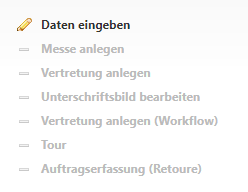
### Enter data
At this point, the basic data of the employee is first recorded, such as agent number, name and e-mail address. The more information stored here, the easier the support by DeDeNet.
#### Exchange e-mail account
If you have purchased the licence to synchronise the e-mail traffic of the ADM with DeDeSales, please enter the employee's Exchange e-mail account here. Synchronisation takes place every 4 hours based on the e-mail address.
#### Culture
Culture is a mandatory field because there is the possibility of multiple languages in the SAAS area. If you have set up several languages and the employee's culture is, for example, French, you can specify a fallback culture for terms that have not yet been translated into French.
#### Devices and role
Assign the employee a previously defined role and, if applicable, a [device](https://wiki.dedesales.de/link/442#bkmrk-page-title). Since there can also be employees without devices, device is not a mandatory field.
#### Supervisor
The supervisor must be entered here if they are to view the employee's appointments or visit data. The supervisor must have been created as an employee beforehand.
#### Further properties
Assign the employee the following properties if applicable:
1\. Test users can enter orders, but these are not transferred to the ERP system.
2\. If an employee should be able to see all customers, select the corresponding checkbox. Please note, however, that this may consume a lot of memory on the server and/or the device.
3\. If an employee should also receive documents for unassigned customers (who are not assigned via the ERP system), e.g. through a substitution, check the box.
4\. If you only want to create the employee but they should not yet or in the future receive any data, activate this checkbox.
5\. If the employee wants outgoing mails or faxes to also be sent to their personal address, the checkbox must be set and an e-mail address entered (not the Exchange e-mail account!).
6\. To create expense or daily reports for the employee via the backend, the checkbox Create agent reports must be set.
#### Type
Assign the employee a different type if, for example, they only use the backend and you want to restrict backend access.
#### User
If there is also a web backend user for the employee, please select the corresponding user here. Otherwise, leave the field empty. See also [Restricting data access](https://wiki.dedesales.de/link/173#bkmrk-page-title) for backend users.
#### Item list
You can assign this to the employee if only items from the previously created list should be visible.
With the assistant step "Save / Next" you proceed to the next section.
### Set up trade fair
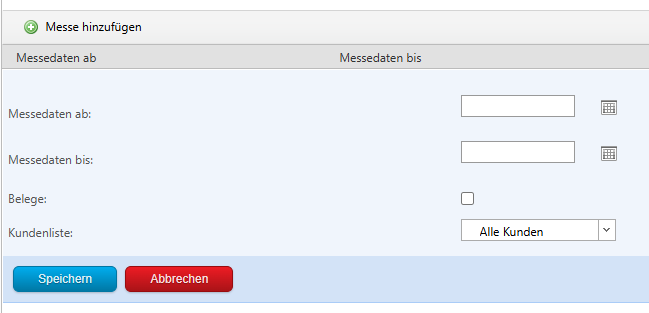
Here you have the option to make additional customers available on the device for individual employees for a defined period. We recommend extending the trade fair period by 2-3 days before the start and 2-3 days after the end of the trade fair, as data transfer may take a little longer and the employee may want to prepare for the new customers or perform activities afterwards.
You can add a trade fair by clicking the plus.
[](https://wiki.dedesales.de/uploads/images/gallery/2025-04/KaWKtmsjmbNWAfxQ-image.png)
You enter the trade fair data plus the buffer days and can provide the employee with documents from the customers under Customer list. These are made available on the device at the start of the period and automatically deleted from the employee's device after the period expires. This means it is not necessary to delete the entries, but it can of course still be done. Expired trade fairs are displayed in red.
Entries already made can be adjusted using the pencil icon.
### Set up substitution
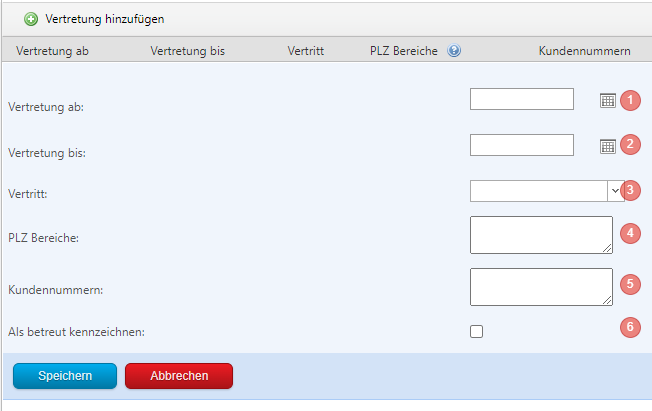
In case of illness or vacation, it may be necessary for an employee to take over customers from other employees. You then do not need to make changes in SAP for customer assignment, but create a substitution via the plus.
You enter the validity period of the substitution using the date selection (1) and (2). Then you decide whether the employee should completely take over the customers of another employee (3) or only certain customers (5). Individual customer numbers are written one below the other separated by Enter.
Postal code areas (4) can be limited to several individual postal codes, e.g. 37154 (one postal code per line) or postal code ranges, e.g. 30000-39999.
With "Mark as assigned" (6) you can transfer the documents of the selected customers to the employee.
The data is made available on the device at the start of the period and automatically deleted from the device after the period expires. This means it is not necessary to delete the entries, but it can of course still be done. Entries made can be adjusted using the pencil icon.
### Edit signature
Here the employee's signature for refund orders can be stored.
### Order entry (return)
Here you specify from which achievement of the credit note quota the employee should receive an additional notification. Additionally, the output text in the DeDeSales client can be colour-adjusted. Corresponding values can be configured here.
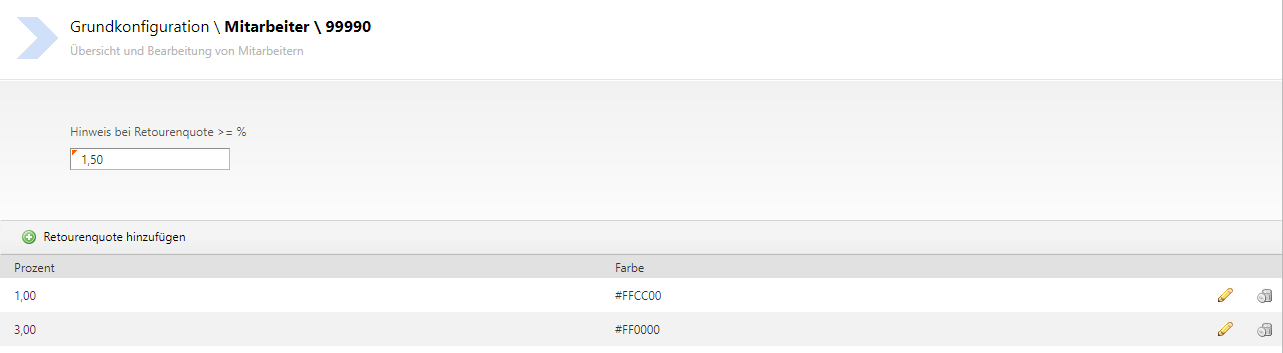
Please note the dependencies here to "Basic configuration > Settings > Period for calculating the credit note quota": Here you define the period used for the calculation (credit notes / orders).
Basic configuration > Roles > Credit note: With the right "Credit note only possible after order" it can be controlled whether at least one order must have been entered beforehand to improve the credit note quota. The following settings are available:
No - Entry is always possible.
Yes - An order must have been created beforehand.
Optional - The employee receives an enquiry if no order has been created beforehand.
For Yes and Optional, it should be noted that the employee can circumvent the logic in the client by first creating an order, then a credit note, and then deleting the order again.
For Optional, if no order has been created, the employee must either select a reason for complaint or enter a free note. The reasons for complaint are maintained in the code tables (area: Reason for complaint).
### Multi-device configuration
Under this point you can assign up to 2 additional devices to an employee. Devices created here are not counted in the licence. The device number is generated automatically; please read the section [Model](https://wiki.dedesales.de/link/189#bkmrk-modell) if necessary.
You activate the device via the button and a new, random device number is generated and displayed as a QR code.
You have the options to perform the installation via the QR code, delete the device, or activate the device.
Please note the notice that daily reports, expenses, visits and reports cannot be recorded on a second device.