# Menu Administration

# User

#### General

Users are responsible for operating the backend. They have nothing to do with the menu item Basic configuration - Employee. A user can also have a client, but this is not mandatory. You can restrict the views of backend users. Please read the section [Restricting data access for backend users](https://wiki.dedesales.de/link/427#bkmrk-einschr%C3%A4nken-des-dat) for more information.

The number of users is determined by the licence. Once all users are "assigned", no more can be created. The DeDeNet user is not counted in the licence. If a standard admin user has been created, this is included in the number of users.

#### Add a new user

Create the user using the green plus.

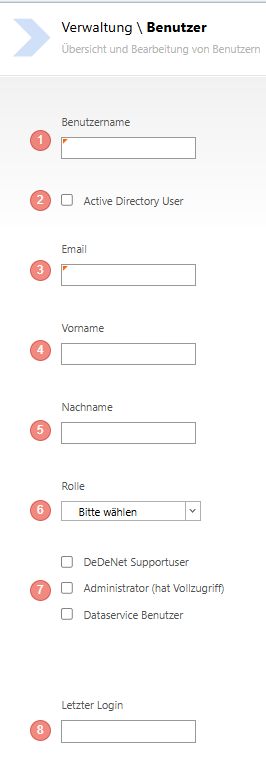
<div drawio-diagram="2161"><img src="https://en.wiki.dedesales.de/uploads/images/gallery/2026-08/HtHIIsoNsiOQ0jOF-6gtekaatf0lpawgc-drawing-9-1762156862.png" alt="6GTEKAATF0lPAWgc-drawing-9-1762156862.png"/></div>

1. Set the user name.
2. If it is to be an Active Directory user, the user name must match the Active Directory name.
3. The E-mail address is a mandatory field. The password will be sent to this address if it is not an Active Directory user.
4. First name is an optional field.
5. Last name is an optional field.
6. Select the desired role for the backend user from the dropdown list.
7. Specify whether the user is to be an administrator or a dataservice user.
8. Check here when the user last logged into the backend.
 

#### Two-factor authentication

[![image.png](https://en.wiki.dedesales.de/uploads/images/gallery/2026-08/IN82rKY3l0f7leHx-9xdu7vkltxefsosl-image.png)](https://wiki.dedesales.de/uploads/images/gallery/2025-11/9xDu7VKLTxEfSOSL-image.png)

Once you have created a user, two-factor authentication can be activated. To do this, call up the user again and press the button. You will be shown a QR code which must be scanned using the authentication app (e.g. Google Authenticator). Activation occurs by entering the code for the first time.

You can also deactivate two-factor authentication again.

[![image.png](https://en.wiki.dedesales.de/uploads/images/gallery/2026-08/AcnRO6oMiz3uTFLI-4s2evskj3j6tibvn-image.png)](https://wiki.dedesales.de/uploads/images/gallery/2025-11/4s2Evskj3j6tIBVN-image.png)

#### Dataservice user

If you evaluate data via the API or load ERP data into DeDeSales via the API, you need a dataservice user.

#### Assign e-mail subscriptions

You can switch directly to the e-mail subscription area using the "Save / Next" button. All subscriptions already created are listed here and can be checked.

#### Restricting data access for backend users

In the area Basic configuration &gt; Employee, it is possible to assign a web backend user to each employee. Through this assignment, as well as the assignment of the supervisor, it is possible to restrict a web backend user's access to employees and customers.  
If a web backend user has no link to an entry from Basic configuration &gt; Employee, they have full access to all customers and employees.

Let us assume the following company structure (KAM = Key Account Manager, SKAM = Senior Key Account Manager):

[![image.png](https://en.wiki.dedesales.de/uploads/images/gallery/2026-08/zJmYwo3DwFJ5ce7T-cjal09wst5ndj4y0-image.png)](https://wiki.dedesales.de/uploads/images/gallery/2025-11/cjAL09WSt5Ndj4Y0-image.png)

If you want to give KAMs, SKAMs and the sales manager access to the DeDeSales web backend and restrict access accordingly, you must do the following:  
1\.    Assign all district managers the corresponding KAMs as supervisors.  
2\.    Enter the corresponding user (from Administration - User) for each KAM under Basic configuration - Employee - User.  
3\.    Assign all KAMs the corresponding SKAMs as supervisors.  
4\.    Enter the corresponding user (from Administration - User) for each SKAM under Basic configuration - Employee - User.  
5\.    Do not assign any users to the sales manager under Basic configuration - Employee, as this person should have unrestricted access as the highest hierarchy level.

# Roles

General

This section concerns the determination of what a User is allowed to do in the backend and should not be confused with the Roles in the Basic configuration area.

Create a new Role using the green plus.

[![image.png](https://en.wiki.dedesales.de/uploads/images/gallery/2026-08/9ZpFLqL0RznRm0PY-bapfmguhlwpbgst8-image.png)](https://wiki.dedesales.de/uploads/images/gallery/2025-11/BaPFmguHlwpBgSt8-image.png)

Assign a meaningful name and press the "Next" button.

Define the required Types for the Role and save it. Afterwards, you can assign the Role to the Users of the backend.

For the Types Statistics, Individualreports and Lists, further restrictions can be made for backend Users, i.e. here you can specify which User is allowed to see which Statistics.

You can also make the Settings via the individual Types. A User with Administrator rights always has access to all Statistics, Individualreports and Lists.

# Password

At this point, you change the password of the backend user with which you are currently logged in.

It is not possible to change the password of another user.

# Licence

Here you get an overview of your currently issued licence. Licences can only be processed by DeDeNet. So if you want, for example, to have another device or a new module licensed, please contact DeDeNet GmbH.

# Log files

The Log files section is divided into 4 areas. It is recommended not to enable this section for all Users, as it could lead to confusion.

The Date can be freely selected, however the logs are Deleted after a certain period.

#### System

Here you can find, for example, information about the ORDER export

#### Import

The status of the import is listed here.

#### Employee

The Devices of the Employee are listed and the Promotions performed on them can be tracked here.

#### E-Mail

Triggered e-mails are listed here with their shipping status.

To view a log file, you can either download it using the Save button:

[![image.png](https://en.wiki.dedesales.de/uploads/images/gallery/2026-08/URZ5MEMNIC4MlOlX-cdl51eiajzxzbc45-image.png)](https://wiki.dedesales.de/uploads/images/gallery/2025-11/cDL51EiAJzxZbC45-image.png)

Alternatively, click on a text log file and it will open directly in the browser window.

# E-mail subscriptions

Each WEB backend user can be assigned so-called e-mail subscriptions. An e-mail subscription informs the user about certain events in DeDeSales.

Some e-mail subscriptions can have their subject line supplemented with information, for example to enable automatic distribution via the e-mail server to different mailboxes. The possible wildcards for this are shown to you accordingly when selecting.

Some e-mail subscriptions can be set client-specific. If the client is not filled in, it applies to all existing clients.

[![image.png](https://en.wiki.dedesales.de/uploads/images/gallery/2026-08/IRx6ojmf6sJbYVDM-bmerpa7g7w0lvxdo-image.png)](https://wiki.dedesales.de/uploads/images/gallery/2025-11/BMERpa7G7W0lvxDo-image.png)

After the desired subscription has been selected and any additional information has been entered, proceed via the assistant with the button "Save / Next" to select the possible recipients. All recipients who should receive the subscription are listed on this page. You can tick the desired recipients and exit the creation of the e-mail subscription via the button "Save / Exit process".

Please ensure that the selected recipients also have an e-mail address, otherwise the e-mail cannot be sent.

### Tip

If you want to assign several subscriptions to a user at the same time, you do not have to click each subscription. You can switch to the user in the Administration area and switch to the e-mail subscriptions via the "Next" button. There you can check/uncheck all created subscriptions.

#### Possible e-mail subscriptions

<table id="bkmrk-adress%C3%A4nderung-betre" style="border-collapse:collapse;width:100%;height:977.891px;"><colgroup><col style="width:33.3731%;"></col><col style="width:25.0397%;"></col><col style="width:41.7064%;"></col></colgroup> <thead> <tr style="height:29.7969px;"> <td style="height:29.7969px;">E-mail subscription name</td> <td style="height:29.7969px;">customisable subject/content</td> <td style="height:29.7969px;">General Information</td> </tr> </thead> <tbody> <tr style="height:29.7969px;"> <td style="height:29.7969px;">Change of account data  
</td> <td style="height:29.7969px;">Subject without wildcard  
</td> <td style="height:29.7969px;">  
</td> </tr> <tr style="height:29.7969px;"> <td style="height:29.7969px;">Change of delivery times

 </td> <td style="height:29.7969px;">Subject without wildcard  
</td> <td style="height:29.7969px;">  
</td> </tr> <tr style="height:29.7969px;"> <td style="height:29.7969px;">Change of contact  
</td> <td style="height:29.7969px;">Subject without wildcard  
</td> <td style="height:29.7969px;">  
</td> </tr> <tr style="height:29.7969px;"> <td style="height:29.7969px;">Requests from unknown devices  
</td> <td style="height:29.7969px;">Subject without wildcard and with e-mail text</td> <td style="height:29.7969px;">  
</td> </tr> <tr style="height:29.7969px;"> <td style="height:29.7969px;">Visit exceptions report  
</td> <td style="height:29.7969px;">  
</td> </tr> <tr style="height:29.7969px;"> <td style="height:29.7969px;">Import warnings  
</td> <td style="height:29.7969px;">  
</td> <td style="height:29.7969px;">All import failures are sent to the subscription owner with the error message that occurred.

Warnings without import failure are sent for the following cases:

<div>1. In hierarchy endless reference </div><div>2. Customer list cannot be parsed -&gt; e.g. filter or SQL statement faulty.</div><div>3. Contact - faulty e-mail address</div><div>4. Contact - faulty fax number</div><div><div>5. Customers - faulty e-mail address</div><div>6. Customers - faulty fax number</div><div>7. Agent files cannot be imported</div> </div> </td> </tr> <tr style="height:29.7969px;"> <td style="height:29.7969px;">New customers created  
</td> <td style="height:29.7969px;">Subject with wildcard  
</td> <td style="height:29.7969px;">  
</td> </tr> <tr style="height:46.5938px;"> <td style="height:46.5938px;">eCom - notification of failed ERP export  
</td> <td style="height:46.5938px;">  
</td> <td style="height:46.5938px;">only available with licence</td> </tr> <tr style="height:29.7969px;"> <td style="height:29.7969px;">eCom - contact form  
</td> <td style="height:29.7969px;">  
</td> <td style="height:29.7969px;">only available with licence</td> </tr> <tr style="height:29.7969px;"> <td style="height:29.7969px;">eCom - customer registration  
</td> <td style="height:29.7969px;">  
</td> <td style="height:29.7969px;">only available with licence</td> </tr> <tr style="height:29.7969px;"> <td style="height:29.7969px;">Create eCom orders  
</td> <td style="height:29.7969px;">  
</td> <td style="height:29.7969px;">only available with licence</td> </tr> <tr style="height:29.7969px;"> <td style="height:29.7969px;">ERP errors  
</td> <td style="height:29.7969px;">Subject without wildcard</td> <td style="height:29.7969px;">  
</td> </tr> <tr style="height:29.7969px;"> <td style="height:29.7969px;">Conflict in loyalty scheme  
</td> <td style="height:29.7969px;">Subject without wildcard  
</td> <td style="height:29.7969px;">only available with licence</td> </tr> <tr style="height:29.7969px;"> <td style="height:29.7969px;">Missing translations  
</td> <td style="height:29.7969px;">Subject without wildcard and e-mail text</td> <td style="height:29.7969px;">  
</td> </tr> <tr style="height:29.7969px;"> <td style="height:29.7969px;">Consignment collection  
</td> <td style="height:29.7969px;">Subject without wildcard</td> <td style="height:29.7969px;">  
</td> </tr> <tr style="height:46.5938px;"> <td style="height:46.5938px;">Consignment delivery with mandatory collection  
</td> <td style="height:46.5938px;">Subject without wildcard</td> <td style="height:46.5938px;">  
</td> </tr> <tr style="height:46.5938px;"> <td style="height:46.5938px;">Consignment delivery without mandatory collection  
</td> <td style="height:46.5938px;">Subject without wildcard</td> <td style="height:46.5938px;">  
</td> </tr> <tr style="height:29.7969px;"> <td style="height:29.7969px;">Consignment scrapping  
</td> <td style="height:29.7969px;">Subject without wildcard</td> <td style="height:29.7969px;">  
</td> </tr> <tr style="height:29.7969px;"> <td style="height:29.7969px;">Customer master data change </td> <td style="height:29.7969px;">Subject with wildcard possible  
</td> <td style="height:29.7969px;">Client-capable from version 20  
</td> </tr> <tr style="height:29.7969px;"> <td style="height:29.7969px;">Return   
</td> <td style="height:29.7969px;">Subject with wildcard possible  
</td> <td style="height:29.7969px;">  
</td> </tr> <tr style="height:29.7969px;"> <td style="height:29.7969px;">Lead Status Sales-qualified lead  
</td> <td style="height:29.7969px;">Subject with wildcard possible and with e-mail text</td> <td style="height:29.7969px;">only available with licence

 </td> </tr> <tr style="height:29.7969px;"> <td style="height:29.7969px;">Employee with old data  
</td> <td style="height:29.7969px;">Subject without wildcard possible and with e-mail text</td> <td style="height:29.7969px;">  
</td> </tr> <tr style="height:29.7969px;"> <td style="height:29.7969px;">Employee without order  
</td> <td style="height:29.7969px;">Subject without wildcard possible and with e-mail text</td> <td style="height:29.7969px;">  
</td> </tr> <tr style="height:46.5938px;"> <td style="height:46.5938px;">Daily sending of expense reports, if activated  
</td> <td style="height:46.5938px;">  
</td> </tr> <tr style="height:46.5938px;"> <td style="height:46.5938px;">Daily sending of daily reports, if activated  
</td> <td style="height:46.5938px;">  
</td> </tr> <tr style="height:29.7969px;"> <td style="height:29.7969px;">Tour optimisation (operational) warnings  
</td> <td style="height:29.7969px;">Subject without wildcard  
</td> <td style="height:29.7969px;">  
</td> </tr> <tr style="height:29.7969px;"> <td style="height:29.7969px;">Used licences  
</td> <td style="height:29.7969px;">Subject without wildcard and with e-mail text</td> <td style="height:29.7969px;">  
</td> </tr> <tr style="height:29.7969px;"> <td style="height:29.7969px;">Sending of orders incl. Excel  
</td> <td style="height:29.7969px;">Subject with wildcard possible  
</td> <td style="height:29.7969px;">Client-capable  
</td> </tr> <tr style="height:29.7969px;"> <td style="height:29.7969px;">Sending of returns incl. Excel  
</td> <td style="height:29.7969px;">Subject with wildcard possible  
</td> <td style="height:29.7969px;">Client-capable  
</td> </tr> </tbody> </table>

# Total import

The total import is started every night at a set time by a task.

Use the button if you want to provide new data to all employees again during the day.

WARNING:

It may be that the total import takes longer, depending on the amount of data to be retrieved.