ORDER
- The Differences in the Area "Complete order"
- Matrix Entry
- Presentation mode Products
- Add to cart entry vs. normal entry
- KPI Widgets Order
The Differences in the Area "Complete order"
As soon as you press the Completion button in the client and depending on the role settings, you get different options on how to proceed with the order.

Save
You can use the "Save" button if you may need to edit the order later because you received General Information during completion. It remains on the device and is not displayed or considered during Data Transfer.
Complete
A completed order remains on the device until you select it for transmission during a Data Transfer.
Send
Transfer to another device
If the Employee is assigned multiple Devices via the backend, they can transfer orders from one device to another. This makes sense, for example, if the order was documented on an iPhone using the photo scanner, and the remaining details such as Delivery address or Customer order number are to be added later (perhaps after approval by the customer based on an Order suggestion) on a laptop.
Matrix Entry
To document matrix items, select the menu item "Open matrix" in the product's documentation area for the matrix item.
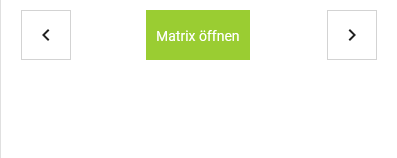
Product selection options
Select a single item by clicking on the coordinate.
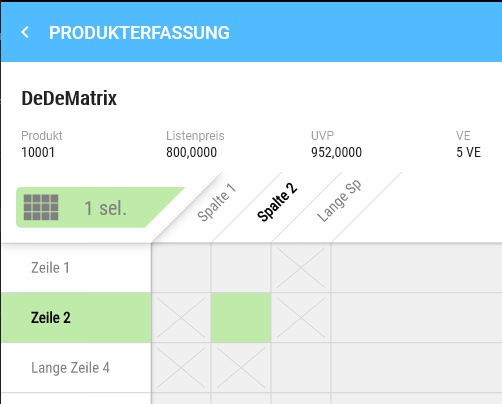
The green selection indicates that this field has been selected, and you will receive information about the selection in the upper area.
If you click another variant, you will receive a notice about a multiple selection.
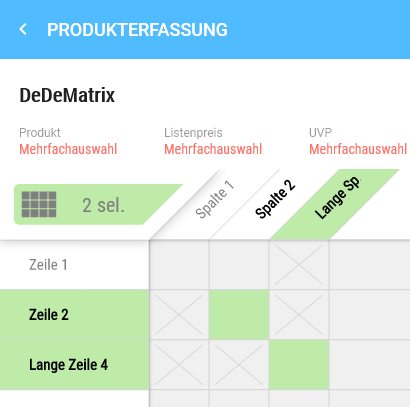
Clicking on a column heading selects all items located in that column which can be documented.
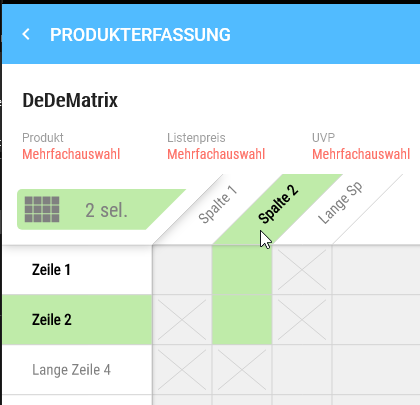
Clicking on a row heading selects all items located in that row which can be documented.
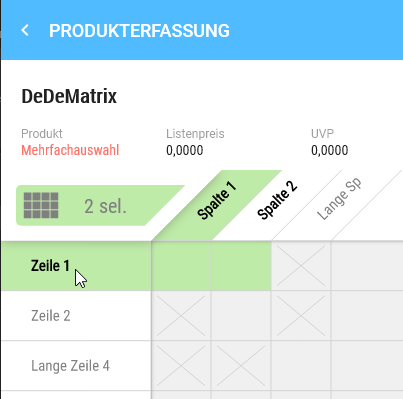
Variants that cannot be documented are marked with an X and cannot be selected.
Deselect product selection
If you want to clear the entire selection, this can be done via the green marked button in the head of the matrix (see mouse pointer).
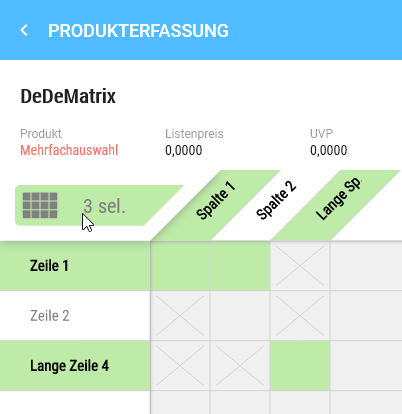
Individual products can be removed from the selection by clicking on the coordinate.
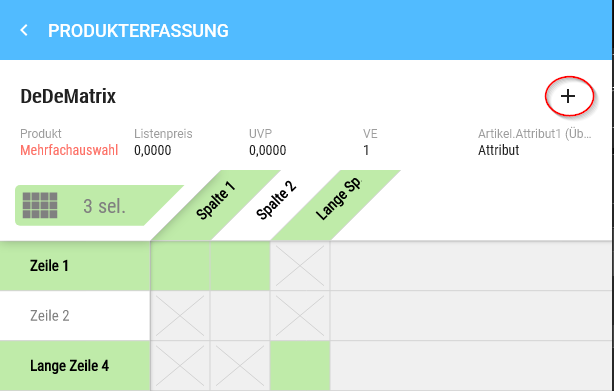
Add variant to the cart
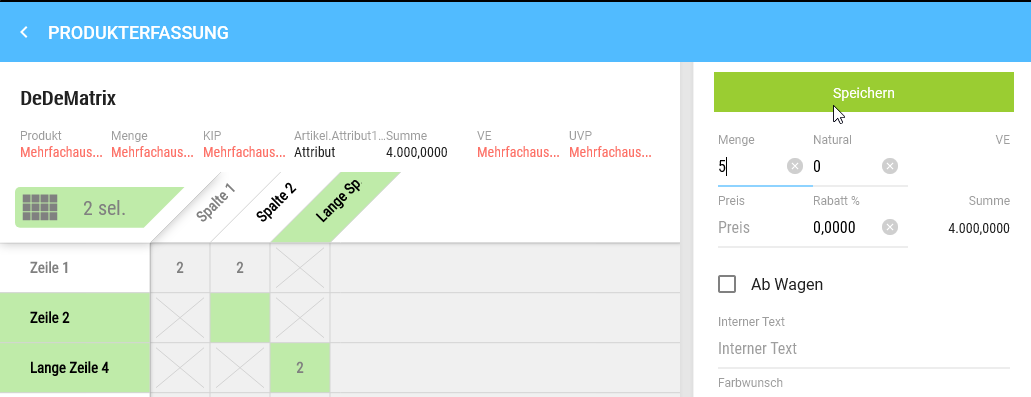
All selected products can be added to the cart using the plus. As usual, you have the option to use the functions of the documentation mask.
Save sets the quantity for each selected product.
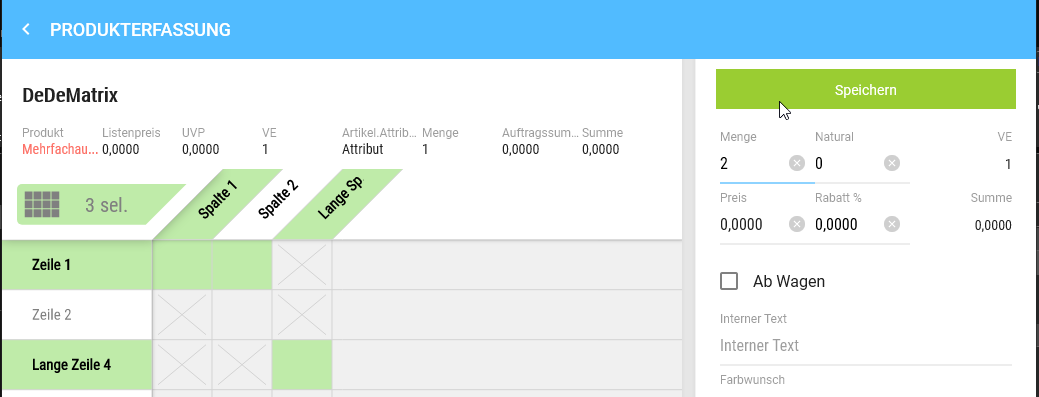
If you want to make amendments, click the corresponding coordinates again and select the pencil. At this point, you can also add further coordinates to the selection.
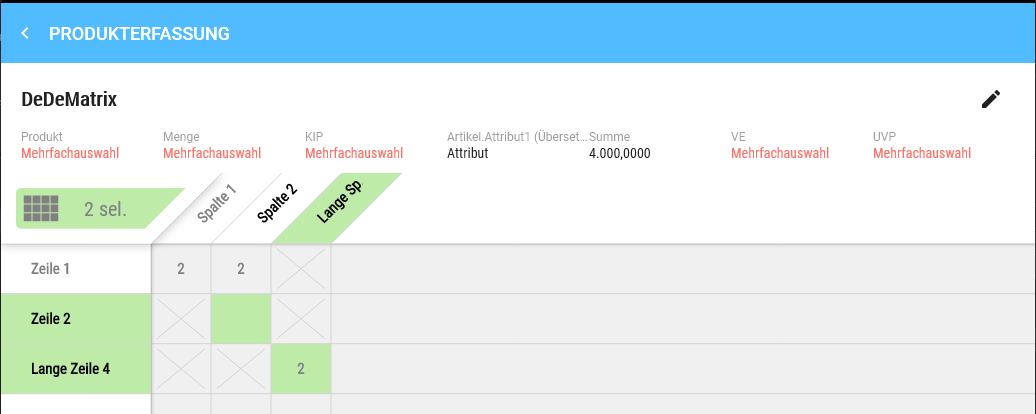
If you have added another field to the selection and switched to the documentation mask via the pencil, the quantity field is empty because there is no unique value anymore, i.e. a quantity must be set that should be added to the cart.
In the cart, the selected matrix products are displayed as individual products and summed. You can also make further amendments here.
Presentation mode Products
Summary
The Presentation mode Products is used to display the product pictures of a product within the Order entry.
In Presentation mode, the product picture can be enlarged, displayed in full screen, and switched between the available product pictures.
Accessibility
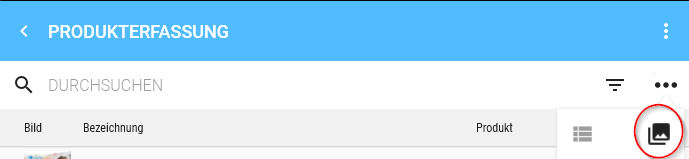
Title Type
The sharing icon is located in the Title Type.
The sharing icon allows the currently displayed product picture to be sent or saved.
Windows
On Windows, clicking the sharing icon opens the Save dialog.
Product Type
Picture Type
Initial display
The product picture is initially displayed on a black background in Presentation mode.
The following properties apply:
- The picture is displayed in the correct aspect ratio.
- The picture is always displayed centred.
- The picture is displayed suitably as portrait or landscape regardless of the original format.
Full screen display
The product picture can be displayed in full screen in Presentation mode.
In full screen, all control elements are Hidden.
The full screen display can be toggled on or off by a simple click on the picture.
Thumbs – Selection of product pictures
The available product pictures are additionally displayed as thumbs.
The thumbs have the following properties:
- The list of product pictures is horizontally scrollable.
- The product pictures are displayed square in the thumbs.
- The square display crops parts of each picture depending on the source format.
- The currently displayed product picture is positioned in the centre of the list.
- This means that only half pictures may be visible to the left and right of the currently selected picture.
- If the first picture is selected, no further picture is displayed to the left.
- If the last picture is selected, no further picture is displayed to the right.
The thumbs serve to select the product picture displayed in Presentation mode.
Operating functions
Switch product picture
You can switch between product pictures by swiping left or right.
When the first picture is reached, you cannot swipe further to the left.
When the last picture is reached, you cannot swipe further to the right.
Toggle full screen on and off
A single click on the product picture toggles between normal display and full screen display.
In full screen display, all control elements are Hidden.
Zoom
Zoom can be reset or toggled between displays by double-clicking the product picture:
- Scale to fit: The product picture is fully fitted into the available area.
- Scale to zoom: The product picture is displayed enlarged.
On touch devices, the product picture can also be zoomed in or out using pinch to zoom (two-finger gesture).
Relation to the Order entry
The Presentation mode Products belongs to the Order entry and is used there to display the pictures of a selected product.
The product pictures can be switched via the thumbs or by swiping. The currently selected product picture is displayed centred and can be viewed enlarged via full screen or zoom.
The Product Type is based on the header of the Order entry and takes into account whether the product is already In Basket.
Add to cart entry vs. normal entry

Here you can directly add products to the cart using the product number
You confirm the search by pressing the Enter key. If a unique product is found, the entry form opens and the quantity field is preselected with a sales unit. The product can be added to the cart by pressing the Enter key (or the Save button).
If the product number is not unique, e.g. for variants, the corresponding variant must be selected from the summary
Only already documented products are shown in the summary, not all orderable ones as in the normal product entry.
It is not possible to switch to another product using the arrow keys (green and white); the search must be performed again here.
KPI Widgets Order
There are 2 widgets available in the Orders type.
You can find KPI widgets in the "2 x 1 Widgets" type on the dashboard; further information on displaying them can be found here.
Orders current month
The basis for the count is the "Order date" field from the order header.

- The number shows the quantity of orders in the current month.
- Black, if the value is greater than 0
- Red, if the value is equal to 0.
- The blue chart shows the quantity of orders per month in the last 12 months. In this example screenshot, more orders were generated about 6 months ago than this month or 12 months ago.
| Order status | Included in count |
| Uncompleted order | x |
| Completed, not transferred order | x |
| Completed, transferred order | x |
| Deleted order |
Order sum current month
The basis for calculating the monthly values is the "Order date" field from the order header.

- The number shows the order sum of the current month without decimal places.
- Black, if the value is greater than 0
- Red, if the value is equal to 0.
- The blue chart shows the values per month from the past 12 months. In this example screenshot, significantly more orders were written this month than in the past 12 months.
| Order status | Value included in calculation |
| Uncompleted order | x |
| Completed, not transferred order | x |
| Completed, transferred order | x |
| Deleted order |