# Editing Workflows
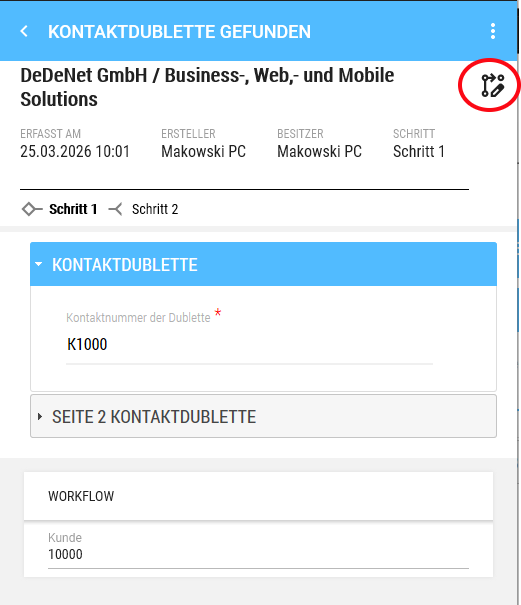
You can start a workflow using this icon:
[](https://wiki.dedesales.de/uploads/images/gallery/2026-03/rSYyuFZg9p9xax9M-image.png)
If there are multiple workflows for the type, they are listed one below the other. The name comes from the task created in the backend.
#### Basic Data
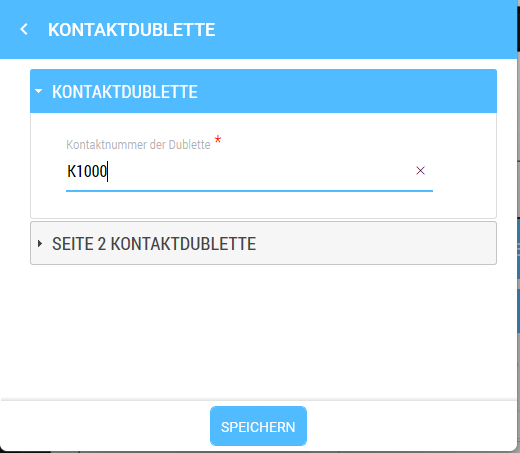
First, fill in the basic data necessary for the workflow (corresponding to the task created in the respective workflow type).
[](https://wiki.dedesales.de/uploads/images/gallery/2026-03/HL2bELDLBWSYguSj-image.png)
Apply these basic data by saving.
#### Start Workflow
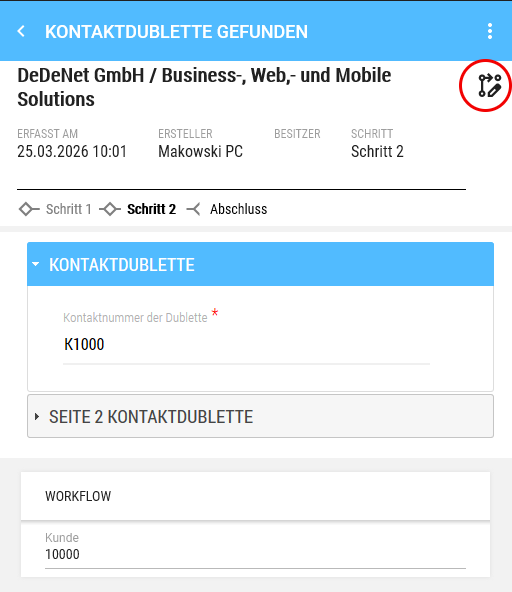
The workflow - Step 1 has now been created and can be edited by clicking on the icon.
#### Handing Over the Workflow
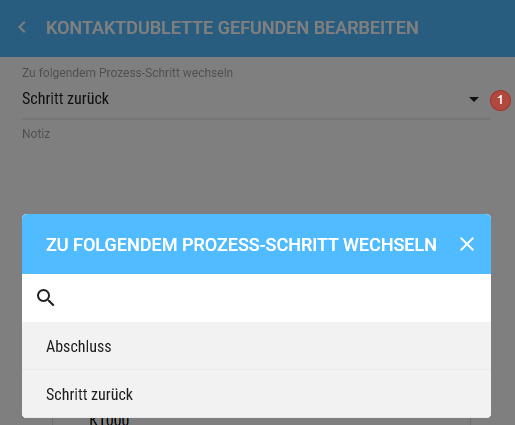
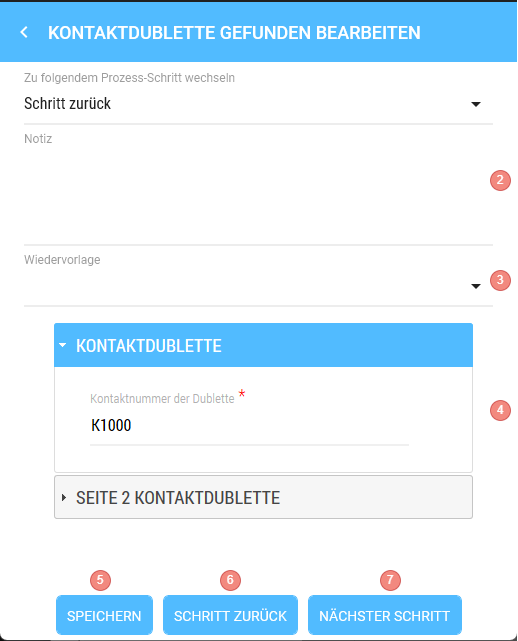
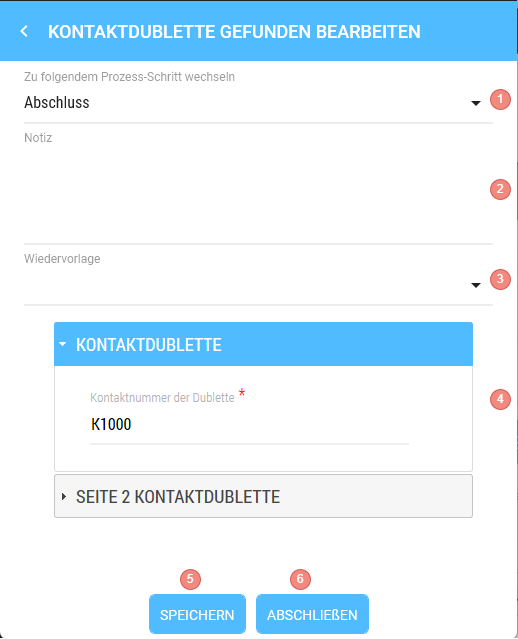
1. Select the process step to switch to. If there is only one, it will be preselected
2. A note can be added, if desired
3. Set a FOLLOW-UP date, if desired
4. Amendments to the basic data can still be made at this point
5. If you do not want to hand over the workflow to the next step yet, save the current status of the workflow by clicking "Save"
6. If you want to return the workflow regardless of the selection from (1), choose "Previous step"
7. If the next step should be started, then select the "Next step" button
8. A Data Transfer must be performed so that the workflow is handed over to the person responsible for the next/previous step.
#### Apply Workflow
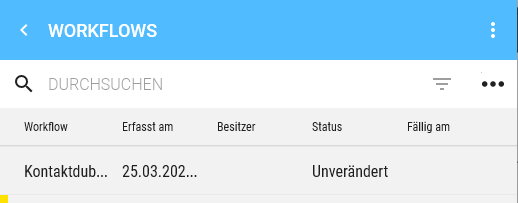
In the summary, you will find all workflows created for this customer. Workflows without colour marking and without an Owner can be viewed by clicking on them.
[](https://wiki.dedesales.de/uploads/images/gallery/2026-03/QzNs3A59F5CeJkHQ-image.png)
To apply the workflow, press the highlighted button again:
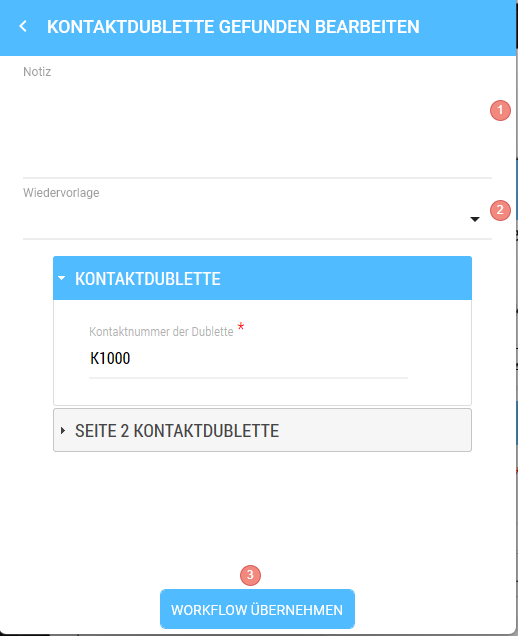
As long as the workflow has not yet been applied, the basic data cannot be changed.
1. Add a note, if desired
2. Add or change the FOLLOW-UP date, if desired
3. "Apply workflow" assigns the workflow to yourself. After a Data Transfer, it can no longer be edited by other people.
After applying the workflow, you can edit the basic data and select the next step (see [Handing Over the Workflow](https://wiki.dedesales.de/link/460#bkmrk-%C3%9Cbergabe-des-workflo)).
#### Complete Workflow
After all steps have been carried out, there is a completion step that must be performed so that the workflow, for example, no longer appears in the FOLLOW-UP list and is considered "Completed" in the backend.
1. The process step "Completion" must be selected
2. Optionally add a note
3. Optionally edit the FOLLOW-UP date
4. Basic data should contain all information/confirmed tasks
5. If the workflow should not be completed yet, choose "Save"
6. If the workflow is processed and all points are done, use the "Complete" button.
7. Then start a Data Transfer so that the other clients are "informed".