Controls
- Menus
- Search
- Filter
- Settings
- Excel Export
- Editing actions
- Panelbar
- Manage Widgets
- Sorting (Temporary)
Menus
Burger Menu 

This menu is only available on the dashboard. Here you have access to some Functions, such as Trip reports, Contacts, etc., if the corresponding widgets are not displayed.
Kebap Menu 

In various places, you will find a menu in the upper blue area. Different Promotions can be performed here, depending on where you are located.
Usually, all Entries that are also available as widgets are included, or there are cross-references to other locations.
Meatballs Menu 

You will find this menu when you display Lists.
Search
Searching 

In various places you can search the lists. Searching differs from filtering in that the list is changed live, i.e. you do not have to press the magnifying glass or ENTER.
If you enter a partial text in the Search, all results containing this partial text will be listed.
The fields used in the respective Full Text Search are defined in the process description.
The data in a grid can be searched with a Full Text Search. The following rules apply:
- Case sensitivity is ignored
- Spellings with umlauts also recognise texts with ae, oe, … and vice versa. The same applies to ß.
- During input, the result list automatically reduces to the found records.
- Multiple Search Terms can be entered separated by a space, so the input "DeDeNet Northeim" finds all records in which the specified search fields contain "DeDeNet" and "Northeim".
- A click on the magnifying glass icon positions the cursor in the input field and fully selects the previously entered text there.
Filter
Filter 

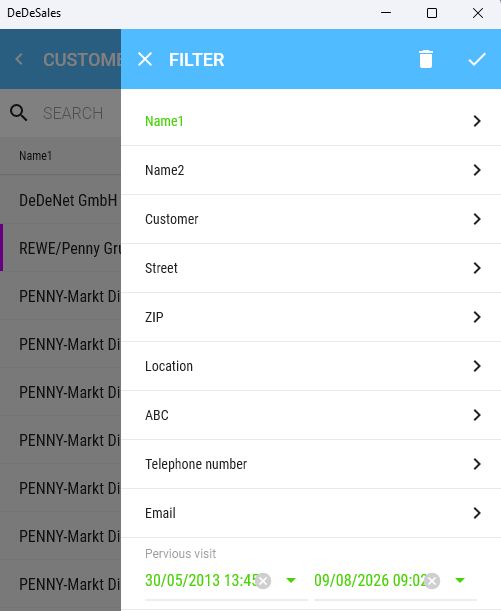
The filter icon is located in various places. Here you can filter the view as desired. The fields to be filtered must first be set as filterable via the grid menu,
Filters are not retained after leaving the page and must be activated anew each time.
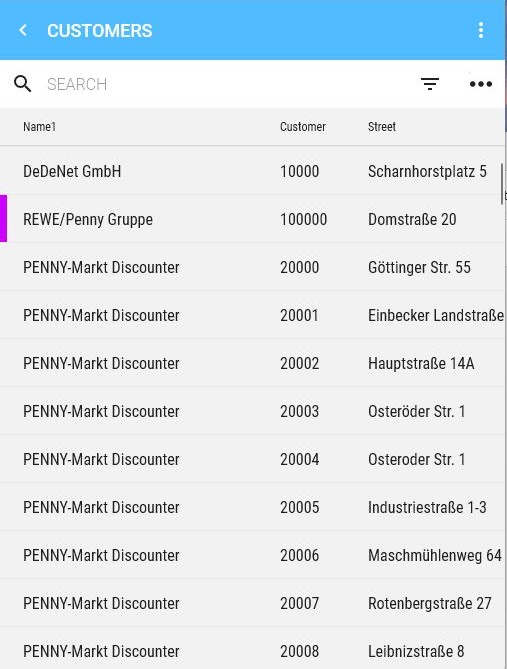
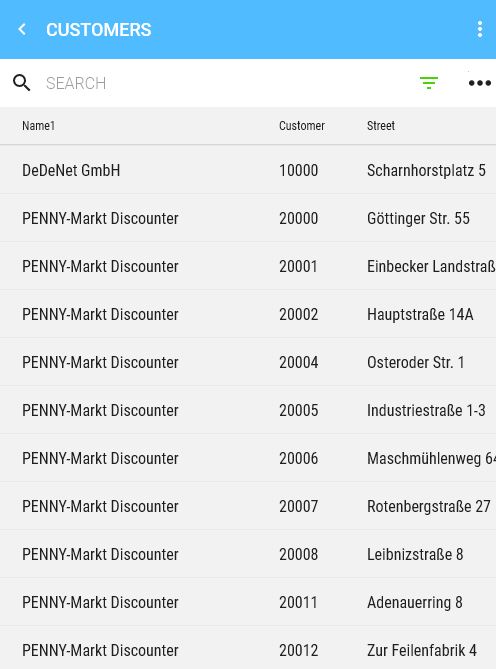
The filter function is opened by the corresponding filter symbol on the right side in the Search line.
|
|
|
| The filter symbol is black, i.e. no filter is active. | The filter symbol is green, i.e. a filter is active. |
Filter Settings
|
|
|
|
|
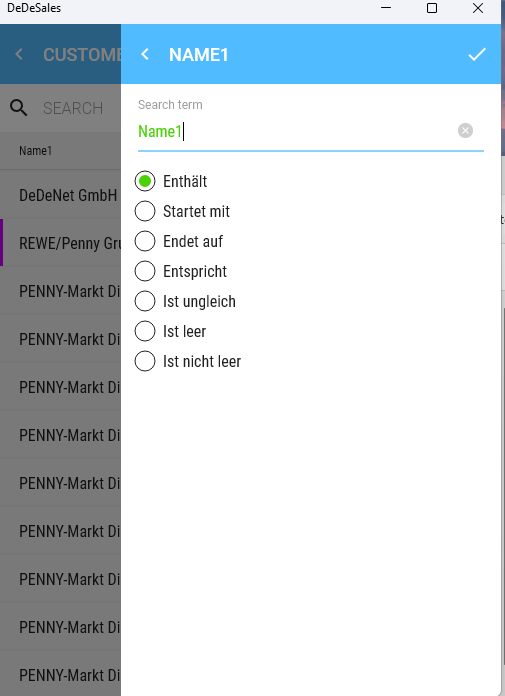
The text column "Name 1" has been selected for filtering.
If no more than 25 different contents are available in a text column, you will receive a multiple-choice selection; otherwise, a text input with search conditions (see left). |
Settings

This menu allows you to configure your view, set the default sorting, and determine which fields you want to apply a filter to. The values remain saved when the client is closed (unlike with the filter).
You save the amendments via the tick at the top right of the window.
Default sorting
1. You specify which default sorting should apply to the view (in the screenshot by Name1)
2. You specify whether sorting should be ascending (in the screenshot it is white, so not activated).
3. You specify whether sorting should be descending (in the screenshot it is blue, so activated)
4. If you want to sort by further criteria, enter them here. Up to three columns can be set for sorting.

Column configuration
5. Here you specify the order in which the columns should be displayed. You can drag & drop the columns onto the dots to the desired position.
6. You can choose which fields should be visible. When you click on a field, the setting opens. Here you set the status with the slider.
- Visible
- If active, the column is always displayed in the grid.
- Landscape
- If active, the column is only displayed in the grid when the application is held in landscape orientation or displayed large enough on the monitor.
- Hidden
- If active, the column is not displayed in the grid.
7. Here you specify whether a field should be filterable or not.
8. At this point you can specify how wide a field should be. The options are:
- Remainder (proportional)
- The column is displayed with the remaining available space.
- If several columns have this criterion, they share the remaining space according to the weighting specified under Value.
- Number of characters (approx.)
- The column width corresponds approximately to the specified number of characters. The value is only a guideline, as the exact value depends on the content due to different character widths.
- Width in pixels
- The column width corresponds to the specified number of pixels.
Distribute configuration
For distributing the configuration see also: Distribute configuration.
Excel Export
Excel export
This function exports the content of the grid into an Excel document (xlsx format)
1. Only the currently visible columns are exported.
2. The set filter is taken into account during the export.
3. The sort corresponds to the current display in the grid.
4. The default save location depends on the operating system
5. After the export, the Excel document is opened if a suitable program is installed
6. The file name is: Export_YYYYMMDD_HHMMSS.xlsx
Editing actions
Delete 
In various places, this button can be used to delete text entries.
In Searching, the text is deleted; for example, when creating prospects, you can delete the fields, but if you do not save the change, the deletion will be discarded.
New 

With the + in the Blue area, you can add new Entries if allowed at that point via the backend.
Edit 

In various places, you can Edit existing Data if allowed via the backend.
Exit 

Any menus can be exited with the button at the top left. It always navigates one level back. Data is not saved (except for tours).
Panelbar
Expanding a Panelbar 

Just like when collapsing a Panelbar, you can expand it again to enter the information. The lower button is found within the upper one.
A click on it opens the entry.
Collapsing a Panelbar 

In various places (e.g. at the Conclusion of order) you get a Summary displayed with all information. Here you can view the headings in a condensed form and go directly to one of the points. The lower button is found within the upper one.
A click on it closes the entry except for the heading.
Manage Widgets
You can customise widgets as follows:
Right-click on a widget to open the corresponding context menu. On iOS and Android, use a long press.

Delete
Removes the widget
Replace
Replaces the widget with another that is not yet present on the dashboard
Add
Inserts a widget not yet present on the dashboard to the left of the selected one. This allows you to "insert" widgets in between.
Add
By default, widgets are already partially displayed. If you want to add more widgets without replacing or inserting one, right-click on the grey area next to a widget. All available widgets will be shown to you.

Sorting (Temporary)
Sort Order
The default sort order can be changed in the current view by clicking on a column header.

-
- First click:
Ascending order of the selected column (further sorting is done according to the default sort order).
- Second click:
Descending order of the selected column (further sorting is done according to the default sort order)
- Third click:
The default sort order applies again.
- First click:

