# Backend Trip
# Daily/Expense reports
In the Employee section, you have the selection between different evaluations of the daily reports.
### Daily/Trip report
Here you can select a single day and, depending on the granted right (Administration / Roles - "Employee \\ Is allowed to modify daily reports"), also edit or re-release it for the Sales rep. For the individual day, the visits are displayed accordingly in the "Visits" tab. New visits can be added at this point.
When you edit a daily or visit report, the data in the client is not changed. Via Export you can export the daily report as a PDF.
### Monthly overview
At this point, you see in short form all daily reports from the 1st of the month until today. You have the option to switch to the day by clicking on the blue written date, or you can switch to the expenses via the blue written number.
### Global view
Here you see all daily reports summarised by month. Clicking on a month takes you to the monthly report page or to the expenses.
### Expenses
If the Expense entry has been enabled, you can view and export the expenses of an employee in the selected period here.
Attached documents (from version 19) can be exported as PDF or included as a download link in the email.
# Working time analysis
Evaluation - STATISTICS
Download of the pre-generated data from the daily and visit reports
# Automatically Complete Travel Reports
Through the backend, you have the option to automatically complete the travel reports of employees.
Basic configuration - Settings - select "Automatically complete daily reports"
Enter the number of days during which travel reports may remain open and can be manually archived, for example, to create an expense report.
After the number of days set in the backend has elapsed, the travel reports will be automatically completed and archived and can no longer be modified.
# Settings - Per diem rates and Per diem rate deductions
#### Per diem rates
If you have licensed the Daily reports module, you can enter per diem rates and corresponding deductions here.
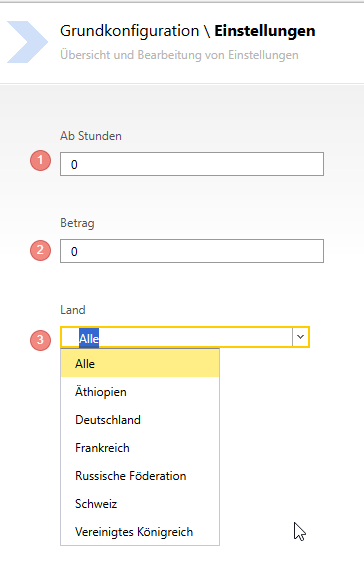
Multiple rules can be stored, e.g. for absences of 8 and 24 hours, or different amounts for different cultures.
Use the green plus at the head of the panel for this purpose.
1. The number of hours from which the per diem rate should apply
2. Set the amount to be calculated
3. Specify for which countries the per diem rates should apply
#### Per diem rate deductions
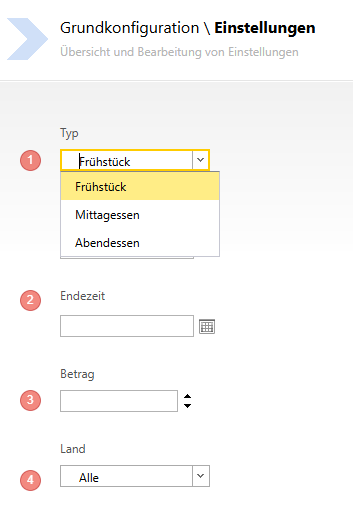
In the area of per diem rate deductions, you can specify a validity period in case there are tax changes over the turn of the year.
1. Enter the type to be deducted from the expenses
2. Set the validity period, if desired
3. The amount to be deducted from the expenses
4. Specify for which countries the rules should apply
The values are required so that the Expense report can be generated correctly.