# Complaint matrix
To create a complaint matrix, switch to the Basic configuration - Settings area and search or filter for the entry Complaint matrix.
### Create or edit entries
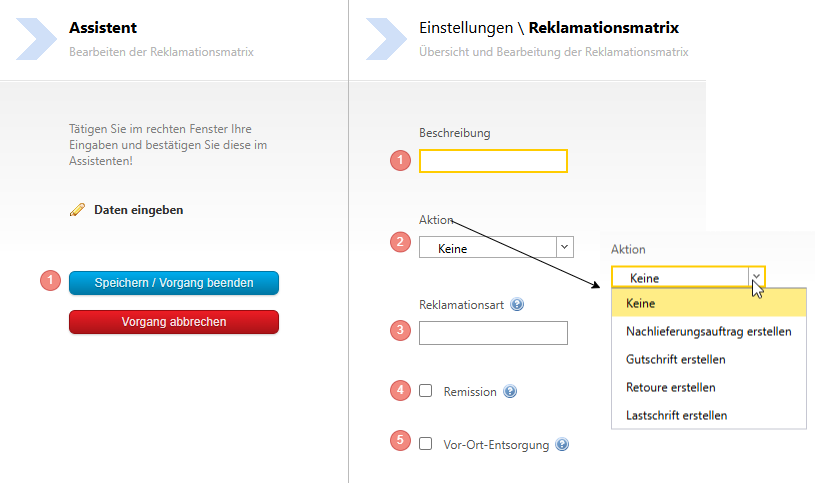
Create new entries using the green +. Then fill in the fields according to your specifications.
1. meaningful naming for the level
2. If desired, a promotion
3. If the ERP processes the complaint type, it is stored here
4. If the complaint is a remission, activate this checkbox. If the checkbox is set, this level is only available in the client for products where the field "Remission-capable" is also set in the item master data.
5. Check if on-site disposal is carried out.
You do not have to fill in all fields immediately; this depends on the number of levels for your complaint process.
### Add new level
Up to 5 levels of a complaint matrix are possible. To add new levels, right-click on an existing entry:
[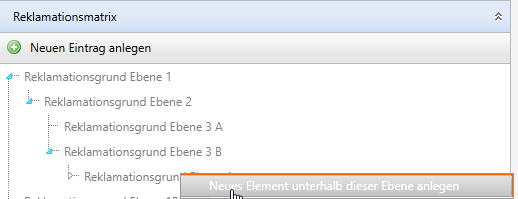](https://wiki.dedesales.de/uploads/images/gallery/2025-03/UWrXciwTgW5ArhXw-image.png)
### Add translations
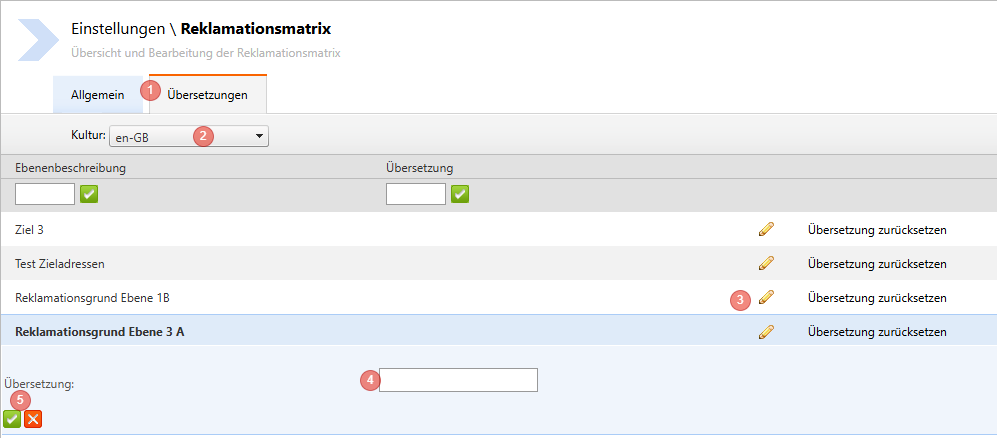
In case several languages are used in your company, you can translate the complaint matrix.
1. Select the "Translations" tab
2. Select the desired language from the Dropdown list
3. Select the level you want to translate with the pencil
4. Enter the new translation
5. Save the translation with the green tick or discard the translation with the red X
Repeat the process for all levels. After the total import, the translations are available for all employees.