Backend Order, Quotation and Complaint Entry
- ORDER
- Complaint
- Order support menu in the backend
- Basics and Use of Order support
- Customer lists
- Item lists
- Modules
- Order templates - AVO
- Campaigns
- Data collection
- Data collection - Target agreement
- Tour template
- E-Mail Subscriptions
- Limitations on discountable items
ORDER
Statistics - Display transferred orders via the backend

In the header area, you will find the PDF icon, through which you can generate an Order suggestion on the web.
The Items tab shows you all information about the order items (e.g. Unit price or Discounts)
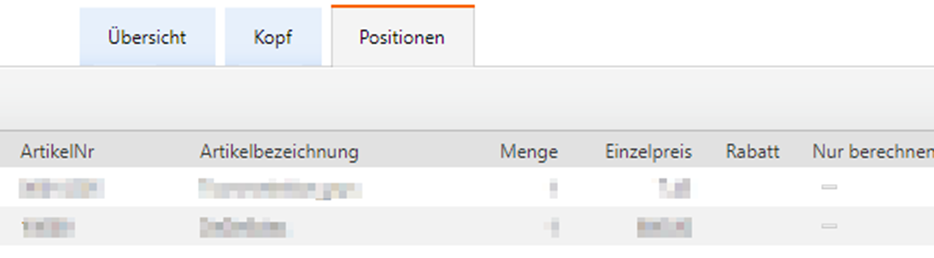
The Summary tab takes you back to the (possibly previously filtered) table with the brief information.
Display orders of a Change agent

Switch to the Change agent area and call up Orders
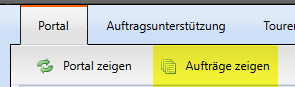
Here you will find all orders documented by the Change agent in the selected Period. You can view the order in detail via the Order number. This corresponds to the menu item "Show orders" from the portal.
Display orders of a Customer

Switch to the Customer area and call up Orders
Here you can view all orders for the Customer in the desired Period. The Order number is in blue text, which means you can view the order in more detail by clicking on the number. The view corresponds to the item "Display orders" from the portal. Possible quick orders that occur without a Visit are also displayed.
Complaint
Complaint matrix
To create a complaint matrix, switch to the Basic configuration - Settings area and search or filter for the entry Complaint matrix.
Create or edit entries
Create new entries using the green +. Then fill in the fields according to your specifications.

- meaningful naming for the level
- If desired, a promotion
- If the ERP processes the complaint type, it is stored here
- If the complaint is a remission, activate this checkbox. If the checkbox is set, this level is only available in the client for products where the field "Remission-capable" is also set in the item master data.
- Check if on-site disposal is carried out.
You do not have to fill in all fields immediately; this depends on the number of levels for your complaint process.
Add new level
Up to 5 levels of a complaint matrix are possible. To add new levels, right-click on an existing entry:

Add translations
In case several languages are used in your company, you can translate the complaint matrix.

- Select the "Translations" tab
- Select the desired language from the Dropdown list
- Select the level you want to translate with the pencil
- Enter the new translation
- Save the translation with the green tick or discard the translation with the red X
Repeat the process for all levels. After the total import, the translations are available for all employees.
Editing Complaints in the Backend
Show complaints
If you have the corresponding user right for complaints, you can switch to complaint processing at this point.

New
Here, complaints newly created by the field service are displayed.

Click on a complaint in the left list and you will see the summarized information on the right side.
You can create a complaint document via the PDF icon. If you do not want to make any amendments to the complaint, you can also complete the complaint directly using the button. You or the responsible employee will then receive an email with the associated complaint document.
If you want to make amendments to the complaint, press the pencil on the right edge of the picture. The complaint will be set to the status "In progress".
In progress
Here, all complaints that are in the status 'In progress' are displayed.
Click on the left side on a complaint that has already been processed and then on the pencil on the right edge of the picture.

After you have made your amendments, complete the processing with the green checkmark at the bottom left or discard your amendments with the red X.
You can complete the complaint at this point. You or the responsible employee will then receive an email with the associated complaint document.
Completed
Here, all completed complaints that were completed via "New" or "In progress" are displayed.
You can no longer edit the complaints, only generate a complaint document via the backend.
Order support menu in the backend
Basics and Use of Order support

Usage
| Menu | Explanation | Usage in |
| Customer lists | This is a customer group defined by you. The data specified under "Usage in" is made available to this customer group. | Order templates, Tasks, CRM, Representation, Trade fair |
| Item lists | An item list contains a number of items defined by you, which are used in the Order templates. | Order templates eCom |
| Modules | Checks whether the table column matches the entered string. | Order templates |
| Order templates | An Order template is a list that can be called up within an order in the DeDeSales Client. The employee receives an overview of the items contained in the Order template (Item list) enriched with customer-specific data (Modules). The employee is able to order directly from the Order template. | e.g. for: Promotions New products Listing statuses Shelf modules Sales promotion, eCom container |
| Campaigns | Campaigns can be selected during the Conclusion of order. By evaluating the orders of a campaign, it can be analysed whether it was successful or not. | e.g. for: Trade fairs Advertising campaigns Events |
| Tour templates |
|
|
| Data collection | Here you can import various data into the DeDeSales system. These include Activities, Stocktaking notes, Annual budget, Annual agreement, Clients – Customer number relationships, Notes on hierarchy nodes, Plan figures and price data. Individual Excel files can also be provided. | Statistics Clients |
Type of selection
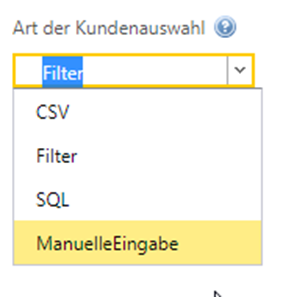
CSV: static
Filter: dynamic
Simple filtering
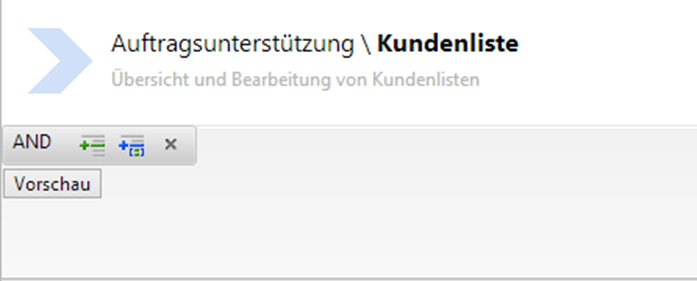

| Filter | Explanation | Inverse function |
| Contains | Checks whether the entered string occurs in the table column. | DoesNotContain |
| StartsWith | Checks whether the table column starts with the entered string | EndsWith |
| EqualTo | Checks whether the table column matches the entered string | NotEqualTo |
| GreaterThan | Greater than, used only for numbers | LessThan |
| GreaterThanOrEqualTo | Greater or equal, used only for numbers | LessThanOrEqualTo |
| Between | Checks whether the table column is between two values | NotBetween |
| IsEmpty | Checks whether the table column is empty | NotIsEmpty |


Complex filtering

SQL: dynamic
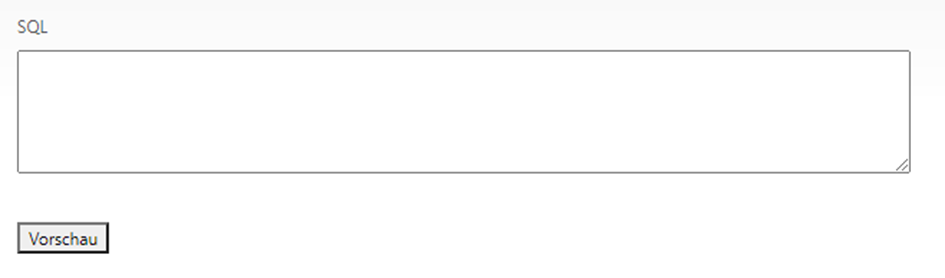
Manual input: static

Status
In progress
Released
Completed
Deleted
Customer lists
This is a customer group defined by you. Depending on the licence, order templates, tasks, CRM, representations, and trade fairs can be made available to this customer group.

You have the option to modify an existing customer list by clicking on it.
You create a new customer list using the green plus button above the table.
If you want the customer list to also be available in the client, then check the corresponding box when creating the list.
Filter customer list by other customer lists
Filtered customer lists can be based on other customer lists. When linking with a customer list, it must be restricted to it. The only practically relevant filter type is NotIsEmpty
Item lists
An item list contains a number of items defined by you, which is used in the order templates.

You have the option to modify an existing item list by clicking on it. You can create a new item list using the green plus button above the table.
In addition to the described differences between the selection options, there is another special feature for item lists:
With a CSV import, three additional fields can be imported, which are, for example, displayed in the order templates. These fields are static and then apply equally to all customers for whom this item list/order template is displayed. Such fields could, for example, contain a page number, max. discount, or similar.
When selecting CSV, you can specify the headings of the 3 additional columns to be displayed:

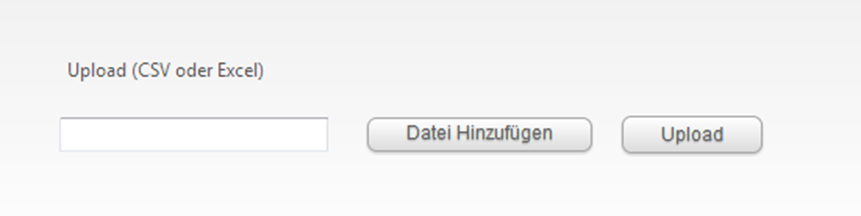
After uploading the file, you must specify in which table (Excel sheet) and in which column the item numbers and additional information are located.


The order of the uploaded items is retained in the client.
Modules
Modules are the ideal addition to Order templates. A module is capable of enriching the items of an Order template with customer-related data for a selected period.

You have the option to modify an existing module by clicking on it. You can create a new module using the green plus button above the table.
The following modules are currently available:
Demand
The Demand module determines the invoiced quantities of the item within the specified period (Start date + End date). You use this module to display in the Item list / Order template how many pieces of this item the customer has already purchased. The sales force can use this information as a basis for decision-making.
Best-price
The Best-price module determines the best price within the specified period (Start date + End date). The sales force can use this information to avoid accidentally offering a higher price in a promotion than the customer has previously received.
Benchmark items
Determines the invoiced quantity within the period specified by Start date and End date for all items that are located in Additional column 1 of the Item list.
Last Delivery date
Displays in the Order template the last Delivery date of all Orders of the customer within the selected period of the module.
Last Billing date
Displays in the Order template the last Billing date of all Invoices of the customer within the selected period of the module.
Last Delivery
Displays in the Order template the last Delivery of all Orders of the customer within the selected period of the module.
Last Order quantity
Determines for each Item from the order documents the last ordered quantity. For each item, the respective last Order applies.
Back Order
Displays in the Order template the Back Order of the item for the customer within the selected period of the module.
Order templates - AVO
An order template is a list that can be called up within an order in the DeDeSales client. The employee receives an overview of the items (item list) contained in the order template, enriched with customer-specific data (modules). The employee is able to order directly from the order template.
Used for example for
- Customer actions/activities
- Promotions
- New products
- Listing statuses
- Shelf modules
- Sales promotion
- eCom container
An order template combines data from customer lists, item lists and modules. All together this forms an order template.

You have the option to modify an existing order template (AVO) by clicking on it. You create a new order template via the green plus button above the table.
The following special features apply to an order template:
1. An order template is only shown for the customers who are present in the customer list.
2. An order template contains only the items that are present in the item list.
3. If entries of the type "Order template categories" are stored via code lists, then the order templates are displayed categorised in the client.
4. An order template can apply to different clients.
5. An order template can be enriched with customer-related data through up to four modules.
6. You can specify that during a visit all items of the order template are automatically transferred into an order.
7. You can assign different validity periods to order templates, from when they are automatically Visible in the client or should be Hidden.
8. You can link order templates to specific types of orders, e.g. only to orders or complaints.
9. You can give an order template a preset discount.
10. You can add an internal text to the order template.
11. An order template can be called up in the DeDeSales client, for example in order entry.
Campaigns
Campaigns can be selected during the Conclusion of order. By evaluating the orders of a campaign, it can be assessed whether it was successful or not. For example, it is used in the Type Trade fair, Promotions, events.
A campaign is, for example, a trade fair promotion, advertising, mailing campaign or similar. If a campaign is created and the validity period applies, the employee is able to select the campaign to which an order was documented during the Conclusion of order.
If this has been agreed with you, the ID of the campaign will also be transferred to your ERP system. In this case, it is necessary that the ID you enter is known at the appropriate place in the ERP system.
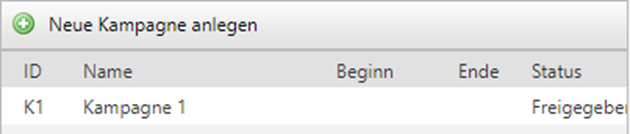
You have the option to modify an existing campaign by clicking on it. You can create a new campaign using the green plus button above the table.
Please note that you can only work with Customer lists in the campaigns.
Through the campaign, you have the possibility to determine success or failure based on incoming orders.
Data collection
Here you can import various data into the DeDeSales system. This includes Activities, Stocktaking notes, Notes, etc. You can also provide individual Excel files.

Here you can add or delete the corresponding data. You click on the desired menu and in most cases have a summary of the data already available.
In the individual sections, you can either add single entries or add multiple data records. Furthermore, you can delete data.

1. The plus adds single data records
2. Import gives you the possibility to add multiple data records at once. Here you download an empty template in the Assistant, fill it out and then add it again.
For menu entries where you cannot add single data records, you go directly to the Import page with the templates.
Please note that to complete the upload you must perform the Assistant step "Import".
3. Delete all data deletes all current data from the database.
After each change, a total import must run so that the data becomes visible in the client.
Data collection - Target agreement
Create the Target agreement in the backend under Order support / Data collection / Target agreement.
You have the option to download an Excel file and upload it again after filling it out.
You can create individual records via the "Add Target agreement" button.
With pseudo-customers for your sales reps, you set per month how much turnover the Sales rep. must achieve.
You can also store the Target agreement at the customer level, then you specify how much the customer must have reached in which month.
The Target agreements can be found again in the client on the Target/Actual widget.
Tour template
In combination with Start year, Visiting frequency, etc., you can create days here on which a customer visit is to be suggested. See also Tour suggestion
E-Mail Subscriptions
ORDER
For setting up an E-mail subscription see here: E-mail subscription
ERP Error
If there is a problem transferring an ORDER to SAP, this subscription is triggered
Employee without ORDER
Informs the User that one or more Employees are not transmitting ORDERS.
Triggered if the Employee last transmitted an ORDER >=30 Days ago.
Sending ORDERS including Excel
Informs the User when an ORDER has been Created. An Excel file with the Items of the ORDER is attached to the E-mail.
Subject and Client can be specified.
eCom – Notification of failed ERP Export
requires eCom Licence
Notifies the Recipient about ORDERS from the eCom Shop that could not be transferred to SAP.
Complaint
For setting up an E-mail subscription see here: E-mail subscription
Return - Subject with wildcard possible
Shipping of Returns incl. Excel - Subject with wildcard possible - Client-capable
Limitations on discountable items
Control the discount behaviour in the client via Basic configuration - Settings - "Limitations on discountable items", depending on the item master data.
Item master data Eligible for Discount "No"
The following discounts are considered when Eligible for Discount is set to "No" in the item master data.
| Value from Dropdown list | Discount from interface | manual Item discount | manual Head discount | Eligible for Discount Display in item master data |
| Value is not used | x | x | x | - |
| No effect, for information only | x | x | x | x |
| Only manual Enter discount Item | x | - | x | x |
| Only manual Enter discount ORDER | x | x | - | x |
| Manual Enter discount Item and ORDER | x | - | - | x |
| Manual Enter discount and discount calculation in Pricing | - | - | - | x |
Item master data Eligible for Discount "Yes"
If Eligible for Discount is set to "Yes" in the item master data, all discounts are generally considered.