Basic settings for data capture
Role Adjustment
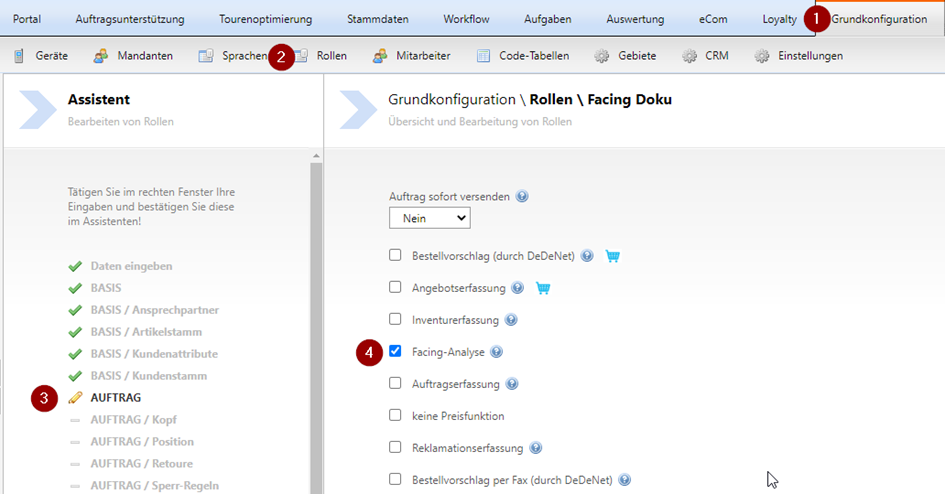
In order for the facing recording to be carried out, it must be activated via the role:
(1) Basic configuration – (2) Role – select desired role - (3) ORDER – (4) Tick Facing Analysis
Order template
Create an order template for the facing capture or extend an existing one
Order template
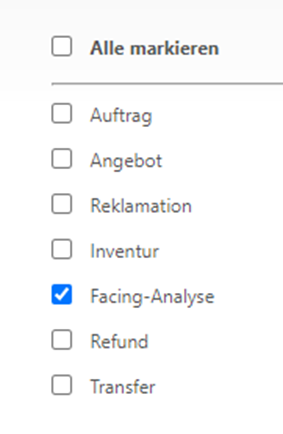
You can use an existing order template or create a new one. To make it available for facing capture, set the availability for Facing analysis:
Further information on creating an order template can be found here.
Modules
Add additional Modules to an Order template for facing capture to enrich the provided Data with information, for example "Last order quantity".
These Modules must be created before creating the Order template in order to use them. Further information can be found here.
To be able to see the Modules in the facing capture, they must be displayed in the client.

Settings
In the menu item Basic configuration – Settings, you can control the behaviour of the Facing note in widget capture.
Facing archive
Here you specify, by a date in the past, which old Facing values are still made available to the client as historical data.
Facing capture – last values

Using this drop-down list, you determine how the values from a previous Facing capture should be displayed.
- Display only: The values are displayed but cannot be edited
- Automatically apply: Old values are transferred into the new Facing capture but can then be changed.
Capture VEs in Facing capture
This checkbox controls whether you perform the Facing in VE steps or not.
Facing note in widget
Here you specify, in days, from when the widget should change if no Facing has been performed.