# Setup API Connection D365 F&O

## Microsoft Azure

### App Registration

Open URL: [https://portal.azure.com/#home](https://portal.azure.com/#home).

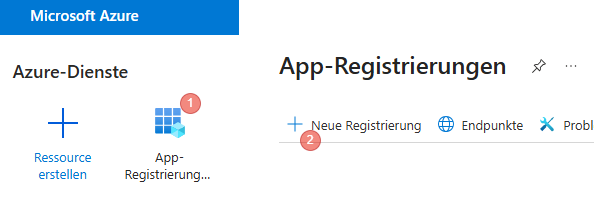
1. Click on App registrations
2. Click on "New registration".
 
<div drawio-diagram="2325"><img src="https://en.wiki.dedesales.de/uploads/images/gallery/2026-08/1ggnROfyGIvknHGp-nkkcqz9icqklyder-drawing-8-1780315123.png" alt="NKkCQz9icqKLyder-drawing-8-1780315123.png"/></div>

#### Name

This should be a common name, e.g. "DeDeSales API Access"

#### Supported account types

Usually, "Accounts in this organisational directory only - ..." with your client name should be selected here. If access to multiple clients is required, you must configure this accordingly.

#### Set redirect URIs

Two URIs are required for your test and production systems respectively. Always select "Web" as the platform.

[![image.png](https://en.wiki.dedesales.de/uploads/images/gallery/2026-08/c8w4OBUux7EbOYdr-8yocallcyfj4znvp-image.png)](https://wiki.dedesales.de/uploads/images/gallery/2026-06/8yoCallcyfJ4znVp-image.png)

The following URLs were used in the screenshot:

1. [https://usnconeboxax1aos.cloud.onebox.dynamics.com/](https://usnconeboxax1aos.cloud.onebox.dynamics.com/)
2. [https://usnconeboxax1aos.cloud.onebox.dynamics.com/oauth/](https://usnconeboxax1aos.cloud.onebox.dynamics.com/oauth/)
 

<p class="callout info">You may not need to enter any URLs here, depending on your environment.  
If you do enter any, you must enter your URLs. The example URLs shown here will not work for you.</p>

<p class="callout success">Now click on "Register"</p>

### Create client secret

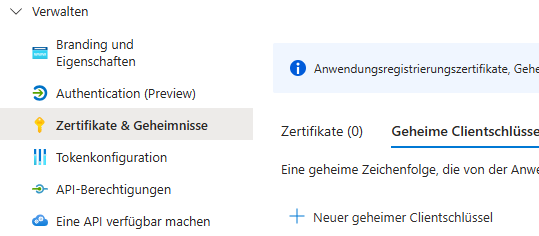
Under "Manage", click on "Certificates &amp; secrets". Select "New client secret" there.

[![image.png](https://en.wiki.dedesales.de/uploads/images/gallery/2026-08/0einOVVARB7bPqdz-inaw6xfhy9pmcaqr-image.png)](https://wiki.dedesales.de/uploads/images/gallery/2026-06/inaW6xfHY9PmCaqr-image.png)
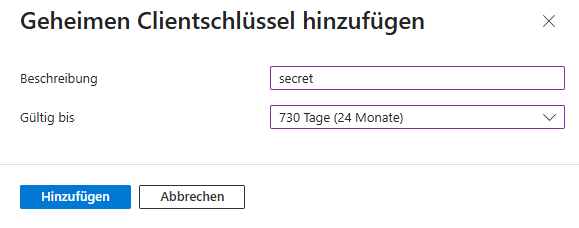
Name the secret "Secret" and select a duration of 24 Months. Then click "Add".

[![image.png](https://en.wiki.dedesales.de/uploads/images/gallery/2026-08/AxhwNy30CrF0hhAf-ejbpcjq6gipzofu2-image.png)](https://wiki.dedesales.de/uploads/images/gallery/2026-06/ejbpCJq6GIPzoFu2-image.png)
The secret key will now be displayed in the "Value" column.

[![image.png](https://en.wiki.dedesales.de/uploads/images/gallery/2026-08/nsdMgvOOWNbnGM1G-t6f3lqcmedgqvkqi-image.png)](https://wiki.dedesales.de/uploads/images/gallery/2026-06/t6f3lqcMedGqVkqi-image.png)

<p class="callout warning">Attention! This is only visible once and must be copied now, as we will need it.</p>

### API permissions

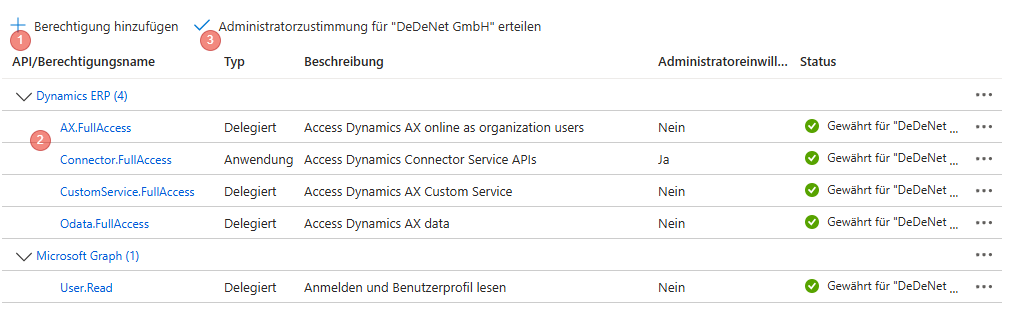
Now add the permissions shown here.

1. Click on "Add a permission"
2. Select the permissions shown below in Dynamics ERP.
3. The Microsoft Graph "User.Read" permission is also required.
4. Click on "Grant admin consent"
 
<div drawio-diagram="2324"><img src="https://en.wiki.dedesales.de/uploads/images/gallery/2026-08/itttG1nheesCz7kx-glmvpcfio0go8yad-drawing-8-1780311981.png" alt="GLMvpcfiO0go8YAD-drawing-8-1780311981.png"/></div>

### Application ID (Client)

You can find the Application ID by clicking on Summary. Copy the Application ID that appears, as we will need it.

## D365 Finance &amp; Operation

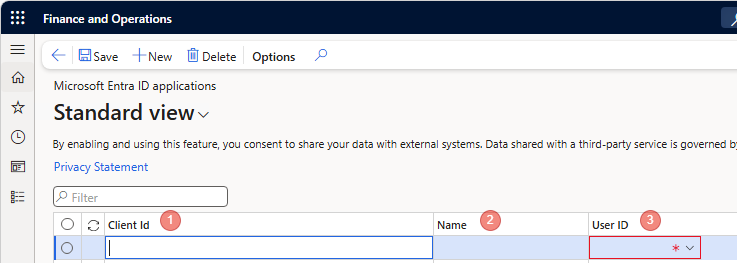
### Microsoft Entra ID applications

Open D365 F&amp;O and search for "Microsoft Entra ID applications".

<p class="callout info">For example accessible under:  
Modules -&gt; System administration -&gt; +Expand All -&gt; under the Category "Settings-&gt; Microsoft Entra ID applications</p>

Create a new entry and enter the following:

1. Application ID
2. Name as specified above: "DeDeSales API Access"
3. Select a user under whose context the API call will be made by us.  
    1. Use a strong password
    2. Do <span style="text-decoration:underline;">not</span> select that a password change is required on first login.
    3. Disable <span style="text-decoration:underline;">MFA</span> for the user
    4. Assign the user the correct role and rights. Your Project manager will provide an overview of access to the required entities.
    5. The role "System user" is Mandatory and must be assigned to the user.
 
<div drawio-diagram="2327"><img src="https://en.wiki.dedesales.de/uploads/images/gallery/2026-08/dGov7QwIJeMmc7jo-dcqiqrju23jimryy-drawing-8-1780315822.png" alt="dcqIqrju23jImrYy-drawing-8-1780315822.png"/></div>

## Security configuration

The permissions described here cover the standard Connector of DeDeSales. For individual customisations, the permissions must be extended accordingly.

<p class="callout info">Do not forget to publish the Privileges and Roles after creation!</p>

### Privileges

Please create a new entry: DeDeSales API

#### Entities

Assign the following entities and grant the corresponding rights.

<table id="bkmrk-entity-read-update-c" style="border-collapse:collapse;width:100%;height:581.329px;"><colgroup><col style="width:20.0238%;"></col><col style="width:20.0238%;"></col><col style="width:20.0238%;"></col><col style="width:20.0238%;"></col><col style="width:20.0238%;"></col></colgroup> <thead> <tr style="height:29.7969px;"> <td style="height:29.7969px;">Entity</td> <td style="height:29.7969px;">Read</td> <td style="height:29.7969px;">Update</td> <td style="height:29.7969px;">Create</td> <td style="height:29.7969px;">Delete</td> </tr> </thead> <tbody> <tr style="height:29.7969px;"> <td style="height:29.7969px;">CustCustomerV3Entity</td> <td style="height:29.7969px;">Grant</td> <td style="height:29.7969px;">Unset</td> <td style="height:29.7969px;">Unset</td> <td style="height:29.7969px;">Unset</td> </tr> <tr style="height:46.5938px;"> <td style="height:46.5938px;">CustomerPaymentMethodEntity</td> <td style="height:46.5938px;">Grant</td> <td style="height:46.5938px;">Unset</td> <td style="height:46.5938px;">Unset</td> <td style="height:46.5938px;">Unset</td> </tr> <tr style="height:29.7969px;"> <td style="height:29.7969px;">DeliveryTermsEntity</td> <td style="height:29.7969px;">Grant</td> <td style="height:29.7969px;">Unset</td> <td style="height:29.7969px;">Unset</td> <td style="height:29.7969px;">Unset</td> </tr> <tr style="height:46.5938px;"> <td style="height:46.5938px;">EcoResProductBarcodeV3Entity</td> <td style="height:46.5938px;">Grant</td> <td style="height:46.5938px;">Unset</td> <td style="height:46.5938px;">Unset</td> <td style="height:46.5938px;">Unset</td> </tr> <tr style="height:29.7969px;"> <td style="height:29.7969px;">EcoResProductV2Entity</td> <td style="height:29.7969px;">Grant</td> <td style="height:29.7969px;">Unset</td> <td style="height:29.7969px;">Unset</td> <td style="height:29.7969px;">Unset</td> </tr> <tr style="height:46.5938px;"> <td style="height:46.5938px;">EcoResReleasedProductV2Entity</td> <td style="height:46.5938px;">Grant</td> <td style="height:46.5938px;">Unset</td> <td style="height:46.5938px;">Unset</td> <td style="height:46.5938px;">Unset</td> </tr> <tr style="height:46.5938px;"> <td style="height:46.5938px;">InventProductSpecificOrderSettingsV3Entity</td> <td style="height:46.5938px;">Grant</td> <td style="height:46.5938px;">Unset</td> <td style="height:46.5938px;">Unset</td> <td style="height:46.5938px;">Unset</td> </tr> <tr style="height:29.7969px;"> <td style="height:29.7969px;">PaymentTermEntity</td> <td style="height:29.7969px;">Grant</td> <td style="height:29.7969px;">Unset</td> <td style="height:29.7969px;">Unset</td> <td style="height:29.7969px;">Unset</td> </tr> <tr style="height:46.5938px;"> <td style="height:46.5938px;">SalesOrderHeaderV2Entity</td> <td style="height:46.5938px;">Grant</td> <td style="height:46.5938px;">Grant</td> <td style="height:46.5938px;">Grant</td> <td style="height:46.5938px;">Grant</td> </tr> <tr style="height:29.7969px;"> <td style="height:29.7969px;">SalesOrderLineV2Entity</td> <td style="height:29.7969px;">Grant</td> <td style="height:29.7969px;">Grant</td> <td style="height:29.7969px;">Grant</td> <td style="height:29.7969px;">Grant</td> </tr> <tr style="height:46.5938px;"> <td style="height:46.5938px;">smmContactPersonV2Entity</td> <td style="height:46.5938px;">Grant</td> <td style="height:46.5938px;">Grant</td> <td style="height:46.5938px;">Grant</td> <td style="height:46.5938px;">Grant</td> </tr> <tr style="height:46.5938px;"> <td style="height:46.5938px;">smmEmploymentJobFunctionEntity</td> <td style="height:46.5938px;">Grant</td> <td style="height:46.5938px;">Unset</td> <td style="height:46.5938px;">Unset</td> <td style="height:46.5938px;">Unset</td> </tr> <tr style="height:46.5938px;"> <td style="height:46.5938px;">InventWarehouseInventoryStatusOnHandEntity</td> <td style="height:46.5938px;">Grant</td> <td style="height:46.5938px;">Unset</td> <td style="height:46.5938px;">Unset</td> <td style="height:46.5938px;">Unset</td> </tr> <tr style="height:29.7969px;"> <td style="height:29.7969px;">EcoResProductLifecycleStateEntity</td> <td style="height:29.7969px;">Grant</td> <td style="height:29.7969px;">Unset</td> <td style="height:29.7969px;">Unset</td> <td style="height:29.7969px;">Unset</td> </tr> </tbody> </table>

### Roles

Create a role named "DeDeSales API Role".

#### Duties

Add the following:

- Maintain Contacts
 

#### Privileges

Add the following:

- DeDeSales API
- DeDeSalesPriceDiscountsView
 

## Completion

### Test the API

The API must be accessible under the URL given above with /metadata and return the following result. Example: https://usnconeboxax1aos.cloud.onebox.dynamics.com/metadata/DataEntities

[![image.png](https://en.wiki.dedesales.de/uploads/images/gallery/2026-08/fBleaK4Sl1M81pKa-7ifrsjstzyjgjfbu-image.png)](https://wiki.dedesales.de/uploads/images/gallery/2026-06/7IFrsjSTzYjgJfbu-image.png)

### From your setup we need

1. Application ID
2. Secret
3. TenantId
4. URL
 